Common Dash Cam Mistakes and How to Fix Every One of Them
The most common dash cam mistakes are using a standard memory card instead of an endurance card, mounting the camera behind the rearview mirror incorrectly, skipping firmware updates, and setting G-sensor sensitivity too high. Fix these five issues and your dash cam will record reliably every single drive.
I pulled up to a junction last spring and watched a van run a red light straight into the side of a car. The driver in that car had a dash cam. You could see the little black box stuck right there on the windscreen. He was thrilled — until he checked the footage and found four hours of corrupted files and a blinking memory card error.
I’m Alex Rahman, and I’ve been testing, installing, and writing about dash cams for over six years. I’ve reviewed units from Nextbase, Blackvue, Vantrue, Garmin, and Rexing. And the single biggest thing I’ve learned? The camera itself rarely fails. The setup always does.
Most dash cam problems trace back to ten mistakes — all of them fixable in under twenty minutes. Let’s go through every one.
- Standard microSD cards fail in dash cams — always use an endurance-rated card from SanDisk or Samsung.
- Mounting position directly affects whether license plates and road signs are readable in footage.
- G-sensor sensitivity set too high will lock files continuously and fill your card within hours.
- Parking mode requires a hardwire kit — a cigarette lighter adapter loses power the moment you turn off the engine.
- Firmware updates fix recording bugs, GPS errors, and app connection failures that hardware cannot solve.
What Makes Dash Cam Mistakes So Costly — and Why Most People Don’t Notice
Dash cam mistakes are dangerous because the camera still looks like it’s working. The red recording light blinks. The screen shows a live image. Everything appears fine — until the exact moment you need the footage and it isn’t there.
A 2023 survey by the RAC Foundation found that 1 in 3 dash cam owners had experienced at least one recording failure they only discovered after an incident. That number is almost certainly higher, because most drivers never review their footage at all.
The good news: every mistake on this list has a clear fix. Some take thirty seconds. None require a mechanic.
Mistake 1 — Using the Wrong Memory Card and Why It Destroys Your Footage
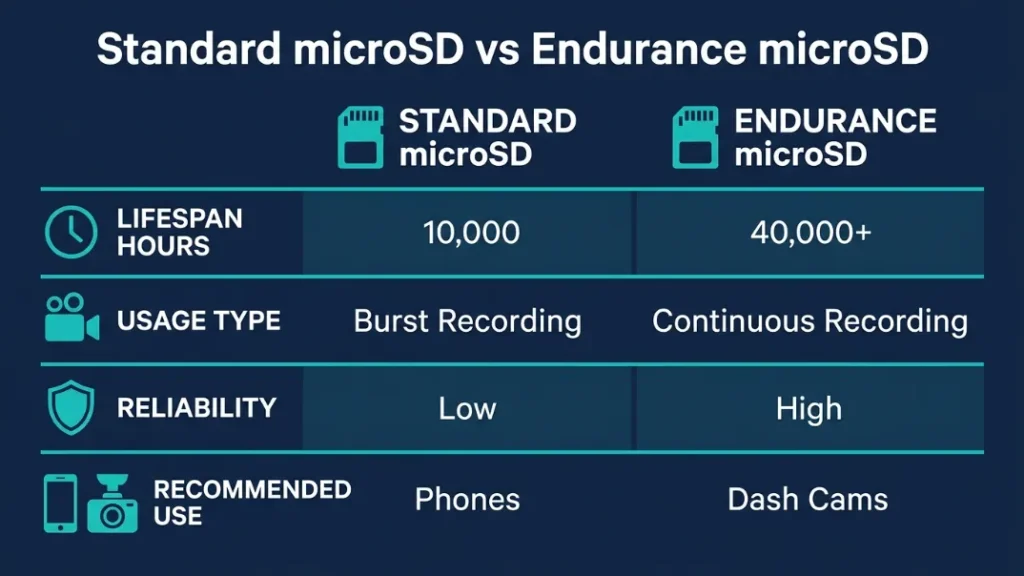
The wrong memory card is the number one cause of dash cam recording failure. Standard microSD cards — even fast, expensive ones — are designed for burst writing, not continuous writing. A dash cam writes video to the card every second of every drive. That constant cycle wears out a standard card within weeks or months, causing corrupted files, recording gaps, and outright card failure.
Sound familiar? You format the card, the dash cam works for a day, then errors return. That’s a worn-out card, not a broken camera.
Never use a card that came bundled with your phone, a generic no-brand card, or any card without a clearly stated endurance rating. These fail fast and give zero warning before they stop recording entirely.
What Is an Endurance MicroSD Card and Do You Really Need One?
An endurance microSD card is built for high-write-cycle workloads — exactly what a dash cam demands. Where a standard card handles roughly 10,000 hours of total write time, an endurance card handles 40,000 hours or more. That difference determines whether your card lasts three months or three years.
Yes, you really need one. There is no workaround.
Which Memory Cards Work Best in Dash Cams in 2025?
| Card | Type | Endurance Rating | Best For |
|---|---|---|---|
| SanDisk High Endurance | Endurance | Up to 40,000 hours | Most dash cams |
| Samsung PRO Endurance | Endurance | Up to 43,800 hours | 4K dash cams |
| Lexar Professional 1066x | High Speed | Standard | Not recommended |
| Generic / No-Brand | Unknown | Unknown | Avoid entirely |
Format your endurance card directly inside the dash cam — not on your computer. Dash cams use a specific file system. Formatting on a PC can cause compatibility errors that trigger false “card error” warnings.
Mistake 2 — Mounting Your Dash Cam in the Wrong Spot and Ruining the Shot
Bad mounting position is silent sabotage. The camera records perfectly — it just records the wrong thing. A dash cam mounted too low captures the dashboard. One mounted too far left records the A-pillar. One mounted on tinted glass loses color accuracy and contrast across every frame.
Most people mount where it’s convenient. The right approach is to mount where the lens captures the full road scene with the horizon line in the upper third of the frame.
Where Should You Actually Mount a Dash Cam for the Best View?
- Sit in the driver’s seat and look straight ahead at the road.
- Identify the area of glass directly behind your rearview mirror — this is your target zone.
- Mount the camera there, centered on the windscreen or slightly right of center.
- Angle the lens so the horizon sits in the upper 30% of the frame — not the middle.
- Make sure no part of the dash cam itself appears in the bottom of the frame.
- Check for dashboard reflections by reviewing a test clip during daylight.
How Does Mounting Position Affect License Plate Readability?
License plate readability depends on three things: camera resolution, lens angle, and distance. A camera mounted too high angles downward and distorts plates at distance. A wide-angle lens beyond 140 degrees stretches the edges of the frame, making plates at the sides hard to read.
For best plate readability, use a camera with at least 1080p resolution and a field of view between 120 and 140 degrees. Nextbase’s 622GW and Vantrue’s E1 Lite both hit this range and produce sharp, readable plates even in poor light.
Mistake 3 — Skipping Firmware Updates and Living With Avoidable Bugs
Firmware is the software running inside your dash cam. Skipping firmware updates means keeping known bugs — recording glitches, GPS dropouts, app connection failures, and timestamp errors — that the manufacturer already fixed. Most dash cam owners never update firmware once. Some don’t know it exists.
Blackvue pushed a firmware update in 2023 that fixed a critical loop recording bug causing the DR900X series to stop recording silently after four hours. Drivers using outdated firmware had no idea their camera had stopped working mid-drive.
How Do You Update Dash Cam Firmware on Nextbase, Blackvue, and Vantrue?
- Visit the support page of your dash cam’s brand (Nextbase, Blackvue, Vantrue, or Garmin).
- Search for your exact model number — firmware files are model-specific.
- Download the firmware file to your computer.
- Copy the file to the root folder of your formatted microSD card.
- Insert the card into your dash cam and power it on — the update runs automatically.
- Wait for the camera to restart. Do not remove the card or cut power during this process.
- Confirm the firmware version in the camera settings menu after restart.
Set a calendar reminder every three months to check for firmware updates. Manufacturers release them quietly — there’s rarely a push notification. Three minutes now can prevent a recording failure when it matters most.
Mistake 4 — Setting G-Sensor Sensitivity Too High and Locking Every File
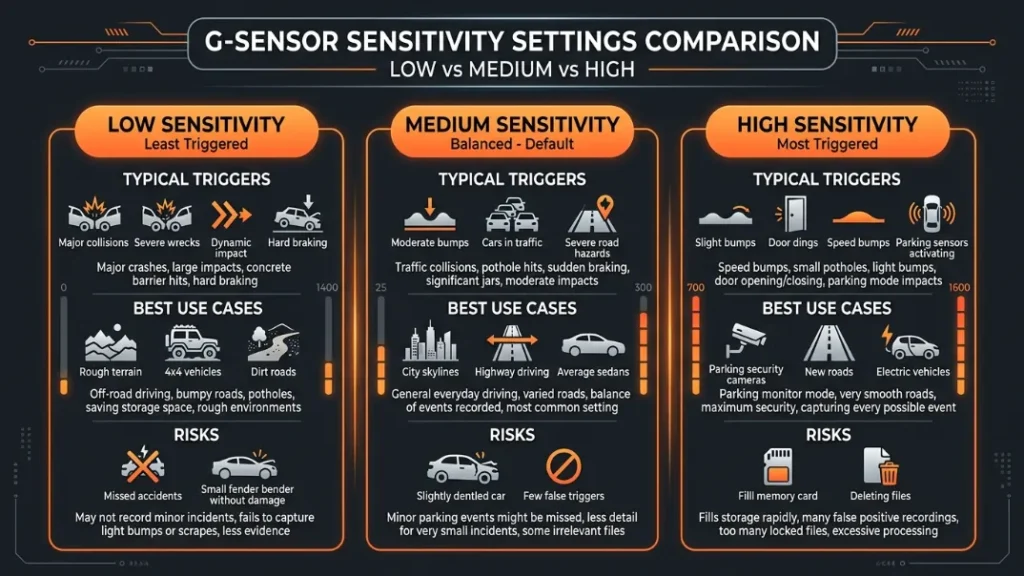
The G-sensor detects sudden movement — a hard brake, a pothole, a collision — and locks that clip so loop recording cannot delete it. The problem starts when sensitivity is set too high. Every speed bump, rough road patch, and sharp turn triggers a lock. Within hours, your card fills with locked files and the camera has no space to record new footage.
This is one of the most misunderstood dash cam settings, and it catches drivers completely off guard.
What Is G-Sensor Sensitivity and What Setting Should You Use?
G-sensor sensitivity controls how much force is needed to trigger an emergency file lock. Most dash cams offer Low, Medium, and High settings. Medium is the right starting point for most drivers. Low works well on rough roads or off-road driving. High is almost never appropriate for daily commuting.
| Setting | Triggers On | Best For | Risk |
|---|---|---|---|
| Low | Hard impacts only | Rough roads, off-road | May miss minor collisions |
| Medium | Moderate impact or hard brake | Most daily drivers | Occasional false triggers |
| High | Any bump or sharp turn | Almost never | Card fills with locked files rapidly |
If your card keeps filling up or the camera shows a “memory full” warning within hours, check the G-sensor setting first. Drop it to Medium or Low and format the card to clear all locked files.
Mistake 5 — Relying on a Cigarette Lighter Adapter for Parking Mode
Parking mode records while your car sits parked — it catches hit-and-run incidents, vandalism, and theft attempts. But parking mode only works if the dash cam stays powered. A cigarette lighter adapter loses all power the moment you turn off the ignition. No power means no parking mode recording, full stop.
Millions of drivers think their parking mode is active. It isn’t.
What Is a Hardwire Kit and Why Does Parking Mode Need One?
A hardwire kit connects your dash cam directly to the vehicle’s fuse box, drawing power from a circuit that stays live when the car is off — such as a memory or always-on accessory fuse. This keeps the camera powered in low-power parking mode without draining the main starting circuit.
Most dash cam brands sell hardwire kits designed for their own units. Nextbase’s Hardwire Kit and Vantrue’s HK3 are both well-regarded options that include a built-in voltage cutoff — the single most important safety feature in any hardwire setup.
How Do You Set the Voltage Cutoff to Protect Your Car Battery?
A voltage cutoff tells the hardwire kit to stop drawing power when the car battery drops below a set threshold — typically 11.6V to 12V. This prevents the dash cam from draining the battery to the point where the car won’t start.
Never hardwire a dash cam without a voltage cutoff. Running parking mode overnight on a battery without this protection can leave you stranded in the morning with a completely dead battery. Set the cutoff at 11.8V for most standard lead-acid batteries.
- Purchase a hardwire kit compatible with your specific dash cam model.
- Connect the hardwire kit to an always-on fuse in the vehicle fuse box using a fuse tap.
- Connect the ground wire to a bare metal bolt near the fuse box.
- Set the voltage cutoff to 11.8V in the hardwire kit or dash cam settings.
- Enable parking mode in the dash cam settings menu.
- Test by locking the car and checking that the dash cam enters parking mode within 60 seconds.
If you’re not comfortable working near the fuse box, an auto electrician can complete this installation in under an hour. The peace of mind is worth every penny.
Mistake 6 — Ignoring Loop Recording Settings and Losing Critical Footage
Loop recording automatically overwrites the oldest footage when the memory card fills up — keeping your card perpetually clear without manual management. When loop recording is misconfigured or disabled, the camera records until the card is full, then stops. Completely stops. No new footage, no warning, just silence.
How Does Loop Recording Work and What Causes It to Fail?
Loop recording divides footage into fixed-length clips — usually one, three, or five minutes. When the card fills, the oldest unlocked clip gets deleted to make space for the newest recording. The system only breaks down in three situations:
- Loop recording is turned off — check your camera menu and confirm it’s enabled.
- Too many G-sensor-locked files — locked files cannot be overwritten, leaving no space for new recording.
- The memory card is too slow — cards below Class 10 / U1 speed rating cannot keep up with continuous video write speed.
The fix for the first two issues: enable loop recording and format the card to clear all locked files. The fix for the third: replace the card with a minimum U3-rated endurance card.
Loop recording fails for three reasons: it’s disabled, the card is full of locked G-sensor files, or the card is too slow to write continuously. Check all three before buying a new camera or card.
Mistake 7 — Forgetting to Check the Timestamp and GPS Settings
Footage with a wrong timestamp is almost useless in an insurance claim or legal dispute. A recording that says “03/14/2019 at 2:47 AM” when the incident happened at noon on a Tuesday undermines your credibility instantly — even if the video itself is clear.
Timestamp errors are the most overlooked dash cam problem, yet they’re the easiest to fix.
Why Does the Dash Cam Timestamp Reset Every Time You Start the Car?
Most budget dash cams use a small internal battery or capacitor to hold the clock setting when power is removed. If this component degrades or was never designed to hold a charge for long, the clock resets to a default date — often January 1, 2019 or the firmware release date — every time the car turns off.
Dash cams with built-in GPS solve this automatically. The GPS signal syncs the clock every time the camera gets a satellite fix. Nextbase’s 422GW, 522GW, and 622GW all use GPS time sync. Garmin’s Dash Cam 67W does the same.
Without GPS, set the timestamp manually in the settings menu every few weeks — or after any battery disconnect on your vehicle.
Expert tip from Alex: After installing any dash cam, I always record a ten-second test clip and immediately check the timestamp on a computer. It takes thirty seconds and confirms the clock is set correctly before the first real drive.
Mistake 8 — Letting the Lens Get Dirty and Blaming the Camera
A dirty lens causes blurry footage, glare halos around headlights, washed-out images in sunlight, and reduced contrast at night. Drivers blame the camera’s night vision or sensor quality when the real culprit is a smear of road grime on the lens surface.
This is the most embarrassing mistake on the list — and the fastest to fix.
How Often Should You Clean a Dash Cam Lens?
Clean the lens every two to four weeks during regular use. In winter or after long highway drives, clean it weekly. Use a clean microfiber cloth — never paper towels or clothing fabric, which leave micro-scratches on the lens coating over time.
For stubborn smears, a single drop of lens-cleaning solution on the microfiber does the job. Never spray fluid directly onto the lens housing — liquid can seep into the unit and damage the image sensor.
Keep a small microfiber cloth in your glove box. A ten-second wipe before a long drive costs nothing and can make the difference between a clear piece of evidence and an unusable blurry mess.
Mistake 9 — Assuming Night Vision Works Without Checking WDR Settings
Night footage on a dash cam isn’t controlled by “night vision” in the traditional sense — it’s controlled by a setting called Wide Dynamic Range (WDR) or HDR. When WDR is disabled, the camera struggles to balance bright headlights against dark road surfaces. You get blown-out highlights and black shadows with no detail in either.
What Is WDR on a Dash Cam and How Does It Improve Night Footage?
WDR stands for Wide Dynamic Range. It is a processing technique that captures multiple exposures simultaneously and blends them into a single balanced frame. The result: readable license plates on lit vehicles, visible road markings in shadow, and less glare from oncoming headlights.
WDR should always be enabled. Check your dash cam settings menu — it’s sometimes listed as HDR, WDR, or Dynamic Range Control depending on the brand.
Vantrue’s N4 and E1 Lite both implement WDR well at night. Blackvue’s DR900X series uses Sony STARVIS sensor technology alongside WDR processing, which produces some of the best low-light footage available in a consumer dash cam as of 2025. You can read more about dash cam sensor performance on DCam.ro’s technical reviews or the comprehensive tests at Dash Cam Talk.
Mistake 10 — Never Reviewing Your Footage Until It’s Too Late
This last mistake is behavioral, not technical — and it might be the costliest of all. Drivers set up a dash cam, forget it exists, and only try to access footage after a serious incident. By then, the memory card may have been reformatted, the clip may have been overwritten, or the unit may have been malfunctioning for weeks without anyone noticing.
Build a simple habit: check a thirty-second clip from your last drive once a week. You’ll catch problems early — a loose mount vibrating the lens, a corrupted file, a card error warning — before they become urgent.
Some dash cams make this easier than others. Nextbase’s MyNextbase app and Blackvue’s cloud service (available on the DR900X and DR750X series) let you review footage directly on your phone without removing the card. For those who prefer desktop playback, Nextbase’s free MyNextbase Player shows GPS overlays, speed data, and G-sensor events alongside the video.
Dash Cam Troubleshooting Quick Reference Table
| Symptom | Most Likely Cause | Fix |
|---|---|---|
| Camera stops recording mid-drive | Card full of locked files or worn-out card | Format card, lower G-sensor, replace with endurance card |
| Footage is blurry or unclear | Dirty lens or WDR disabled | Clean lens, enable WDR in settings |
| Timestamp shows wrong date/time | No GPS or internal clock reset | Set manually or upgrade to GPS-equipped model |
| Parking mode not recording | Cigarette adapter loses power at ignition-off | Install a hardwire kit to always-on fuse |
| App won’t connect to dash cam | Outdated firmware or Wi-Fi channel conflict | Update firmware, reinstall app, reset camera Wi-Fi |
| Memory card error on startup | Wrong card format or worn-out standard card | Format card inside the dash cam; replace if errors persist |
| Night footage is washed out or too dark | WDR/HDR disabled | Enable WDR in camera settings |
| Camera keeps rebooting while driving | Loose power cable or failing cigarette adapter | Reseat power cable, replace adapter, check fuse |
Conclusion
Most dash cam failures are quiet. The camera looks fine. The light blinks. The screen shows a picture. And then — when you actually need the footage — it’s gone, corrupted, or was never recorded in the right place.
The fix is always simpler than people expect. Use an endurance card. Mount behind the mirror. Enable WDR. Set G-sensor to medium. Hardwire for parking mode. Update the firmware. Check the timestamp. Clean the lens. Review footage regularly.
None of these take longer than twenty minutes. All of them together take less than an afternoon. And any one of them could make the difference between winning an insurance dispute and losing one.
I’m Alex Rahman, and I’ve seen enough corrupted dash cam footage to fill a hard drive. Don’t let a simple setup mistake cost you when the stakes are highest. Fix these ten things today — and your dash cam will actually protect you when you need it most.
Frequently Asked Questions
Why is my dash cam not recording even though it’s powered on?
The most common cause is a full memory card with too many G-sensor-locked files that loop recording cannot overwrite. Format the card directly inside the dash cam, lower the G-sensor sensitivity to Medium, and confirm loop recording is enabled in the settings menu.
What memory card should I use for a dash cam?
Always use an endurance-rated microSD card — specifically the SanDisk High Endurance or Samsung PRO Endurance. These cards handle the continuous read/write cycles that dash cams demand. Standard cards, even fast ones, wear out within weeks and cause recording failures without warning.
Why does my dash cam keep deleting footage I want to keep?
Loop recording deletes the oldest unlocked clips to make space for new footage. If specific clips disappear, they weren’t locked by the G-sensor. You can manually lock clips using the camera’s on-screen button immediately after an incident, or increase G-sensor sensitivity slightly to capture more events automatically.
Does parking mode really need a hardwire kit?
Yes. A cigarette lighter adapter loses power the moment the ignition turns off, which cuts parking mode entirely. A hardwire kit connects directly to an always-on fuse in the vehicle’s fuse box, keeping the camera powered while the car is parked. Always include a voltage cutoff set to 11.8V to protect the battery.
Why is my dash cam footage blurry at night?
Check two things first: whether the lens is clean, and whether WDR (Wide Dynamic Range) is enabled in the settings. A dirty lens causes halos and softness. WDR disabled means the camera can’t balance bright and dark areas in the same frame, producing washed-out or underexposed night footage.
How often should I update my dash cam firmware?
Check for firmware updates every three months. Manufacturers release updates to fix recording bugs, GPS errors, app connectivity issues, and stability problems. Visit your brand’s official support page, search for your exact model, and follow the update instructions — the process takes under ten minutes.

I’m Alex Rahman, a car enthusiast and automotive writer focused on practical solutions, car tools, and real-world driving advice. I share simple and honest content to help everyday drivers make better decisions.
