How to Fix Dash Cam Recording Issues: The Complete Troubleshooting Guide
Dash cam recording issues are almost always caused by a faulty SD card, unstable power supply, misconfigured G-sensor, or outdated firmware. Format your SD card correctly, check your power cable, and update your firmware — and most problems disappear within 10 minutes without any tools.
You get home after a close call on the highway. You reach for the footage — and nothing is there. The dash cam was running the whole time. So where did the video go?
I’m Alex Rahman, and I’ve been testing and troubleshooting dash cams for years. I’ve seen this exact problem hundreds of times. The frustrating part? It’s almost never the camera itself.
Most dash cam recording failures come from three things: a tired SD card, a shaky power connection, or a setting nobody told you about. The good news — every one of those is fixable at home.
This guide walks you through every common dash cam recording issue. You will identify your exact problem first, then follow a direct fix. No guessing. No wasted time.
- A faulty or incompatible SD card causes over 70% of dash cam recording failures.
- Always format your SD card inside the dash cam — not on your computer.
- G-sensor set too high locks files and fills your storage, blocking new recordings.
- Outdated firmware causes silent recording bugs that a simple update fixes.
- Endurance-rated SD cards last significantly longer than standard consumer cards in dash cams.
What Does a Dash Cam Recording Problem Actually Look Like?
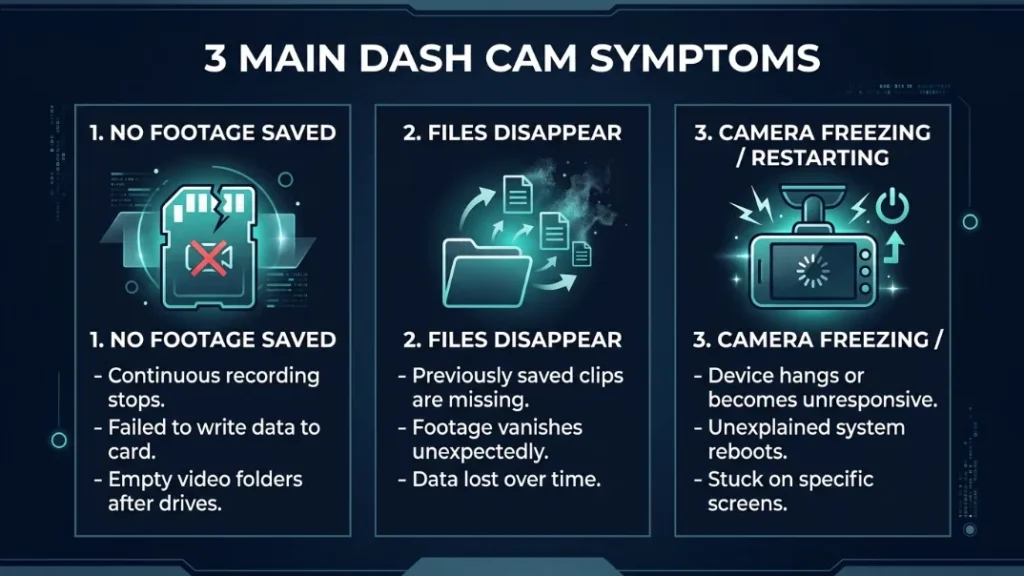
A dash cam recording issue shows up in several ways — and knowing your exact symptom points you straight to the fix. The three most common symptoms look similar on the surface but have completely different causes underneath.
Dash Cam Turns On but Won’t Save Any Footage
The camera powers up, the screen lights up, and the recording icon appears — but when you check the SD card, it is completely empty. This usually means the SD card is not recognized, is full with locked files, or is physically failing.
Check the SD card slot first. Remove the card, blow out any dust, and reinsert it firmly. If the camera still shows a card error, the card needs formatting or replacement.
Dash Cam Records but Files Disappear After the Trip
This one confuses a lot of drivers. The dash cam seemed to record — but after the drive, there are no files on the card. Two things cause this: loop recording is turned off, so the camera stops when storage fills up, or the G-sensor locked all files and left no space for new ones.
Check your loop recording setting first. It should always be enabled. If it is already on, lower your G-sensor sensitivity one level and retest.
Dash Cam Keeps Freezing, Crashing, or Restarting Mid-Drive
A dash cam that freezes or reboots mid-trip is almost always suffering from a power problem or a failing SD card. Nextbase, Vantrue, and Blackvue cameras all show this behavior when the power cable develops a fault or the SD card write speed degrades.
Try a different USB power cable first. If the freezing stops, the cable was the problem. If it continues, the SD card likely needs replacement.
Why Does Your Dash Cam Stop Recording? The 5 Root Causes Explained
Every dash cam recording failure traces back to one of five root causes. Identify your cause and you cut your troubleshooting time in half.
Faulty, Full, or Wrong Type of SD Card
The SD card is responsible for more than 70% of all dash cam recording failures. Dash cams write data continuously, every second you drive. That constant writing wears out standard consumer SD cards within 3 to 6 months of daily use.
Standard SD cards — the kind you use in a digital camera or phone — are not built for this. They are designed for occasional reads and writes, not 24/7 loop recording. A regular SanDisk Ultra card will start failing silently inside a dash cam within months.
Endurance-rated cards like the Samsung PRO Endurance and Lexar PLAY are built for constant video writing. They handle up to 40,000 hours of recording before showing wear. That is the difference between a card lasting 6 months and one lasting 3 years.
Never use a full-size SD card with an adapter in a dash cam. Adapters create micro-vibrations from road movement that cause read/write errors and silent recording failures.
Unstable or Interrupted Power Supply
A dash cam needs clean, consistent power to record without interruption. A loose cigarette lighter connection, a damaged USB cable, or a weak fuse-box tap can all cut power mid-recording — and the camera loses the footage it had not yet saved.
This is especially common in older vehicles where the 12V socket delivers inconsistent voltage. Garmin and Vantrue cameras are particularly sensitive to voltage drops below 11.5V.
G-Sensor Set Too Sensitive and Locking Your Storage
The G-sensor (also called the impact sensor or accelerometer) detects sudden movement — like braking hard or hitting a pothole — and locks that clip so loop recording cannot overwrite it. This is a useful safety feature. But when sensitivity is set too high, the camera locks almost every clip.
Within a day or two of driving, your SD card fills with hundreds of locked files. Loop recording has no space to work with. The camera appears to record normally — but no new footage saves. This is one of the most commonly missed causes of dash cam recording failure.
Outdated Firmware Causing Software Bugs
Dash cam manufacturers push firmware updates that fix recording bugs, improve SD card compatibility, and patch stability issues. Running old firmware is like running an app from three years ago — it has known bugs that the developer already fixed.
Blackvue released a 2023 firmware update specifically to fix a loop recording bug where the camera would record but fail to split files correctly. Nextbase pushed a fix in 2022 for a freeze bug that triggered during Wi-Fi sync. If your camera behaves oddly, check for a firmware update before anything else.
Loop Recording Turned Off or Misconfigured
Loop recording is the feature that makes a dash cam work continuously. It records in short clips — usually 1, 2, or 3 minutes — and overwrites the oldest ones when storage fills up. Without it, the camera records until the card is full, then stops completely.
Some cameras ship with loop recording disabled by default. Others reset settings after a firmware update. Always verify loop recording is enabled after any firmware change.
How to Fix a Dash Cam SD Card Problem Step by Step
SD card issues are the most fixable cause of dash cam recording failure. Follow these steps in order and resolve most storage problems in under 5 minutes.
How to Format Your SD Card the Right Way for a Dash Cam
Always format your SD card using the dash cam itself — not your computer. Computer formatting applies a file system structure that many dash cams cannot use correctly. Formatting inside the camera ensures the file system matches the camera’s exact requirements.
- Power on your dash cam and let it fully load.
- Go to Settings — usually a gear icon on the touchscreen or a button on the side.
- Find the option labeled “Format SD Card,” “Format Storage,” or “Format Memory.”
- Confirm the format. This deletes all files — back up any footage you want first.
- Wait for the format to complete (usually 10 to 30 seconds).
- Restart the camera and check whether recording resumes normally.
Format your SD card every 2 to 4 weeks during regular use. This clears fragmented files and keeps write performance consistent. Set a phone reminder so you never forget.
Which SD Cards Actually Work Best in a Dash Cam?
Not all SD cards handle dash cam recording equally. The table below compares the key types so you can choose the right one.
| SD Card Type | Best For | Lifespan in Dash Cam | Recommended |
|---|---|---|---|
| Standard (SanDisk Ultra) | Phones, cameras | 3 to 6 months | No |
| High Endurance (SanDisk High Endurance) | Dash cams, security cams | 12 to 18 months | Yes |
| PRO Endurance (Samsung PRO Endurance) | 24/7 continuous recording | 2 to 3 years | Highly Recommended |
| Lexar PLAY / PLAY+ Series | Budget endurance option | 18 to 24 months | Yes |
For most drivers, the Samsung PRO Endurance 64GB or 128GB is the best choice. It handles up to 40,000 hours of video recording and costs under $25. That is a small price for reliable footage every drive.
How Often Should You Replace Your Dash Cam SD Card?
Replace a standard SD card every 6 months and an endurance card every 2 years under daily use. Watch for these early warning signs that your card is failing:
- The camera shows frequent “SD card error” warnings
- Recorded files are corrupted or won’t play back
- The camera takes longer than usual to start recording after startup
- Files appear on the card but are 0KB in size
- The camera resets or freezes more often than usual
The SD card is the most common cause of dash cam recording failure. Use an endurance-rated card, format it inside the camera every 2 to 4 weeks, and replace it every 2 years. This single habit eliminates most recording problems.
How to Fix Dash Cam Power Problems That Stop Recording
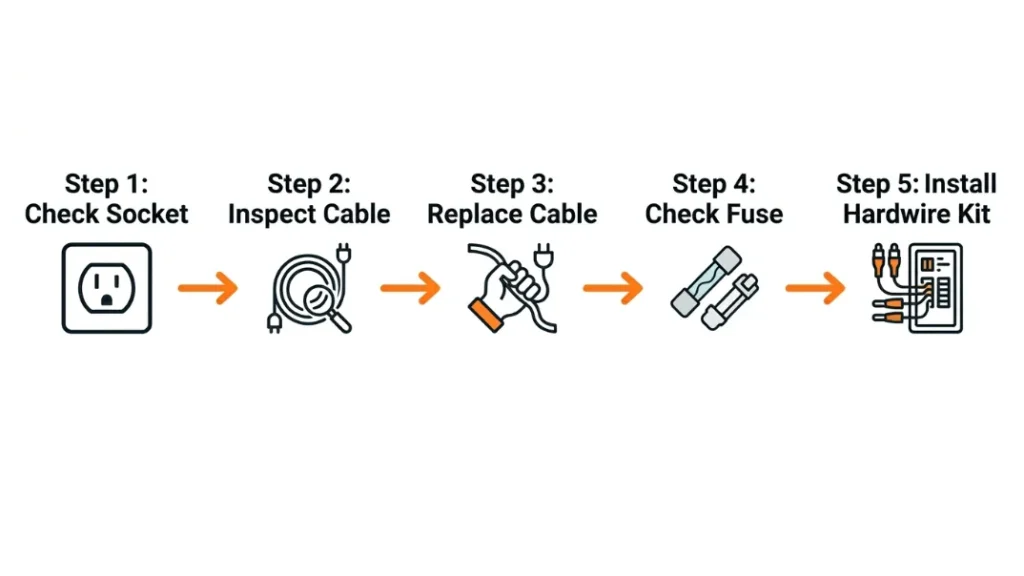
Power issues are the second most common cause of dash cam recording failure. A camera that loses power mid-clip cannot save that footage — and you may not even notice until you need the video most.
How to Check If Your Power Cable Is the Problem
Swap your current power cable with a known-good cable and run a short test drive. If the freezing or recording cutoff disappears, the original cable was faulty. Dash cam USB and mini-USB cables degrade faster than phone cables because they carry constant current for hours every day.
- Check the cigarette lighter socket for debris or corrosion — clean it with a dry cloth.
- Try the dash cam in a different 12V socket if your car has more than one.
- Inspect the USB cable for kinks, fraying, or bent connector pins.
- Replace the cable with a new one and test for 10 to 15 minutes of driving.
- If the problem persists, check the fuse for the 12V socket — a weak fuse delivers inconsistent power.
- If none of these work, consider a hardwire kit for a direct, stable power connection.
What a Hardwire Kit Does and Why It Fixes Parking Mode Failures
A hardwire kit connects your dash cam directly to your car’s fuse box instead of the cigarette lighter socket. This gives the camera a dedicated, stable power supply — and it enables parking mode, which records while the engine is off.
Parking mode failures are almost always a power problem. The cigarette lighter socket in most cars cuts power when you turn the engine off. Without a hardwire kit, the camera has no power to monitor your parked vehicle. BlackboxMyCar’s hardwire guide explains the installation process clearly for most vehicle types.
Set your hardwire kit’s voltage cutoff to 11.8V or higher. This stops the dash cam from draining your car battery when it drops below safe levels — especially important in cold weather.
Voltage Drop During Cold Starts and How It Cuts Off Your Recording
When you start a cold engine, your car battery voltage drops sharply — sometimes below 10V for a fraction of a second. This brief dip can trigger your dash cam to shut down and restart, losing any footage recorded in the moments before startup.
Garmin Dash Cam models and Vantrue cameras both handle this better than most, with built-in capacitors instead of batteries. Cameras with internal lithium batteries are more vulnerable to this voltage dip. If your camera consistently loses the first 30 to 60 seconds of every drive, a capacitor-based model may solve the issue entirely.
How to Fix G-Sensor Issues That Fill Up Your Storage and Block New Recordings
The G-sensor locks event clips to prevent loop recording from overwriting them. When sensitivity is too high, it locks too many clips, fills the card, and blocks all future recordings — even though the camera appears to work normally.
Here is what happens step by step. Your G-sensor is set to high sensitivity. You drive over a speed bump. The sensor triggers. That 1-minute clip gets locked. You drive over 200 speed bumps in a week. Your 64GB card fills with 200 locked clips. Loop recording has nowhere to write. New footage is lost.
- Go to Settings on your dash cam and find “G-Sensor,” “Sensitivity,” or “Impact Detection.”
- Lower the sensitivity from High to Medium, or from Medium to Low.
- Format the SD card inside the camera to clear all locked files.
- Drive for one full day and check whether new recordings save normally.
- If locking still occurs too often, lower sensitivity one more level.
Do not turn the G-sensor off completely. Without it, accident footage will not be locked and loop recording may overwrite the very clip you need most after a collision.
Most drivers get the best results with G-sensor set to Medium. This captures genuine impacts — hard braking, collisions, curb strikes — without locking every minor road vibration.
How to Update Dash Cam Firmware to Fix Recording Bugs
Firmware is the internal software that controls everything your dash cam does. Old firmware contains bugs that manufacturers have already fixed — and running it means living with problems that have a free solution waiting.
Nextbase, Blackvue, Vantrue, and Garmin all release firmware updates that specifically address recording failures, file corruption, and loop recording bugs. Nextbase’s official downloads page lists every firmware version with its changelog so you can see exactly what each update fixes.
- Visit your dash cam brand’s official website and navigate to Support or Downloads.
- Find your exact model number — it is usually printed on the back of the camera.
- Download the latest firmware file (usually a .bin or .zip file).
- Copy the firmware file to the root of a freshly formatted SD card.
- Insert the SD card into your powered-off dash cam.
- Power on the camera — it will detect the firmware file and begin updating automatically.
- Do not disconnect power during the update. Wait until the camera restarts fully.
- Verify the new firmware version in Settings to confirm the update succeeded.
Check for firmware updates every 3 to 6 months. Most manufacturers do not push automatic updates — you need to check manually. Subscribe to your brand’s newsletter or bookmark their downloads page.
Is It the SD Card or Is the Dash Cam Broken? How to Tell the Difference
Before spending money on a replacement camera, run this simple test to confirm whether the camera or the card is the problem. This two-step test takes under 5 minutes and gives you a clear answer.
The Two-Card Test: Buy a brand-new endurance SD card. Format it inside the camera. Drive for 30 minutes. If recording works perfectly, the old card was the problem — not the camera. If recording still fails with the new card, the camera hardware or firmware needs attention.
Use this comparison to guide your decision:
| Symptom | Likely Cause | Fix |
|---|---|---|
| SD card error message | SD card | Format or replace card |
| Works with new card, fails with old | SD card worn out | Replace card permanently |
| Fails with multiple new cards | Camera hardware | Contact manufacturer support |
| Freezes then recovers | Power or firmware | Update firmware, check cable |
| No footage after parking mode | Power supply | Install hardwire kit |
If your camera fails with two or more brand-new endurance cards after a firmware update, contact your manufacturer’s support team. Nextbase, Blackvue, and Vantrue all offer warranty support and will often replace faulty units within the warranty period. Check r/dashcam on Reddit for model-specific community advice before sending anything in for repair.
How to Prevent Dash Cam Recording Issues From Happening Again
Fixing the problem is step one. Keeping it fixed is what actually protects you on the road. These five habits eliminate most recurring dash cam recording failures.
- Use an endurance SD card and format it every 2 to 4 weeks. This is the single highest-impact habit for reliable recording.
- Set G-sensor sensitivity to Medium. This captures real impacts without flooding your storage with locked clips from minor vibrations.
- Check firmware every 6 months. Manufacturers push silent bug fixes that dramatically improve recording stability.
- Inspect your power cable every 3 months. Look for fraying, kinks, and bent connector pins — replace at the first sign of wear.
- Enable loop recording and verify it after every firmware update. Updates sometimes reset settings without warning.
Prevention beats troubleshooting every time. Use the right SD card, keep your firmware current, check your power connection, and set your G-sensor correctly. Do these four things and your dash cam will record reliably every single drive.
Conclusion
Dash cam recording issues feel alarming — but they are almost always fixable in minutes. The SD card causes most failures. Power problems cause most of the rest. G-sensor misconfiguration and outdated firmware fill in the gaps.
Start with the SD card. Format it inside the camera or replace it with an endurance-rated model. Then check your power supply, update your firmware, and verify your loop recording is on. Work through the steps in order and you will find the fix fast.
I’m Alex Rahman, and I put this guide together because I’ve watched too many drivers lose critical footage to a $15 SD card problem. You do not have to be one of them. Follow these steps, build the maintenance habits, and your dash cam will be there every time you need it.
Frequently Asked Questions
Why did my dash cam suddenly stop recording?
The most common cause is a full or failing SD card. When loop recording cannot overwrite old files — either because the card is full of locked G-sensor clips or because the card is worn out — recording stops completely. Format the SD card inside the camera and check whether loop recording is enabled.
Does formatting an SD card fix dash cam recording issues?
Yes, in many cases it does. Formatting clears fragmented files, removes locked G-sensor clips, and resets the file structure the camera uses. Always format using the dash cam’s own menu — not your computer — for best results.
How do I know if my dash cam SD card is failing?
Watch for SD card error messages, files that are 0KB, corrupted video that won’t play, or a camera that takes unusually long to start recording. These are early warning signs of card wear. Replace the card with an endurance-rated model before it fails completely.
Can a bad power cable cause my dash cam to lose footage?
Yes. A faulty or intermittent power cable cuts power mid-recording and the current clip is lost. Swap the cable first — it is the quickest and cheapest fix. If the problem continues after a cable swap, check the 12V socket fuse and consider a hardwire kit.
What is the best SD card for a dash cam?
The Samsung PRO Endurance and SanDisk High Endurance are the top choices for most drivers. Both are rated for continuous 24/7 recording. Avoid standard SD cards — they wear out within months under the constant write load of loop recording.
Why is my dash cam recording but not saving files?
This almost always means loop recording is disabled or G-sensor has locked all available storage. Enable loop recording in settings and lower G-sensor sensitivity to Medium. Then format the SD card to clear locked files and free up space for new recordings.

I’m Alex Rahman, a car enthusiast and automotive writer focused on practical solutions, car tools, and real-world driving advice. I share simple and honest content to help everyday drivers make better decisions.
