Can You Watch Your Dash Cam From Home? And How Does Remote Viewing Actually Work?
Most standard dash cams cannot be watched from home. Only cellular (4G LTE) dash cams or cloud-connected models with an active data plan allow real-time remote access via a smartphone app. WiFi-only dash cams connect locally — not remotely.
I get this question a lot. Someone buys a dash cam, downloads the app, and then asks — “Wait, can I actually watch this from my couch?” The short answer depends entirely on which type of dash cam you have.
I’m Alex Rahman, and I’ve tested and reviewed dash cams for several years. The number one frustration I hear from readers? They assumed their WiFi dash cam worked remotely. It doesn’t. And nobody told them that before they bought it.
This guide clears all of that up. You’ll know exactly what remote viewing means, which dash cams support it, and what you need to set it up properly.
- WiFi-only dash cams connect to your phone locally — they do not work from home.
- Only cellular (4G LTE) or cloud-connected dash cams support true remote viewing.
- Remote access usually requires a monthly subscription or a SIM data plan.
- Cloud dash cams upload footage automatically — you review clips, not live video.
- For parked car monitoring from home, you also need a hardwire kit to keep the cam powered.
What Does “Watching Your Dash Cam From Home” Actually Mean?
Watching your dash cam from home means accessing your car’s camera footage — or a live stream — using your smartphone or computer while you are not physically near the vehicle. This requires an internet connection on both ends: your phone at home and your dash cam in the car.
There are two very different experiences here. One is watching live video as it happens. The other is reviewing recorded clips that uploaded to a cloud server. Both are called “remote viewing” — but they work completely differently.
Understanding the difference will save you from buying the wrong dash cam.
Live Streaming vs Cloud Playback — What Is the Real Difference?
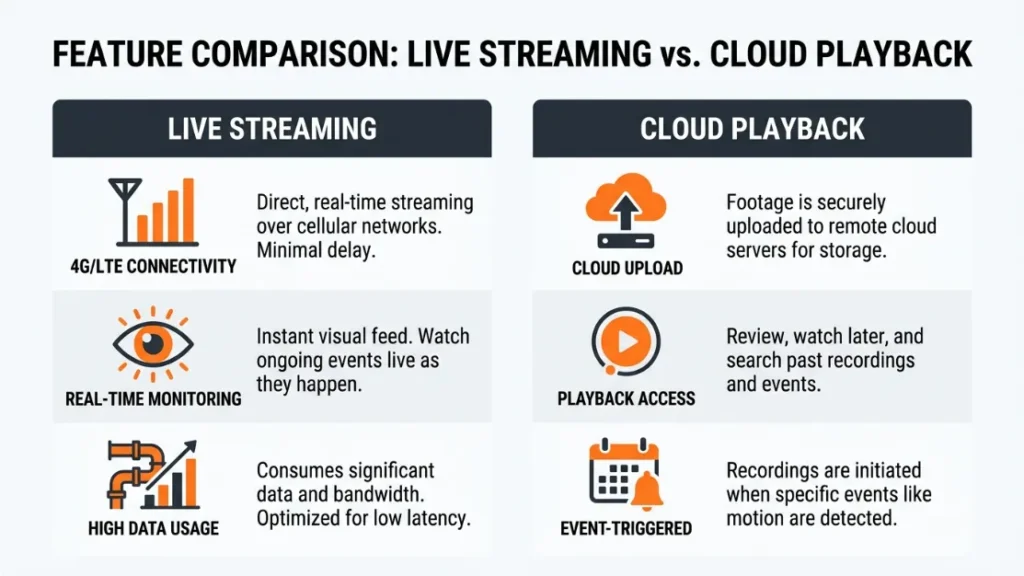
Live streaming means you open an app and watch your car’s camera in real time — like a CCTV feed. This requires your dash cam to have its own cellular connection (a 4G or LTE SIM card) so it can transmit video over the internet continuously.
Cloud playback means your dash cam uploads recorded clips to a cloud server automatically — and you can view those clips later from anywhere. You are not watching live. You are reviewing footage that already happened, stored online.
Most cloud dash cams on the market today offer cloud playback — not live streaming. True live streaming is available only on premium cellular models like the BlackVue DR970X series.
Why Most People Assume Their Dash Cam Works Remotely (And Why It Doesn’t)
Here is the confusion. Most modern dash cams advertise “WiFi connectivity.” Shoppers read that and assume it means they can connect from anywhere. It does not.
Dash cam WiFi creates a local hotspot. Your phone connects to that hotspot only when you are standing near the car. The moment you walk away — or drive home — that connection drops. No remote viewing. No app access.
This is the most common dash cam disappointment I hear about. The marketing is not wrong — WiFi works. It just works locally, not remotely.
Do not assume a dash cam supports remote viewing just because it has a companion app or WiFi. Always check whether the model requires a SIM card or paid cloud plan for remote access before buying.
Why Standard Dash Cams Cannot Be Viewed From Home
Standard dash cams — even expensive ones — store footage on a local SD card and use WiFi to connect your phone when you are nearby. They have no independent internet connection. Without internet access of their own, they cannot send video to you at home.
Think of it like a laptop with no internet plan. The hardware works fine. But without a network connection, nothing reaches you remotely.
What WiFi-Only Dash Cams Can and Cannot Do
WiFi-only dash cams let you do three things well: review footage on your phone while standing near the car, adjust settings wirelessly, and download clips to your phone for sharing. Those are genuinely useful features.
What they cannot do: stream live video to your home network, push alerts when something happens, or let you pull up footage from another city. The WiFi signal only reaches a few meters from the camera itself.
Popular WiFi-only models include the Vantrue N4, Garmin Dash Cam 67W, and Nextbase 622GW. Great cameras — but not for remote home viewing without an added cloud plan.
The Local Connection Trap Most Buyers Fall Into
The local connection trap works like this. You buy a dash cam, download the app, and it works perfectly when you are in the parking lot. You think remote viewing is set up. Then you go home and the app shows nothing.
That is because “connected” only means connected to the camera’s local WiFi — not to the internet. Remote viewing requires an entirely different technology layer.
Before buying, search the model name plus “cloud” or “remote viewing” on the manufacturer’s website. If they do not mention cloud storage or a cellular module, the cam is WiFi-only and local access only.
What Type of Dash Cam Actually Lets You Watch From Home?
Two types of dash cams support genuine remote home viewing: cellular (4G LTE) dash cams and cloud-connected dash cams with an active subscription. Both use the internet to bridge the gap between your car and your home.
Cellular cams carry their own SIM card — just like a smartphone. Cloud-connected cams piggyback on your car’s WiFi hotspot or a separate router device to upload footage automatically.
How Cellular (4G LTE) Dash Cams Enable True Remote Access
A cellular dash cam contains a built-in SIM card slot or an embedded eSIM. This gives the camera its own mobile data connection — independent of your phone or your home WiFi. The camera streams or uploads footage over 4G or LTE just like your phone does.
BlackVue (a South Korean brand that pioneered cloud dash cams) built their DR970X-2CH series around 4G LTE connectivity. Using the BlackVue Cloud platform, you can watch a live video feed from your car, check GPS location in real time, and receive push alerts when motion is detected — all from home.
The trade-off is cost. Cellular dash cams run $300–$600 and require a monthly data plan, typically $5–$15 per month depending on your carrier and region.
How Cloud-Connected Dash Cams Upload and Store Footage Remotely
Cloud-connected dash cams use a different approach. Instead of streaming live, they upload short video clips to a cloud server automatically — triggered by events like hard braking, collisions, or motion alerts.
Nextbase (a UK brand used by over 2 million drivers) offers their MyNextbase Cloud service alongside select camera models. When an incident happens, the camera uploads a clip within minutes. You can review it from anywhere using the Nextbase app.
This is not live streaming. But for most people — parents checking on a teen driver, or car owners wanting incident alerts — cloud playback is all they actually need.
Cellular dash cams = live streaming + real-time GPS + remote access anywhere, but cost more and need a data plan. Cloud-connected dash cams = automatic clip uploads + incident alerts + remote playback, at lower cost with a subscription. WiFi-only dash cams = local access only, no remote home viewing.
How Does Remote Dash Cam Viewing Work Step by Step?
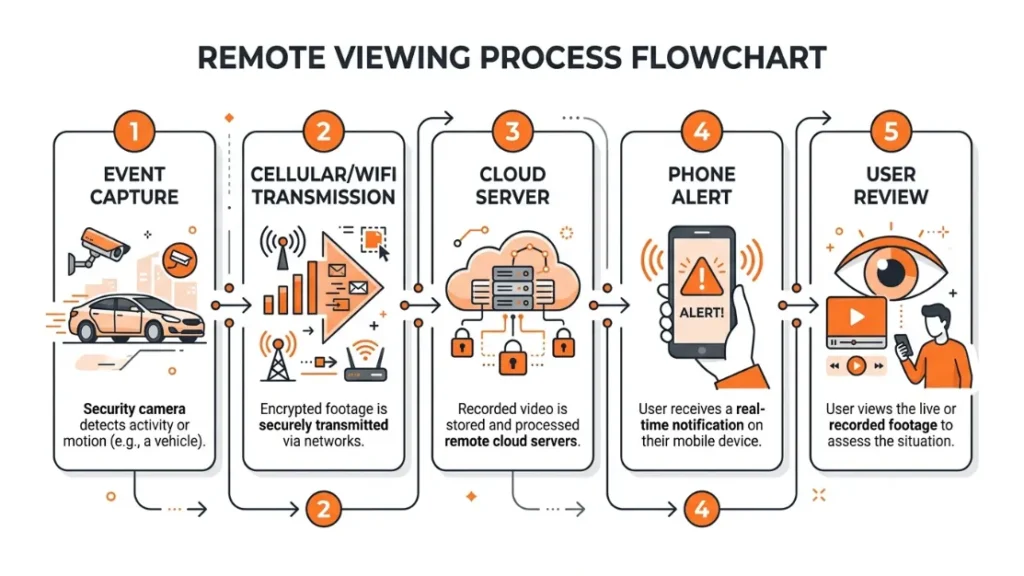
Remote dash cam viewing works through a chain: the camera captures footage, sends it over mobile data or WiFi to a cloud server, and your app pulls that footage from the server to your screen at home. Every link in that chain must be active for it to work.
What Equipment Do You Need to Watch Your Dash Cam Remotely?
The exact equipment depends on whether you want live streaming or cloud playback. Here is what each path requires:
- Choose a cloud-capable or cellular dash cam (not WiFi-only).
- Install and hardwire the dash cam to your vehicle’s fuse box for constant power.
- Insert a SIM card (for cellular models) or connect to a car WiFi hotspot (for cloud models).
- Download the manufacturer’s companion app on your smartphone.
- Create an account and register your camera to your cloud profile.
- Test the remote connection from a different WiFi network to confirm it works from home.
For parked car monitoring specifically, step 2 — the hardwire kit — is non-negotiable. Your car’s accessory power cuts off when you remove the key. Without a hardwire kit, the dash cam loses power and goes offline the moment you park and leave.
Does Remote Dash Cam Viewing Cost a Monthly Fee?
Usually yes — but the fee varies by brand and what you need. Most cloud platforms charge between $3 and $20 per month depending on storage capacity and features.
| Brand / Platform | Remote Feature | Monthly Cost (approx) |
|---|---|---|
| BlackVue Cloud | Live stream + GPS + alerts | $5–$15 (data plan) |
| Thinkware Cloud | Cloud upload + alerts + GPS | Free tier + paid storage |
| MyNextbase Cloud | Incident clip upload | Free (32GB) / paid tiers |
| Garmin Vault | Cloud storage + remote access | $5.99/month |
| Vantrue Cloud | Cloud backup + remote alerts | Free tier available |
Some brands include limited free cloud storage to start. You only pay more when you need longer storage history or more frequent uploads.
Best Dash Cams You Can Watch From Home in 2025
Not every cloud-capable dash cam is worth your money. Here are three models I recommend based on remote viewing performance, reliability, and value.
BlackVue DR970X-2CH — Best for Live Streaming From Home
The BlackVue DR970X-2CH is the gold standard for remote dash cam viewing. It supports 4G LTE live streaming, real-time GPS tracking, and two-way voice communication — all from the BlackVue Cloud app on your phone.
The front camera records in 4K. The rear channel adds full coverage behind the car. BlackVue’s cloud platform has been running since 2012, making it one of the most mature remote viewing ecosystems available.
The price sits around $400–$500. You will also need a SIM data plan. For anyone who wants genuine live streaming to their home, this is the camera to get. Learn more at BlackVue’s official site.
Thinkware U1000 — Best Cloud Dash Cam for Home Monitoring
The Thinkware U1000 records in 4K front and 2K rear. It connects to Thinkware’s cloud platform via your car’s built-in WiFi hotspot or a separate Thinkware LTE module. When an incident triggers the camera, it pushes an alert and clip to your phone automatically.
Thinkware (a South Korean electronics company specializing in automotive safety tech) has built a strong reputation in fleet monitoring — and their consumer app brings those same tools to everyday drivers.
The U1000 sits around $300–$380 and works well for parents monitoring young drivers or owners who want parking-mode alerts sent directly to their phone.
Vantrue E1 Lite — Best Budget Option With Remote Features
If budget matters, the Vantrue E1 Lite offers cloud connectivity at under $150. It connects to Vantrue’s cloud service via your car’s hotspot and sends event clips remotely. It does not offer live streaming, but it covers the most common use case — incident alerts and remote footage review.
Vantrue (a Chinese dash cam brand with a large US following) has improved their cloud platform significantly since 2022. The E1 Lite is a practical entry point for anyone who wants remote viewing without spending $400.
Before committing to any cloud dash cam, download the manufacturer’s app first and read recent reviews specifically about the cloud and remote features. App quality varies widely — the camera hardware can be great while the cloud platform is unreliable.
Can You Monitor Your Parked Car From Home With a Dash Cam?
Yes — but you need two things working together: a cloud or cellular dash cam with parking mode, and a hardwire kit that keeps the camera powered after you turn off the ignition. Without both, parked car monitoring from home will not work.
What Is Parking Mode and How Does It Help You Monitor Remotely?
Parking mode is a feature that keeps your dash cam recording — or on standby — after you park and leave the car. When it detects motion, a vibration, or an impact, it starts recording and (on cloud models) uploads a clip or alert to your phone.
This is how you catch a hit-and-run on your parked car. It is also how parents confirm a car arrived safely at a destination. The remote alert goes to your app within seconds of the event triggering.
According to the Insurance Institute for Highway Safety (IIHS), parking lot incidents account for roughly 20% of all vehicle accidents — making parked car monitoring a genuinely useful real-world application.
What Hardwire Kit Do You Need for Parked Car Monitoring?
A hardwire kit connects your dash cam directly to your car’s fuse box. It draws a small amount of power continuously — even with the engine off — so the camera stays on in parking mode.
Most dash cam brands sell their own hardwire kits for $20–$40. They include a low-voltage cutoff feature that protects your car battery from draining. Always use the kit designed for your specific dash cam model — third-party kits sometimes cause compatibility issues.
Never run parking mode on a standard 12V cigarette lighter connection. That port loses power when you turn off the ignition. Only a properly installed hardwire kit keeps the camera powered while parked.
Common Mistakes People Make When Trying to View a Dash Cam Remotely
Remote dash cam setup fails for predictable reasons. Knowing these mistakes saves you hours of frustration.
- Buying a WiFi-only cam expecting remote access. WiFi = local only. Always confirm cloud or cellular capability before buying.
- Skipping the hardwire kit. Parked car monitoring requires constant power. A cigarette lighter connection cuts off with the engine.
- Not activating the cloud subscription. Some cams need an active paid plan before remote features unlock — even if the hardware supports it.
- Weak car hotspot signal. Cloud cams that rely on your car’s built-in WiFi hotspot fail in areas with poor cellular coverage.
- Old app version. Dash cam apps update frequently. An outdated app often breaks the remote connection entirely.
- Wrong SIM plan type. Cellular dash cams need a data-only SIM plan — not a voice plan. Using the wrong plan type blocks the data connection.
The single biggest mistake I see: people spend $250 on a dash cam, spend $30 on a hardwire kit, set everything up — then realize the cam is WiFi-only. Remote viewing was never going to work. Always check connectivity specs first.
Do You Really Need Live Streaming or Is Cloud Playback Enough?
For most people, cloud playback is completely sufficient — and significantly cheaper than live streaming. Live streaming makes sense in a narrow set of situations. Cloud playback covers the majority of real-world needs.
Ask yourself this: Do you need to watch what is happening in your car right now, at this exact moment? Or do you need to review what happened after an incident, check that your teenager arrived safely, or respond to a parking alert?
If the answer is “after the fact” — cloud playback is your answer. Live streaming is mainly valuable for fleet managers tracking multiple vehicles in real time, or for very high-security situations where immediate awareness matters.
| Use Case | Cloud Playback | Live Streaming |
|---|---|---|
| Incident review after the fact | ✅ Perfect | ✅ Works too |
| Parking lot hit-and-run alerts | ✅ Push alert + clip | ✅ Works too |
| Teen driver monitoring | ✅ Sufficient | Overkill for most |
| Fleet tracking in real time | ❌ Delayed | ✅ Required |
| Watching car live right now | ❌ Not live | ✅ Required |
Read more about how dash cam cloud systems work on Consumer Reports’ vehicle tech coverage for independent evaluations of remote monitoring tools.
Conclusion
So — can you watch your dash cam from home? The honest answer: only if you have the right type of camera.
Standard WiFi-only dash cams connect locally. They are great cameras, but remote home viewing is not in their feature set. For true remote access, you need a cellular dash cam like the BlackVue DR970X or a cloud-connected model like the Thinkware U1000 or Nextbase with MyNextbase Cloud.
For most people, cloud playback with incident alerts covers every real need — at a fraction of the cost of a live-streaming setup. Add a hardwire kit if parked car monitoring matters to you.
I’m Alex Rahman, and my advice is always the same: match the camera to your actual use case before spending money. Remote viewing is a fantastic feature — when it is set up on hardware that actually supports it.
Frequently Asked Questions
Can I watch my dash cam from home without a subscription?
Some brands like Thinkware and Nextbase offer limited free cloud tiers that allow basic remote access. However, most reliable remote viewing features — including longer storage and real-time alerts — require a paid subscription. A few cellular models also need an active SIM data plan, which is an ongoing cost.
Why can’t I see my dash cam footage on my phone when I’m at home?
Your dash cam is likely WiFi-only. WiFi dash cams create a local hotspot that only works within a few meters of the camera. When you go home, that connection no longer exists. You need a cloud-connected or cellular dash cam to access footage remotely.
Does a dash cam need to be on to view footage from home?
Yes — the camera must be powered and connected to the internet. For parked cars, this means a hardwire kit is essential. Without constant power, the camera goes offline when you park and cannot send footage or alerts to your phone.
Can I use my phone’s hotspot to give my dash cam remote access?
Only if your phone stays in the car with the hotspot active and the dash cam is configured to connect to it. This is impractical for most people since it means leaving your phone behind. A dedicated SIM in the dash cam or your car’s built-in hotspot is a far better solution.
What is the cheapest way to watch a dash cam from home?
The most affordable path is a cloud-connected dash cam with a free cloud tier — such as the Vantrue E1 Lite or the Nextbase 422GW paired with MyNextbase Cloud. These let you receive incident clips and alerts remotely at little or no monthly cost, though live streaming is not available at this price point.
Is it legal to remotely monitor a dash cam in a shared or company vehicle?
Laws vary by country and state. In most regions, employees must be informed if a vehicle they drive is monitored remotely. In the UK, GDPR rules apply to employee monitoring. In the US, state laws differ — some require consent. Always check local regulations before deploying remote dash cam monitoring in a shared or business vehicle.

I’m Alex Rahman, a car enthusiast and automotive writer focused on practical solutions, car tools, and real-world driving advice. I share simple and honest content to help everyday drivers make better decisions.
