Can You View Your Dash Cam Footage on Your Phone?
Yes, you can view dash cam footage on your phone. Most modern dash cams use a built-in Wi-Fi connection and a free companion app. You open the app, connect to the camera’s Wi-Fi, and browse or download your clips — no computer needed.
I pulled into a petrol station last year, heart pounding after a near-miss on the motorway. The other driver sped off. My first instinct? Check my dash cam footage right there in the car park.
I’m Alex Rahman, and I’ve been testing and writing about dash cams for years. That moment taught me exactly how valuable phone access to your footage really is.
The good news: most modern dash cams make this easy. But not every camera works the same way, and the setup trips a lot of people up. In this guide, I’ll walk you through every method — Wi-Fi apps, SD card transfers, and cloud access — so you can get to your footage fast when it matters most.
- Most dash cams built after 2018 support Wi-Fi phone viewing via a companion app.
- Wi-Fi Direct means your dash cam creates its own hotspot — no home router needed.
- Brands like Nextbase, Garmin, Blackvue, and Thinkware all have free iOS and Android apps.
- Cloud-connected dash cams let you access footage remotely — even from another country.
- If your cam has no Wi-Fi, you can still transfer footage using a card reader or USB adapter.
What Does It Mean to View Dash Cam Footage on Your Phone?
Viewing dash cam footage on your phone means accessing your recorded video clips directly from a smartphone — without removing the SD card or sitting at a computer. You can browse recordings, watch them, and download specific clips to your camera roll.
There are three main ways this works. The most common is a Wi-Fi companion app, where your dash cam broadcasts its own Wi-Fi signal and your phone connects to it. The second method is cloud storage, where footage uploads automatically and you access it from anywhere. The third is a physical transfer — moving the SD card or using a USB adapter.
Each method has its place. Wi-Fi apps work great right after an incident. Cloud access is ideal for fleet managers or parents checking on a young driver. SD card transfer is the fallback when nothing else works.
Which Dash Cams Support Phone Viewing and Which Don’t?
Any dash cam with built-in Wi-Fi supports phone viewing through an app. Budget cameras under £30 or $30 often lack Wi-Fi entirely — these require SD card removal to view footage.
Mid-range and premium dash cams — typically priced from £80 / $80 upward — almost always include Wi-Fi. Brands like Nextbase, Garmin, Blackvue, Thinkware, and Vantrue all offer free companion apps for both iOS and Android.
Check your dash cam’s box or manual for the Wi-Fi symbol or “app compatible” language. If you see neither, assume it is SD-card only.
Very cheap dash cams from unknown brands often claim “app support” but the app has not been updated in years and crashes on modern phones. Always check recent app reviews on the Google Play Store or Apple App Store before buying.
How Does a Dash Cam Connect to Your Phone?
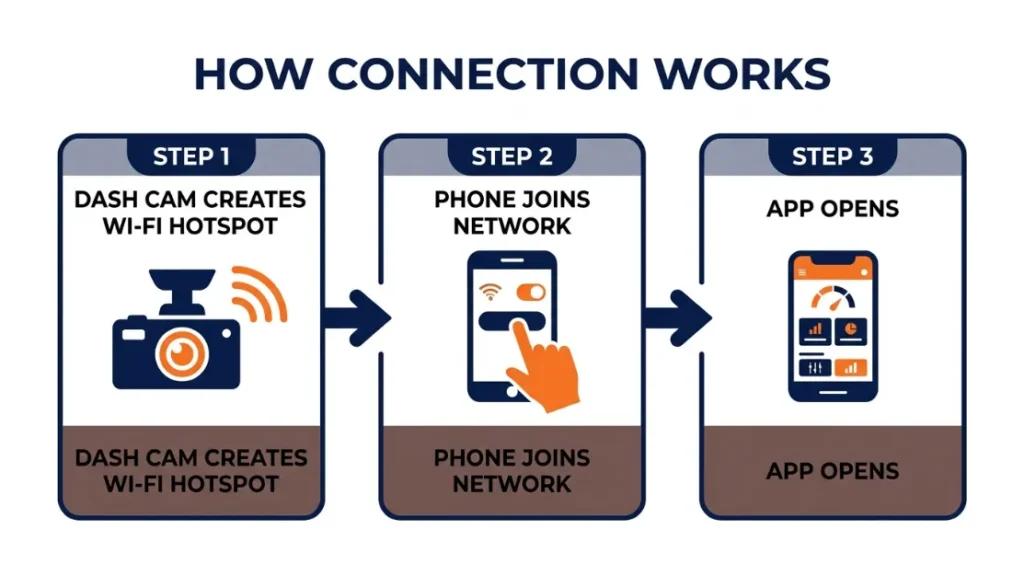
A dash cam connects to your phone through its own built-in Wi-Fi hotspot, a feature called Wi-Fi Direct. You select the camera’s network name in your phone’s Wi-Fi settings, enter a password, then open the companion app to browse and download footage.
This connection method is fast and reliable. It does not use your home broadband or mobile data. The dash cam and your phone talk directly to each other — like two walkie-talkies on the same frequency.
What Is Wi-Fi Direct and Why Do Dash Cams Use It?
Wi-Fi Direct is a peer-to-peer Wi-Fi standard that lets two devices connect without a router in the middle. Your dash cam creates a small local network. Your phone joins it. That’s the whole system.
Dash cams use it because it is simple, secure, and works anywhere — in your car park, on a motorway, in a field. You do not need a phone signal or a broadband connection. The footage stays between your camera and your phone only.
One trade-off: while connected to your dash cam’s Wi-Fi, your phone temporarily loses internet access. Disconnect from the cam’s network after you’re done to restore your normal connection.
Can You Connect a Dash Cam to Your Phone via Bluetooth?
Some dash cams use Bluetooth for the initial pairing or for basic status alerts, but Bluetooth alone cannot transfer video. Video files are too large for Bluetooth’s bandwidth. Wi-Fi handles the actual footage transfer in every current dash cam app.
Nextbase’s 622GW, for instance, uses Bluetooth for the initial handshake — then switches to Wi-Fi for footage access. Think of Bluetooth as the door handle and Wi-Fi as the actual door.
How Do You View Dash Cam Footage on Your Phone Step by Step?
Viewing dash cam footage on your phone takes about two minutes once the app is installed. The process is the same across most brands: download the app, connect to the camera’s Wi-Fi, then browse your recordings inside the app.
How to Download and Set Up Your Dash Cam App
Every major brand has a free app on both the Apple App Store and Google Play Store. Here are the main ones:
- Nextbase → MyNextbase Connect
- Garmin → Garmin Drive
- Blackvue → BlackVue app
- Thinkware → Thinkware Connected
- Vantrue → Vantrue app
Search the app store by your brand name and download the official app. Avoid third-party dash cam apps — they rarely work and may request unnecessary permissions.
How to Connect Your Dash Cam to Your Phone for the First Time
- Power on your dash cam — either plug it into your car’s 12V socket or USB port.
- On your dash cam screen or menu, locate the Wi-Fi option and enable it.
- On your phone, open Settings → Wi-Fi and look for your dash cam’s network name (usually the brand name + a number).
- Enter the default Wi-Fi password — usually printed on the dash cam itself or in the manual.
- Once connected, open the companion app. It should detect the camera automatically.
- Tap the footage library or “Recordings” section to browse your clips.
- Tap any clip to watch it, or select “Download” to save it to your phone’s camera roll.
Change your dash cam’s Wi-Fi password after first setup. The default password is often printed on the device and visible to anyone who looks at it. A stronger password protects your footage.
Which Dash Cam Brands Have the Best Phone Apps in 2025?
The best dash cam apps in 2025 are MyNextbase Connect, Garmin Drive, and the BlackVue app — each offering reliable footage browsing, clip downloading, and a clean interface on both iOS and Android.
App quality matters as much as camera quality. A great camera with a broken app is deeply frustrating — especially after an accident when you need footage fast.
| Brand | App Name | iOS / Android | Live View | Cloud Support |
|---|---|---|---|---|
| Nextbase | MyNextbase Connect | Both | No | Yes (MyNextbase Cloud) |
| Garmin | Garmin Drive | Both | No | Limited |
| Blackvue | BlackVue | Both | Yes | Yes (BlackVue Cloud) |
| Thinkware | Thinkware Connected | Both | Yes | Yes |
| Vantrue | Vantrue | Both | No | No |
Nextbase App — What Can It Actually Do on Your Phone?
The MyNextbase Connect app connects to Nextbase Wi-Fi dash cams and lets you browse all saved footage, download clips, and adjust camera settings from your phone. It also syncs with MyNextbase Cloud for automatic emergency clip backup.
Nextbase (the UK’s best-selling dash cam brand, trusted by over 3 million drivers) built their flagship 622GW with built-in Wi-Fi, Alexa voice control, and emergency SOS. The app is clean, well-maintained, and consistently rated above 4 stars on both stores as of 2025.
Garmin Drive App — Is It Easy to Use on iOS and Android?
The Garmin Drive app connects to Garmin’s Wi-Fi dash cams and offers a straightforward footage browser. It is easy to use and reliable, though it lacks live view and advanced cloud features compared to Blackvue.
Garmin (a US-based navigation and tech company founded in 1989) is known for making hardware that just works. Their app reflects that — simple, stable, and no unnecessary features to confuse you.
Blackvue and Thinkware — Are They Worth It for Remote Viewing?
Blackvue (a South Korean brand specialising in premium 4K dash cams) offers the most advanced remote viewing of any consumer dash cam brand. Their BlackVue Cloud service lets you stream live video from your car anywhere in the world — as long as the camera has a 4G LTE connection via a data SIM or mobile hotspot.
Thinkware Connected matches Blackvue’s remote features and adds real-time GPS tracking. Both are excellent for fleet managers and parents monitoring new drivers. Both also cost more than entry-level alternatives — but the remote access is genuinely useful.
If live remote viewing matters to you, check whether the dash cam supports 4G LTE or requires a separate Wi-Fi hotspot. Many “cloud” dash cams still need to be parked near your home Wi-Fi to upload footage automatically.
Can You Watch Dash Cam Footage Live on Your Phone in Real Time?
Yes, some dash cams support real-time live view on your phone — but only premium models with cloud connectivity, like the Blackvue DR970X or Thinkware U3000. Standard Wi-Fi dash cams show recorded footage only, not a live stream.
Here is the key difference. A standard Wi-Fi cam creates a local connection — your phone must be physically near the car. A cloud-connected cam with 4G transmits footage over mobile data, so you can watch remotely from any location.
For most drivers, live view is not necessary. Reviewing recorded footage after an incident is far more common. Live view is most valuable for van fleets, taxi operators, and parents of young drivers.
Real-world insight: Blackvue’s DR970X-2CH-PLUS supports live view, GPS tracking, and two-way audio — all accessible from the BlackVue app worldwide. It is one of the few consumer dash cams that genuinely delivers on the remote monitoring promise.
How Do You Transfer Dash Cam Video to Your Phone Without Wi-Fi?
You can transfer dash cam footage to your phone without Wi-Fi by removing the microSD card and reading it with a card reader adapter that connects to your phone’s USB-C or Lightning port. This method works on any dash cam, regardless of whether it has Wi-Fi.
This is the most reliable transfer method for large files — especially 4K recordings. Wi-Fi transfer can be slow for long clips. A USB-C card reader transfers the same footage in a fraction of the time.
How to Move Footage from SD Card to iPhone or Android
- Turn off your dash cam and eject the microSD card carefully.
- Insert the SD card into a microSD card reader (available for under £10 / $10 on Amazon).
- Plug the card reader into your phone’s USB-C port (Android) or Lightning port (older iPhones) or USB-C port (iPhone 15 and newer).
- On Android, a file manager prompt will appear — navigate to the DCIM folder on the card.
- On iPhone, open the Files app and look for the card reader under “Locations.”
- Select the footage files you want and copy them to your phone’s local storage or camera roll.
Never remove the SD card while the dash cam is powered on. Always turn the camera off or use a proper eject function first. Removing a card mid-write can corrupt the entire card and erase footage you need.
Should You Use Cloud Storage or Wi-Fi App for Dash Cam Footage?
Use the Wi-Fi app for quick access after an incident when your phone is near the car. Use cloud storage if you need to access footage remotely, want automatic emergency backups, or manage multiple vehicles in a fleet.
Here is a direct comparison:
| Feature | Wi-Fi App | Cloud Storage |
|---|---|---|
| Access from anywhere | No — must be near car | Yes |
| Monthly cost | Free | Subscription required |
| Setup complexity | Simple | Moderate |
| Emergency auto-backup | No | Yes (on many plans) |
| Best for | Single drivers, quick review | Fleets, remote parents, evidence backup |
For most solo drivers, the free Wi-Fi app covers everything you need. Cloud becomes worthwhile when footage security and remote access justify the monthly fee — typically between £3–£10 / $4–$12 per month depending on the provider.
Wi-Fi app = free, fast, works near the car. Cloud = paid, remote, automatic. Most everyday drivers only need the Wi-Fi app. Cloud is worth it for fleet operators, parents, or anyone who wants footage automatically secured off-device.
Why Won’t My Dash Cam Connect to My Phone? (Common Fixes)
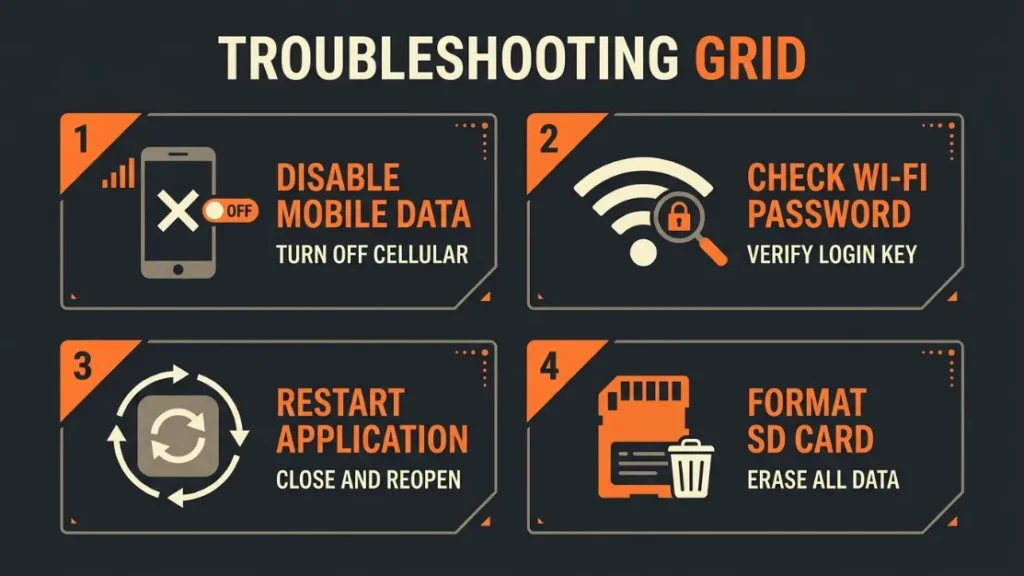
The most common reason a dash cam won’t connect to a phone is that the phone is still trying to use mobile data after joining the camera’s Wi-Fi network. iOS and Android both automatically switch away from Wi-Fi networks with no internet — you need to tell your phone to stay on the dash cam’s network.
Here are the most common issues and their fixes:
- Phone keeps dropping the camera’s Wi-Fi: On iPhone, go to Settings → Wi-Fi → tap the (i) next to the cam’s network → disable “Auto-Join” for other networks. On Android, look for “Switch to mobile data” or “Smart network switch” and turn it off.
- App says “No camera found”: Close the app fully, reconnect to the camera’s Wi-Fi manually, then reopen the app.
- Wi-Fi password not working: Reset the dash cam to factory defaults — the password reverts to the default printed on the camera body.
- App crashes on opening: Delete and reinstall the app. Check that your phone’s operating system is up to date — old OS versions sometimes break app compatibility.
- Footage not showing in app: The SD card may be full or corrupted. Remove it, check it on a computer, and format it inside the dash cam’s menu (not on your phone or computer).
Always format your SD card inside the dash cam — not on your phone or laptop. Formatting on the wrong device can create a file system the dash cam does not recognise, which causes blank footage and app errors.
Still stuck? Check your specific dash cam’s support page. Nextbase’s support centre and BlackboxMyCar’s dash cam FAQ both have detailed troubleshooting steps for the most popular models. Garmin’s support portal covers every Garmin Drive cam in detail.
Conclusion
Viewing your dash cam footage on your phone is straightforward once you know how it works. Most modern cameras use a built-in Wi-Fi hotspot and a free app — connect, browse, download. Done in under two minutes.
For quick incident review, the Wi-Fi app is all you need. For remote access and automatic backup, cloud-connected cameras from Blackvue or Thinkware deliver real peace of mind. And if your dash cam has no Wi-Fi at all, a microSD card reader for your phone solves the problem instantly.
I’m Alex Rahman, and the main takeaway I’d leave you with is this: your dash cam footage is only valuable if you can access it quickly. Set up your app before you need it — not after an accident in a car park.
Frequently Asked Questions
Can I view dash cam footage on my phone without Wi-Fi?
Yes. Remove the microSD card from your dash cam and insert it into a card reader that connects to your phone’s USB-C or Lightning port. Open the Files app (iPhone) or your file manager (Android) to access the footage. No Wi-Fi or internet connection is needed.
Do all dash cams have a phone app?
No. Budget dash cams under around £30 / $30 typically do not have Wi-Fi or an app — they record to an SD card only. Mid-range and premium dash cams from brands like Nextbase, Garmin, Blackvue, Thinkware, and Vantrue all include free companion apps for iOS and Android.
Can I watch my dash cam live on my phone?
Only premium cloud-connected dash cams support real-time live view. Models like the Blackvue DR970X and Thinkware U3000 stream live video to your phone via a 4G mobile connection. Standard Wi-Fi dash cams let you watch recorded footage only — not a live stream.
Why does my phone disconnect from my dash cam’s Wi-Fi automatically?
Your phone disconnects because it detects the dash cam’s Wi-Fi has no internet access and switches back to mobile data. On iPhone, tap the (i) next to the network in Wi-Fi settings and disable auto-switching. On Android, turn off “Smart network switch” or “Switch to mobile data” in Wi-Fi advanced settings.
Is it safe to store dash cam footage in the cloud?
Yes, reputable cloud services from established brands like Nextbase and Blackvue use encrypted storage. Your footage is protected by a password-secured account. Always use a strong, unique password and enable two-factor authentication if the service offers it.
How long does it take to transfer dash cam footage to a phone?
Over Wi-Fi, a 1-minute 1080p clip takes roughly 30–60 seconds to download to your phone. A 4K clip of the same length can take 2–4 minutes. Using a USB card reader is significantly faster — the same files transfer in 5–15 seconds depending on your card’s read speed.

I’m Alex Rahman, a car enthusiast and automotive writer focused on practical solutions, car tools, and real-world driving advice. I share simple and honest content to help everyday drivers make better decisions.
