Can You Connect a Dash Cam to Your Phone and What Can You Actually Do With It?
Yes — most modern dash cams connect to your phone via a built-in Wi-Fi hotspot and a free companion app. Once paired, you can view live footage, download clips, adjust settings, and in some models, access recordings remotely through the cloud. Setup takes under two minutes once you know the steps.
I pulled over after a minor fender bender last year. The other driver was already disputing fault. My dash cam had caught everything — but my SD card was locked inside the mount, and I had no laptop.
Then I remembered the app. Thirty seconds later, I had the clip on my phone and sent it directly to my insurance. Case closed.
I’m Alex Rahman, and I’ve been testing and writing about dash cams for years. Connecting a dash cam to your phone is one of those features that sounds like a nice extra — until the moment you actually need it.
This guide covers exactly how phone connectivity works, what the apps can and can’t do, which brands do it best, and the one frustrating “gotcha” almost nobody warns you about.
Key Takeaways
- Most dash cams connect to phones via built-in Wi-Fi — no router needed.
- Companion apps let you view footage, download clips, and change settings wirelessly.
- Your phone loses regular internet access during Wi-Fi pairing — this is normal.
- Cloud-connected and 4G dash cams let you access footage from anywhere, not just nearby.
- App quality varies widely — some brands have excellent apps, others are genuinely frustrating.
What Does Connecting a Dash Cam to Your Phone Actually Mean?
Connecting a dash cam to your phone means your phone talks directly to the dash cam using Wi-Fi or Bluetooth — and a companion app on your phone becomes the control panel. You can see what the camera sees, pull footage off it, and change how it behaves, all without touching the camera itself.
Most dash cams don’t connect to your home Wi-Fi network. They create their own small Wi-Fi signal — called a Wi-Fi Direct hotspot — that your phone connects to directly.
Think of it like a portable router that only your dash cam controls. Your phone joins that network, the app opens the connection, and within seconds you’re looking at live footage or browsing saved clips.
This works in a parking lot, on the road, or in your garage — no internet connection required on either end.
How Wi-Fi Direct Pairing Works Without a Router
Wi-Fi Direct is a standard that lets two devices communicate wirelessly without going through a router. Your dash cam broadcasts a small Wi-Fi network — usually something like “Nextbase-Connect” or “BlackVue-XXXX” — and you join it from your phone’s Wi-Fi settings.
Once joined, the companion app detects the camera automatically. The connection range is typically 10 to 30 feet. Walk too far from your car and the signal drops.
The speed is generally fast enough to stream live 1080p footage and download short clips in a few seconds. Longer 4K clips can take a minute or two depending on the model.
Do Any Dash Cams Use Bluetooth Instead of Wi-Fi?
A small number of dash cams use Bluetooth for basic functions — like waking the camera or triggering a manual save. But Bluetooth alone is too slow to transfer video files or stream live footage.
Most connected dash cams use Wi-Fi for the heavy lifting. Some use Bluetooth as a secondary signal to wake the camera before switching to Wi-Fi for actual data transfer. This speeds up the initial pairing on models like certain Garmin Dash Cam units.
Tip:
If your dash cam uses Bluetooth for initial pairing, make sure both Bluetooth and Wi-Fi are enabled on your phone before opening the app. Skipping Bluetooth stops the handshake from starting.
How to Connect Your Dash Cam to Your Phone Step by Step
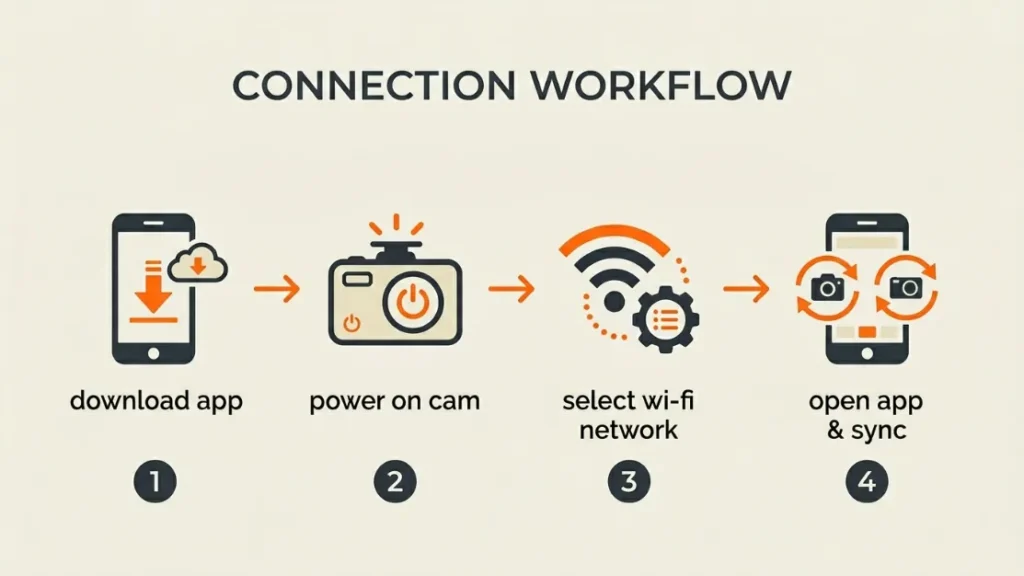
Connecting a Wi-Fi dash cam to your phone takes under two minutes once you’ve done it once. The process is nearly identical across brands — only the app name changes.
How to Pair a Wi-Fi Dash Cam on iPhone
Step-by-Step: Pairing on iPhone
- Download the companion app from the App Store (e.g., MyNextbase, BlackVue, Thinkware Connected).
- Power on your dash cam — it will broadcast its own Wi-Fi network automatically.
- Open Settings on your iPhone and go to Wi-Fi.
- Find and tap the dash cam’s network name (check your manual for the exact name and password).
- Open the companion app — it should detect the camera within 5 to 10 seconds.
- Tap “Connect” or “Live View” to begin.
Note: Your iPhone will show a warning that the Wi-Fi network has no internet access. This is expected — tap “Use Without Internet” or “Keep Connected” to stay paired.
How to Pair a Wi-Fi Dash Cam on Android
Step-by-Step: Pairing on Android
- Install the companion app from the Google Play Store.
- Turn on your dash cam and wait for the Wi-Fi indicator light or on-screen icon.
- Go to Wi-Fi settings on your Android phone and connect to the dash cam network.
- Android may ask if you want to “Switch to mobile data” since the network lacks internet — tap “Stay Connected.”
- Launch the app and tap connect or live view.
Some Android versions will automatically disconnect from a Wi-Fi network with no internet. If this keeps happening, go to your phone’s Wi-Fi settings, tap the dash cam network, and disable “Auto-reconnect” for other networks while connected.
What Can You Actually Do in a Dash Cam App?
A good dash cam app is far more useful than most people expect. You get a remote viewfinder, a video library, a settings panel, and sometimes a trip logger — all in one place.
Live View — Can You Watch Your Dash Cam in Real Time?
Yes — most Wi-Fi dash cams stream a live feed to the app while you’re within range. This is useful for checking camera angle after installation, monitoring your car while parked nearby, or capturing a specific moment manually.
Live view quality ranges from 480p to 1080p depending on the model and Wi-Fi strength. BlackVue DR970X and Nextbase 622GW both deliver smooth live streams with minimal lag in testing.
Keep in mind — live view over Wi-Fi Direct only works when your phone is physically close to the car. For true remote viewing from anywhere, you need a cloud-capable model.
Downloading and Sharing Footage Without Removing the SD Card
This is the feature most people use most often. Instead of pulling the SD card and finding a laptop, you connect to the app and download the exact clip you need.
You tap the event file, preview it in the app, and save it to your phone’s camera roll. From there you can share it via WhatsApp, email it to insurance, or upload it anywhere.
Transfer speeds vary. A 1-minute 1080p clip typically downloads in 15 to 30 seconds on a strong Wi-Fi connection. A 4K clip of the same length can take 60 to 90 seconds.
Tip:
After any incident, connect to the app and lock the relevant clip immediately. This stops it being overwritten by loop recording before you can download it.
Changing Dash Cam Settings From Your Phone
Most apps give you full access to the camera’s settings menu — resolution, loop recording length, G-sensor sensitivity, parking mode, exposure, and audio on/off.
This matters because changing settings on a tiny dash cam screen with small buttons is frustrating. Doing it on a phone with a full touchscreen is far easier.
Thinkware’s Connected app goes further — it lets you configure ADAS (Advanced Driver Assistance System) sensitivity, lane departure warnings, and front collision alerts directly from your phone.
Why Does My Phone Lose Internet When I Connect to My Dash Cam?
Your phone loses regular internet because it can only connect to one Wi-Fi network at a time — and your dash cam’s hotspot has no internet access. When you join the dash cam’s Wi-Fi, you leave your home or mobile Wi-Fi behind.
This confuses a lot of people. The fix is simple — use your phone’s mobile data (4G/5G) for internet while the app runs over the dash cam’s Wi-Fi. Most modern phones handle this automatically, switching internet traffic to cellular while the app uses the local Wi-Fi connection.
If your phone keeps dropping the dash cam connection to seek internet, go into Wi-Fi settings, find the dash cam network, and turn off “Switch to better network” or “Auto-switch” — the exact label depends on your phone brand.
Warning:
Never try to configure app pairing or download footage while driving. Pull over safely before using the app — even on a phone mount. Dash cam apps are for parked use or passenger use only.
Wi-Fi vs Bluetooth vs Cloud — Which Dash Cam Connection Type Is Best?
The right connection type depends entirely on what you need the app to do. Here is a clear breakdown of all three options.
| Connection Type | Range | Speed | Remote Access | Best For |
|---|---|---|---|---|
| Wi-Fi Direct | 10–30 feet | Fast | No | Most users — download clips, change settings |
| Bluetooth | 30 feet | Very slow | No | Waking camera, basic triggers only |
| Cloud / 4G LTE | Unlimited | Varies | Yes | Fleet, remote monitoring, theft recovery |
For most everyday drivers, Wi-Fi Direct is the right choice. It is free, fast, and works on almost every connected dash cam sold today. You don’t pay a monthly fee, and it handles every common task well.
Cloud connectivity makes sense if you park your car away from home, run a small fleet, or want the peace of mind of checking your car remotely.
Which Dash Cam Apps Are Actually Worth Using in 2025?
Hardware matters — but a bad app ruins the experience. These four brands consistently get the highest marks for their mobile apps in real-world testing and user reviews.
Nextbase MyNextbase App
Nextbase (the UK’s best-selling dash cam brand, with over 4 million units sold as of 2024) built their MyNextbase app as a complete companion platform. It supports live view, clip download, emergency SOS sharing, and a trip log with GPS overlay.
The interface is clean and the pairing process is one of the fastest I’ve tested. It works on both iOS and Android with consistent performance. The 622GW model pairs in under 10 seconds from cold start.
BlackVue App
BlackVue (a South Korean brand known for premium cloud-connected dash cams) offers two app experiences — local Wi-Fi via the standard BlackVue app, and remote cloud access via BlackVue Over the Cloud.
The cloud feature is exceptional for remote monitoring. You can watch live footage, receive parking impact alerts, and track your car’s location from any country. It requires a paid subscription starting at around $7.99 per month as of 2024.
Thinkware Connected App
Thinkware (another South Korean brand popular with safety-conscious drivers) stands out for ADAS integration in its app. You get lane departure warnings, forward collision alerts, and speed camera notifications delivered through the app in real time.
The app also supports cloud connectivity on select models and offers detailed trip history with speed and route data. It’s one of the most feature-rich apps available, though the interface has a slightly steeper learning curve.
Vantrue App
Vantrue (a Chinese brand popular in North America for multi-channel dash cams) offers a solid companion app for its Wi-Fi-enabled models. It covers live view, footage management, and settings — though it lacks the advanced trip analytics of Thinkware or Nextbase.
It works reliably on both iOS and Android. For drivers who want a no-fuss app focused purely on footage access, Vantrue does the job well.
App quality should rank alongside camera quality in your buying decision. A 4K camera with a broken app is harder to use than a 1080p camera with an excellent one. Always check recent app store reviews before buying — they reveal problems the marketing doesn’t.
Can You Watch Your Dash Cam Footage From Anywhere — Not Just Nearby?
Standard Wi-Fi dash cams only work when your phone is physically close to the car — within about 30 feet. But cloud-connected and 4G LTE dash cams break that limit entirely, letting you access footage from any location with internet access.
How Cloud and 4G Dash Cams Work
Cloud-capable dash cams have a built-in SIM card slot or connect to your phone’s data hotspot. They upload footage to a secure cloud server continuously or on impact detection. You access that footage through the app from anywhere — your office, another country, or your couch.
BlackVue’s DR970X-2CH Plus is one of the best examples. It supports 4G LTE, live GPS tracking, remote live view, and two-way voice communication — all accessible through the BlackVue app from anywhere in the world.
For remote monitoring, BlackVue’s cloud platform is one of the most established in the consumer market. Thinkware’s cloud service offers similar features with a slightly more affordable subscription tier.
Is Cloud Dash Cam Storage Worth the Cost?
Cloud storage makes sense for three types of drivers — people who park their car overnight in public areas, small business owners monitoring a vehicle remotely, and anyone who has experienced vehicle theft and wants recovery evidence.
For a typical commuter who parks at home or a secure workplace, a standard Wi-Fi dash cam covers every real need without any monthly fee. The cloud upgrade is a genuine extra — not a must-have for most people.
Quick Summary
Wi-Fi Direct dash cams work brilliantly for close-range access — free, fast, and sufficient for most drivers. Cloud and 4G models add true remote access but carry a monthly subscription cost. Choose cloud only if remote monitoring is a genuine priority for you.
Common Dash Cam App Problems and How to Fix Them Fast
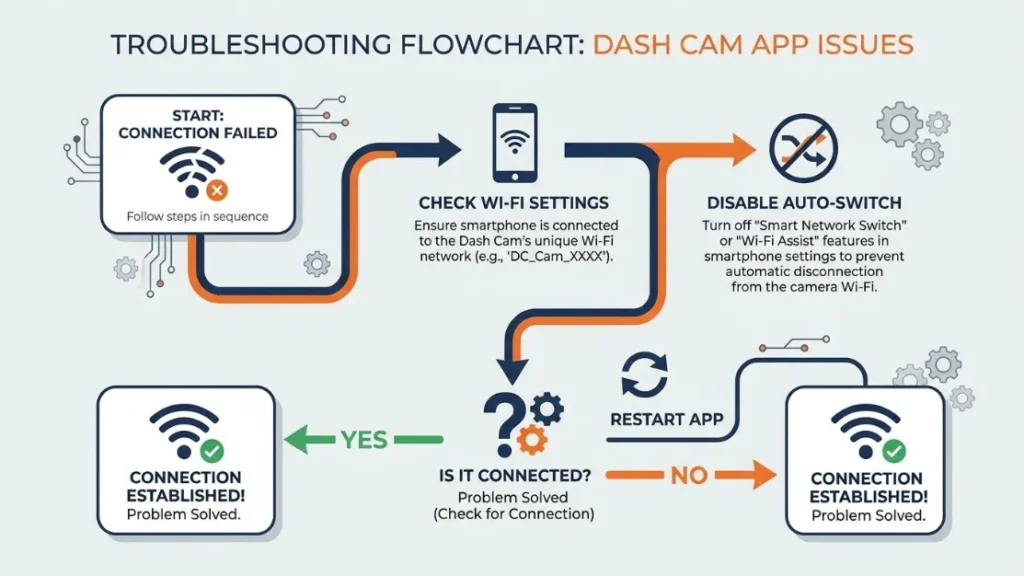
App connection issues frustrate a lot of users — but most problems come down to a handful of fixable causes. Here are the most common ones and how to solve each.
- Phone keeps disconnecting from the dash cam Wi-Fi: Go to your Wi-Fi settings, find the dash cam network, and disable auto-switch to better networks.
- App says “camera not found” even when connected: Force-close the app, stay connected to the dash cam Wi-Fi, then reopen the app. On iPhone, check that the app has local network permissions in Settings → Privacy.
- Live view is choppy or won’t load: Move closer to the camera — Wi-Fi signal drops off quickly through glass and metal. Also check that no other apps are hogging bandwidth.
- Footage won’t download — shows error: The SD card may be nearly full. Delete older files directly in the app or use loop recording to free space automatically.
- App worked before, now won’t connect after phone update: Check the App Store or Play Store for an app update — OS changes often break older app versions within days of release.
- Can’t find the Wi-Fi network name: Check your dash cam manual for the default SSID and password — they’re printed on the device itself or inside the battery cover on hardwired models.
Warning:
If your dash cam app asks you to create an account and store footage in the cloud, read the privacy policy before agreeing. Some budget brand apps send footage to servers in jurisdictions with weaker data protection laws. Stick to reputable brands with clear privacy policies for peace of mind.
Should You Choose a Dash Cam Based on Its App?
Yes — app quality should factor into your buying decision, especially if you plan to download footage regularly or use settings without removing the camera from the mount.
A dash cam with a poor app is not a deal-breaker if you only use the footage occasionally and don’t mind pulling the SD card. But if you want quick clip access after incidents, real-time parking alerts, or hands-free settings changes, the app experience matters as much as the camera.
My recommendation after testing multiple brands: Nextbase and BlackVue consistently offer the best app experiences across iOS and Android. Thinkware wins on safety feature integration. Vantrue is solid for budget buyers who want reliable basics.
Check recent app reviews on both the App Store and Google Play before committing. A camera released two years ago may have an app that hasn’t been updated — and iOS and Android updates regularly break older integrations.
You can also read detailed model comparisons at RTINGS.com’s dash cam reviews, which include app testing as part of their methodology.
Frequently Asked Questions
Do all dash cams connect to a phone?
No — basic entry-level dash cams record only to an SD card with no wireless connectivity. Phone connectivity is a mid-range and premium feature. Look for “Wi-Fi” or “app-enabled” in the product specifications when buying.
Can I view my dash cam live on my phone while driving?
Technically yes, but you should never do this as the driver. Live viewing while driving is dangerous and illegal in most countries. Always pull over safely before opening the app or viewing footage.
Does using the dash cam Wi-Fi drain my phone battery?
Wi-Fi use does consume battery — but no more than any other Wi-Fi activity. A typical 10-minute app session uses about 3 to 5 percent battery on a modern smartphone. It’s not a meaningful concern for most users.
Can I use the dash cam app on two phones?
Most dash cam apps allow multiple devices to be set up, but only one phone can connect to the dash cam’s Wi-Fi at a time. You’d need to disconnect one device before another can take over.
What happens if I change my phone — do I lose my dash cam connection?
No — the pairing is stored in the app, not the dash cam hardware. Install the app on your new phone, log in to your account (if the app uses one), and reconnect to the dash cam’s Wi-Fi. The process takes about two minutes.
Is it safe to store dash cam footage in the cloud?
With reputable brands like Nextbase and BlackVue, cloud storage is encrypted and secure. Always review the privacy policy of any cloud service before enabling it. Avoid enabling cloud upload on budget cameras with unknown data handling practices.

I’m Alex Rahman, a car enthusiast and automotive writer focused on practical solutions, car tools, and real-world driving advice. I share simple and honest content to help everyday drivers make better decisions.
