How to Retrieve a Recording from Your Dash Cam (All Methods Explained)
To retrieve a dash cam recording, remove the SD card and insert it into your computer using a card reader. Open the DCIM folder and copy the MP4 files you need. If your dash cam has Wi-Fi, use its companion app to download footage directly to your phone — no card removal needed.
I checked my dash cam footage after a close call on the motorway — and nearly panicked. I had no idea where the files were, which ones were saved, or whether loop recording had already wiped everything. Sound familiar?
I’m Alex Rahman, and after years of testing dash cams and helping drivers use them properly, I know this is one of the most common — and most stressful — situations dash cam owners face.
The good news is that retrieving your footage is straightforward once you know the method. The bad news is that if you wait too long, loop recording will overwrite it.
This guide covers every retrieval method — SD card, Wi-Fi app, and USB — plus how to play your files, back them up, and use them if you’ve had an accident. Let’s get into it.
- There are three ways to retrieve dash cam footage: SD card removal, Wi-Fi app, or USB connection — the right one depends on your dash cam model.
- Loop recording overwrites old footage when the SD card is full — act within hours if the footage isn’t locked.
- Locked event files (triggered by your G-sensor during impact) survive loop recording automatically.
- MP4 is the most common dash cam file format — VLC Media Player opens almost all of them for free.
- Always copy footage to a second location (hard drive or cloud) before formatting your SD card.
What Happens to Your Dash Cam Footage and Why You Need to Act Fast
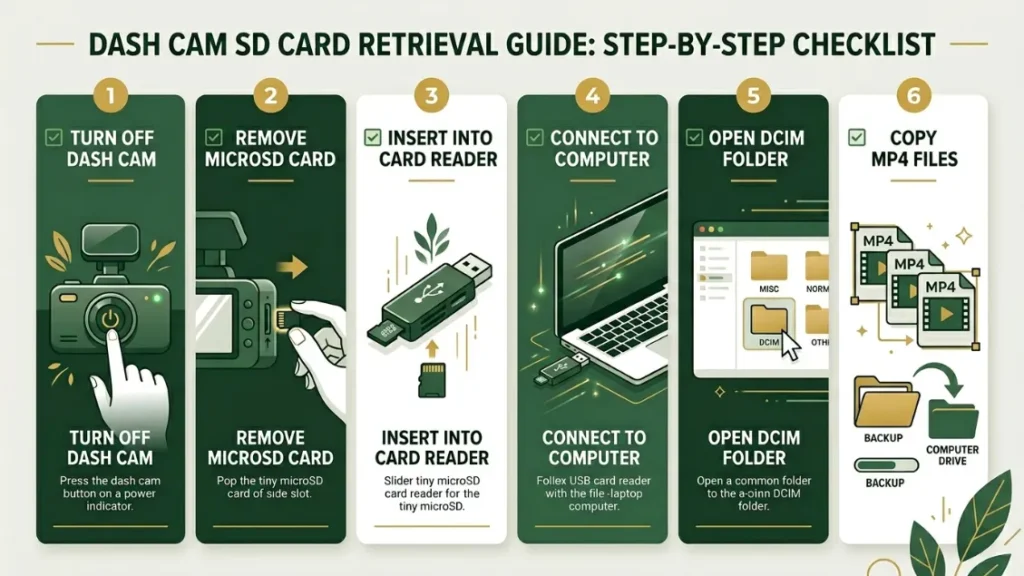
Your dash cam stores video on a microSD card using a loop recording system. When the card fills up, the camera deletes the oldest footage and records over it automatically. That means your window to retrieve specific footage can be very short — sometimes just 30 to 60 minutes of driving after an incident.
Most drivers don’t realize this until it’s too late. The camera looks like it’s working fine, but the footage they needed is already gone.
The size of your SD card determines how much footage you have before overwrite begins. A 32GB card holds roughly 4 hours of 1080p footage. A 128GB card stretches that to around 16 hours. Once those hours are up, the loop starts again.
How Loop Recording Works and When It Deletes Your Video
Loop recording splits your footage into short clips — usually 1, 3, or 5 minutes each. When the card fills up, the dash cam deletes the oldest clip and replaces it with a new one. This cycle runs continuously while you drive.
Here is what that means in practice: if you drive for two hours after an incident and your card is nearly full, the footage from that incident could already be overwritten. Don’t wait. Pull the footage as soon as you safely can.
Never remove your SD card while the dash cam is powered on. Always turn off the camera or disconnect it from power first. Removing the card during recording can corrupt your files and damage the card.
What Are Locked Event Files and Are Yours Safe?
Locked files — also called event files or protected files — are clips your dash cam automatically saves when it detects a sudden impact or sharp braking. The G-sensor inside the camera triggers this. These files get moved to a separate protected folder and will not be overwritten by loop recording.
If you were in an accident, there is a strong chance the footage is already locked. Look for a folder named “Event,” “Locked,” or “RO” (read-only) on your SD card. That is where your most important clips live.
You can also lock footage manually on most dash cams by pressing a dedicated button during or right after an incident. Check your dash cam manual for the exact button — on Nextbase models it is usually marked with a lock icon.
How to Retrieve Dash Cam Footage Using an SD Card (Fastest Method)
Removing the SD card and inserting it into your computer is the fastest and most reliable retrieval method. It works on every dash cam regardless of brand, model, or age — and you don’t need internet, Wi-Fi, or special software to do it.
What You Need Before You Remove the SD Card
You need three things: the SD card from your dash cam, a microSD card reader (most laptops don’t have a built-in slot for microSD), and a computer running Windows or macOS. Card readers cost under £10 and are available at any electronics store or online.
If your laptop has a full-size SD slot, you’ll need a microSD-to-SD adapter. These often come in the box with your SD card — check the packaging before buying one separately.
Step-by-Step: How to Transfer Dash Cam Files to Your Computer
- Turn off your dash cam or unplug it from the power cable.
- Locate the microSD card slot — usually on the side or bottom of the camera body.
- Gently press the card inward until it clicks and releases, then remove it carefully.
- Insert the microSD card into your card reader and plug the reader into your computer’s USB port.
- Open File Explorer (Windows) or Finder (Mac) — the card will appear as a removable drive.
- Open the drive and navigate to the DCIM folder (or Movie / Video folder on some models).
- Find the clips you need — they are usually named by date and time.
- Copy (do not move) the files to a folder on your computer or external hard drive.
Where Are the Video Files Stored on the SD Card?
On most dash cams, video files sit inside a folder called DCIM — the same standard used by digital cameras and smartphones. Inside DCIM, you will usually find subfolders for normal recordings and event/locked recordings.
Brands like Vantrue use a “Movie” folder instead of DCIM. BlackVue stores files inside a “BlackVue” folder with date-stamped subfolders. If you can’t find your files immediately, open every folder on the drive — the clips will be there.
File names typically include the date and time of recording (e.g., 20250508_143012_EV.mp4 — where EV indicates an event/locked file). Sort by date modified to find the most recent footage instantly.
How to Get Dash Cam Footage on Your Phone Using Wi-Fi (No Card Removal Needed)
If your dash cam has built-in Wi-Fi, you can download footage directly to your smartphone without touching the SD card. This method is slower than the card reader method for large files, but it is the most convenient option when you’re away from a computer.
Which Dash Cams Support Wi-Fi Transfer?
Most mid-range and premium dash cams released after 2019 include Wi-Fi connectivity. Nextbase’s 322GW, 422GW, and 622GW all support Wi-Fi download through the Nextbase app. Garmin Dash Cam models use the Garmin Drive app. Vantrue’s E1 Lite and N4 Pro support Wi-Fi via the Vantrue Care app. BlackVue models use the BlackVue app and also support cloud retrieval over 4G.
If your dash cam is a basic entry-level model from 2018 or earlier, it likely does not have Wi-Fi. Use the SD card method instead.
Step-by-Step: How to Download Dash Cam Video to Your Phone
- Download your dash cam’s companion app — search your brand name in the App Store or Google Play.
- Enable Wi-Fi on your dash cam (usually through the settings menu or a dedicated Wi-Fi button).
- Open your phone’s Wi-Fi settings and connect to the dash cam’s network (the SSID and password are in your manual).
- Open the companion app — it will automatically detect your camera.
- Navigate to the video gallery or file list inside the app.
- Select the clip you want and tap Download or Save to Phone.
- The file saves to your phone’s camera roll or a dedicated app folder.
Wi-Fi transfer speeds vary. A 3-minute 1080p clip is roughly 300–500MB and can take 2–5 minutes to download over the dash cam’s direct Wi-Fi connection. For large transfers, use the SD card method — it is significantly faster.
How to Connect Your Dash Cam Directly to a Computer via USB
Some dash cams let you connect directly to a computer via a USB cable, where the camera appears as a storage device. This skips the need to remove the SD card — but not all models support it.
Does Every Dash Cam Support USB Playback Mode?
No — this depends on your specific model. Many dash cams use their USB port for power only, not data transfer. Check your manual under “PC Connection” or “USB Mode.” If your dash cam supports mass storage mode, it will appear as a removable drive just like the SD card method. If it only shows up as a charging device, use the SD card method instead.
Step-by-Step: USB File Transfer from Dash Cam to PC or Mac
- Turn off the dash cam and disconnect it from the car’s power socket.
- Connect the dash cam to your computer using a USB-A to micro-USB (or USB-C) cable.
- Power on the dash cam — if supported, a “USB Mode” or “Mass Storage” screen appears.
- The camera appears as a removable drive in File Explorer or Finder.
- Navigate to the DCIM or video folder and copy the files you need.
- Eject the device safely before disconnecting the cable.
Which Retrieval Method Is Right for Your Situation?
Choose your method based on what equipment you have available and how urgently you need the footage.
| Method | Speed | Equipment Needed | Best For |
|---|---|---|---|
| SD Card + Card Reader | Fast | Card reader, computer | Large transfers, all dash cam models |
| Wi-Fi App | Moderate | Smartphone only | On the go, short clips, no computer nearby |
| USB to Computer | Moderate | USB cable, computer | Models that support mass storage mode |
| Cloud (BlackVue / Vantrue) | Varies | Internet connection | Remote access, 4G-enabled cameras |
How to Open and Play Dash Cam Footage on a PC or Mac
Most dash cam footage records in MP4 format, which opens in Windows Media Player, QuickTime, or any modern video player. If your file won’t open, the issue is almost always a missing codec or a proprietary file format used by certain brands.
Why Won’t My Dash Cam Video Play? (File Format and Codec Fix)
Some dash cams — particularly older Nextbase models and certain budget cameras — record in AVI or proprietary formats that standard players struggle with. The most common fix is VLC Media Player, a free open-source player that handles virtually every video format and codec without additional downloads.
Download VLC, right-click your dash cam file, select “Open With,” and choose VLC. In most cases, this solves the problem immediately.
Do not download “codec packs” from random websites to fix playback issues. Many of these contain malware. Stick to VLC or your dash cam brand’s official viewer software — both are free and safe.
Best Free Software to View Dash Cam Footage with GPS Data
If your dash cam records GPS data, a standard video player will show the footage but not the speed, location, or route overlay. You need dedicated software for that.
- Nextbase Replay 3 — Free desktop app by Nextbase. Shows speed, GPS map, and G-sensor data alongside the video. Works with all Nextbase cameras.
- BlackVue Viewer — Free app for Windows and Mac. Syncs front and rear footage and displays GPS tracks on a map.
- DashCam Viewer — Third-party paid software (around $25 USD) that supports most brands and provides detailed GPS analysis.
- VLC Media Player — Best for simply watching footage without GPS overlay. Free and works on all platforms.
If you need to use footage as evidence — for an insurance claim or police report — always use your brand’s official viewer software. The GPS and speed data it displays carries more credibility than a plain video file.
How to Save and Back Up Dash Cam Recordings the Right Way
Copying footage to your computer is step one — but a computer can fail too. A proper backup means having the footage in at least two separate locations. Copy the files to an external hard drive or upload them to cloud storage like Google Drive or Dropbox as soon as possible.
Label your folders clearly: use the date and a brief description (e.g., “2025-05-08 Motorway Near Miss”). This makes it easy to find the right clip quickly if you need it weeks later for an insurance claim.
How to Prevent Your Dash Cam from Overwriting Important Footage
The safest way to protect footage before you can retrieve it is to manually lock the clip using your dash cam’s lock button. On most cameras, pressing this button mid-journey or immediately after an incident saves the current clip to the event/protected folder and shields it from loop overwrite.
If your event folder fills up with too many locked files, your dash cam may stop recording new events. Check your protected folder regularly and delete old locked clips you no longer need.
To protect dash cam footage from overwrite: press the lock button immediately after an incident, retrieve the SD card as soon as safely possible, copy files to both a computer and a cloud backup, and label everything clearly by date and event description.
What to Do with Dash Cam Footage After an Accident
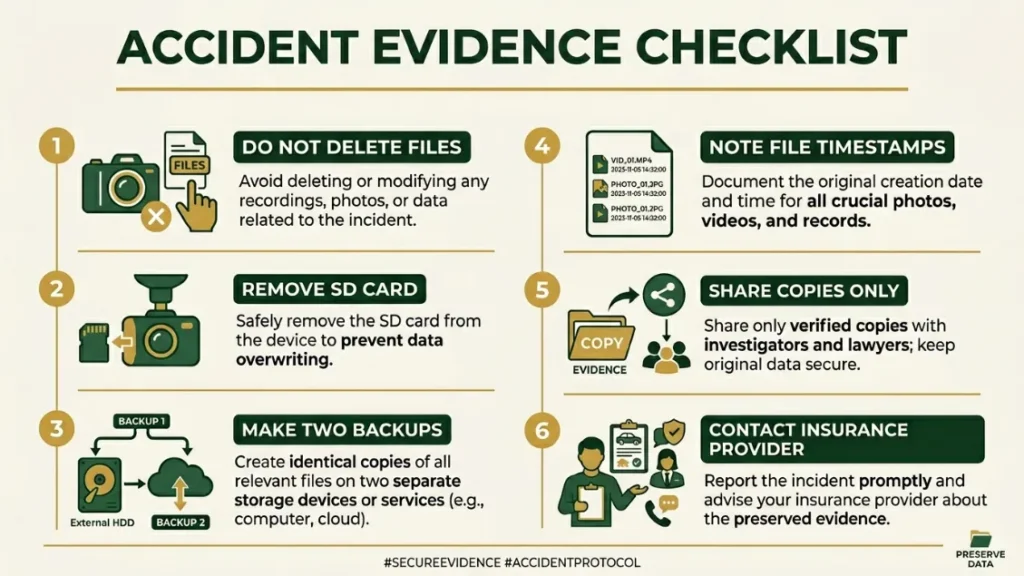
After a collision, your dash cam footage can be one of the most powerful pieces of evidence you have. Insurance adjusters and police officers increasingly accept dash cam video as primary evidence — but only if you handle it correctly.
Here is what to do in order:
- Do not delete or format anything. Even if the footage looks unhelpful, preserve it exactly as recorded.
- Remove the SD card immediately and store it safely — do not leave it in the dash cam where continued recording could overwrite earlier clips.
- Make at least two copies of the footage before sharing it with anyone.
- Note the file names and timestamps so you can reference specific clips clearly in your insurance report.
- Share a copy only — never hand over your only copy of the footage. Keep the original SD card in your possession.
- Contact your insurance provider and mention that you have dash cam footage. Most major UK and US insurers accept it as supporting evidence for claims.
The UK’s DVLA and various motoring legal experts recommend treating dash cam footage the same way you would treat a written statement — factual, preserved, and carefully handled.
How to Recover Deleted or Overwritten Dash Cam Files
If loop recording has already overwritten your footage, recovery is difficult — but not always impossible. Deleted files are not immediately erased from the physical memory of the SD card. Until new data is written to that space, recovery software can sometimes retrieve them.
Tools like Recuva (free, Windows) or Disk Drill (Mac and Windows) can scan your SD card for recoverable video files. Stop recording immediately and do not use the card for anything new — every new write operation reduces the chance of recovery.
Results are not guaranteed. The longer you wait and the more driving you do after the incident, the lower your chances. Professional data recovery services exist for critical situations, but costs can run into hundreds of pounds or dollars.
The single most effective “recovery” strategy is prevention — always lock important clips immediately and retrieve footage before it can be overwritten. Recovery software is a last resort, not a reliable plan.
Frequently Asked Questions

I’m Alex Rahman, a car enthusiast and automotive writer focused on practical solutions, car tools, and real-world driving advice. I share simple and honest content to help everyday drivers make better decisions.
