Can You See Your Dash Cam Live on Your Phone?
Yes, most modern dash cams let you see live footage on your phone through a companion app over Wi-Fi Direct — but only when you’re near the car. To watch your dash cam from anywhere, you need a cloud-connected or cellular dash cam like the BlackVue DR900X or Thinkware Q800Pro.
I get this question all the time. You buy a dash cam, download the app, and then wonder — can I actually watch what’s happening in my car right now, from wherever I am?
I’m Alex Rahman, and I’ve tested more dash cams than I can count. The answer to this question trips people up because it depends on which type of dash cam you have — and most product pages don’t explain this clearly.
Some cams let you see live footage only when you’re standing next to the car. Others stream directly to your phone from miles away. These are two completely different things — and confusing them leads to frustration and wasted money.
In this guide, I’ll break down exactly how live phone viewing works, what your current dash cam can and can’t do, and which models give you true remote access. Let’s clear this up once and for all.
- Most Wi-Fi dash cams only show live footage when your phone is within 30–50 feet of the camera.
- True remote viewing from anywhere requires a cloud-connected or 4G cellular dash cam.
- Brands like BlackVue, Thinkware, and Vantrue offer app-based live view with varying range.
- Cloud dash cams usually charge a monthly subscription for remote streaming features.
- Parking mode + cloud access is the most powerful combo for monitoring your parked car remotely.
What Does “Live View” Actually Mean for a Dash Cam?
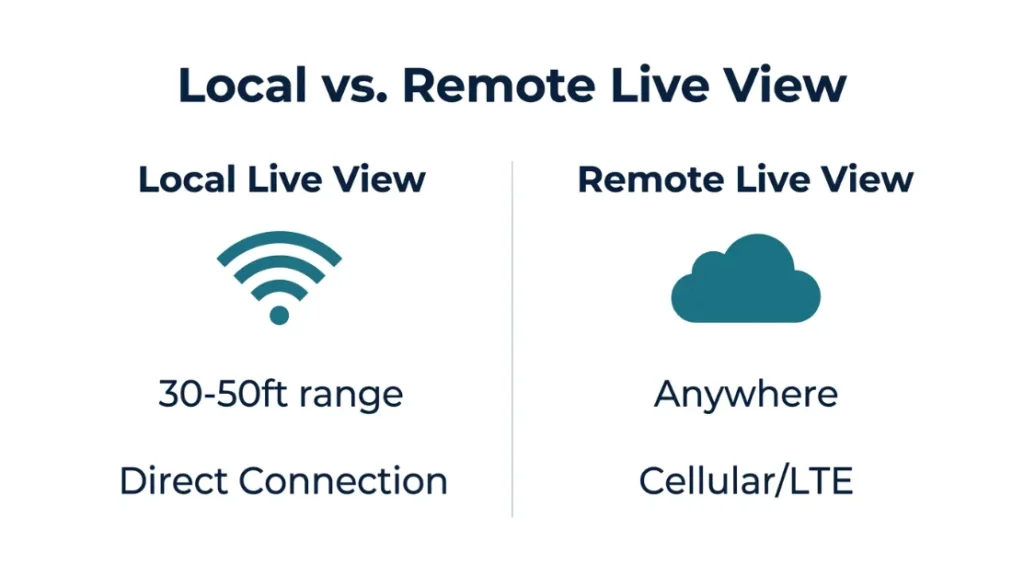
Live view on a dash cam means your phone displays real-time footage from the camera — either as it records while you drive, or while the car is parked. Most dash cams offer this through a dedicated smartphone app over a Wi-Fi connection. The key detail most people miss is that “live” doesn’t always mean “from anywhere.”
There are two very different types of live view. The first is local live view — where you connect directly to the dash cam’s own Wi-Fi signal. The second is remote live view — where the dash cam sends footage to the cloud and your phone pulls it from there, even from miles away.
If your dash cam has a Wi-Fi logo on the box, it almost certainly offers local live view. Remote live view is a premium feature found on specific cloud-enabled models.
Is Live View the Same as Remote Viewing?
No — and this distinction is critical. Local live view only works when your phone is near the camera, typically within 30 to 50 feet. Remote viewing works from anywhere with a mobile data connection. Most budget and mid-range dash cams only support local live view. Remote viewing requires cloud connectivity, which usually means either a built-in SIM card or a Wi-Fi hotspot tether plus a cloud subscription service.
What Is Wi-Fi Direct and Why Does It Matter?
Wi-Fi Direct is a technology that lets two devices connect directly to each other — no router needed. Your dash cam creates its own mini Wi-Fi network. Your phone connects to that network through the companion app. This works brilliantly for viewing footage, adjusting settings, and downloading clips. The limitation is range. The moment you walk more than 50 feet from your car, the connection drops. This is why people often feel misled — the app works great in the parking lot but disappears the moment they enter a building.
Check your dash cam’s manual for the phrase “Wi-Fi Direct.” If that’s the only connectivity listed, your live view is local only — not remote.
How Does a Dash Cam Connect to Your Phone to Show Live Footage?
A dash cam connects to your phone through its companion app using a Wi-Fi Direct signal the camera broadcasts. You open the app, select your camera from the network list, enter the password, and the live feed appears within seconds. The entire setup usually takes under two minutes once the app is installed.
Every major dash cam brand has its own app. Nextbase uses the MyNextbase Connect app. Garmin uses the Garmin Drive app. BlackVue uses the BlackVue app. Thinkware uses the Thinkware Connected app. These apps handle live view, footage playback, settings adjustment, and — on cloud models — remote access.
How Does the Companion App Work With Your Dash Cam?
The companion app is the bridge between your phone and your camera. Once connected via Wi-Fi Direct, the app streams the camera’s video feed in real time to your screen. You can usually see the front camera, and on dual-channel models, the rear or interior camera too. Most apps also let you take screenshots, start manual recordings, and adjust resolution or sensitivity settings — all from your phone screen.
Step-by-Step: How to Set Up Live View on Your Phone
- Download your dash cam’s official companion app from the App Store or Google Play.
- Turn on your car’s ignition so the dash cam powers up fully.
- On your phone, go to Wi-Fi settings and look for your dash cam’s network name (usually the brand + model number).
- Enter the default Wi-Fi password — found in your dash cam manual or on a sticker on the device.
- Open the companion app and tap “Live View” or “Camera Preview.”
- The live feed should appear within 5 to 10 seconds.
- Stay within 30–50 feet of the camera for an uninterrupted connection.
If the feed doesn’t appear, restart both the app and the dash cam. Most connection issues resolve with a simple reboot.
Can I See My Dash Cam From Anywhere — or Only When I’m Near the Car?
With a standard Wi-Fi dash cam, you can only see live footage when your phone is physically close to the camera — usually within 30 to 50 feet. To watch your dash cam from anywhere in the world, you need a cloud-connected dash cam that transmits footage over a cellular network or your car’s Wi-Fi hotspot.
This is the biggest misconception in the dash cam world. People buy a “Wi-Fi dash cam,” expect to check their car from work, and feel let down when the app shows nothing. The camera is fine — it just wasn’t designed for that purpose.
True remote viewing is a different product category entirely.
What Is a Cloud Dash Cam and How Does Remote Viewing Work?
A cloud dash cam sends footage to an online server either through a built-in 4G SIM card or by connecting to your car’s mobile hotspot. Once the footage is on the server, you can access it from your phone app from anywhere — your office, another country, or your living room couch.
BlackVue (a South Korean brand popular worldwide) pioneered cloud dash cam technology with their BlackVue Cloud platform. Their DR900X-2CH 4K model streams live footage directly to your phone through the BlackVue app using a built-in LTE modem. Thinkware offers a similar setup with their Q800Pro and the Thinkware Connected service.
These systems let you see a live feed, receive push notifications if the camera detects an event, and download specific clips — all from anywhere with a signal.
Wi-Fi Direct vs. Cloud Streaming: What’s the Difference?
| Feature | Wi-Fi Direct | Cloud / Cellular |
|---|---|---|
| Range | 30–50 feet | Unlimited (global) |
| Internet Required | No | Yes |
| Monthly Cost | Free | $5–$15/month typical |
| Live View Quality | Full resolution | Compressed (720p–1080p) |
| Parking Monitor Access | Only if near car | Yes, from anywhere |
| Best For | Daily footage review | Remote security monitoring |
Which Dash Cams Let You Watch Live Footage on Your Phone Right Now?
The best dash cams for live phone viewing fall into two groups: those with local Wi-Fi app live view, and those with true cloud-based remote streaming. Your choice depends on whether you want to check footage conveniently near the car, or monitor your vehicle from anywhere in the world.
Best Dash Cams With Wi-Fi App Live View
Nextbase 622GW (UK’s best-selling dash cam brand) uses the MyNextbase Connect app for smooth Wi-Fi Direct live view. It records in 4K and connects to your phone in seconds. The app is clean, reliable, and available for both iOS and Android.
Garmin Dash Cam 67W uses the Garmin Drive app and supports 180-degree wide-angle live view over Wi-Fi. Garmin’s app is one of the most polished in the market as of 2024.
Vantrue E1 Lite is a compact single-channel cam with strong Wi-Fi Direct performance at a mid-range price point. It works well with the Vantrue app on both platforms.
Best Dash Cams With True Remote Cloud Viewing
BlackVue DR900X-2CH Plus is widely considered the gold standard for remote live viewing. It records in 4K front and 1080p rear, includes a built-in LTE modem, and streams live to the BlackVue app from anywhere. The BlackVue Cloud service starts at around $7.99 per month as of 2024.
Thinkware Q800Pro supports cloud connectivity via the Thinkware Connected app when paired with a mobile hotspot or their optional LTE adapter. It’s a strong choice for users who want remote access without a fully integrated SIM.
Kenwood DRV-A601W offers cloud connectivity through the Kenwood dashcam app and works with mobile hotspot tethering for remote viewing — a good mid-budget option for remote monitoring.
If you want remote access without paying for a cloud plan, some cams work by tethering to your car’s built-in Wi-Fi hotspot — check if your car already has one before buying a cellular dash cam.
Why Can’t I See My Dash Cam Live on My Phone? Common Fixes
The most common reason you can’t see your dash cam live on your phone is a failed Wi-Fi Direct connection — either the cam’s network isn’t broadcasting, your phone switched back to your home Wi-Fi, or the app needs a restart. Most issues are solved in under a minute.
Here’s what actually causes problems and how to fix each one.
Connection Problems and How to Solve Them Fast
Do not try to use the live view app while driving. Always pull over safely before checking your phone. Dash cam apps are designed for stationary use.
Problem: App shows “No Device Found” or won’t connect.
Fix: Make sure the ignition is on and the dash cam is powered up. Then go to your phone’s Wi-Fi settings and manually connect to the dash cam’s network before opening the app.
Problem: Phone keeps dropping the dash cam Wi-Fi and jumping to home or mobile data.
Fix: On iPhone, go to Settings → Wi-Fi → tap the info icon next to your dash cam network → disable “Auto-Join” for other networks. On Android, disable the “Switch to Mobile Data” prompt when Wi-Fi has no internet.
Problem: Live feed is blurry or keeps buffering.
Fix: Move closer to the dash cam. Wi-Fi Direct signal weakens beyond 30 feet. Also try lowering the live view resolution in the app settings — most apps offer a lower-bandwidth preview mode.
Problem: App connects but shows a black screen.
Fix: Force close the app and reopen it. If that doesn’t work, reset the dash cam’s Wi-Fi from its settings menu and reconnect from scratch.
Problem: I can’t see the cam from work — only from the parking lot.
Fix: This is not a bug. Your camera is Wi-Fi Direct only. Remote viewing from anywhere requires a cloud or cellular model like the BlackVue DR900X or Thinkware Q800Pro.
Most live view connection issues come down to three things: the dash cam not being powered on, the phone reconnecting to another Wi-Fi network, or being too far from the camera. Fix these first before assuming the app or camera is broken.
Can I Watch My Parked Car on My Phone Using a Dash Cam?
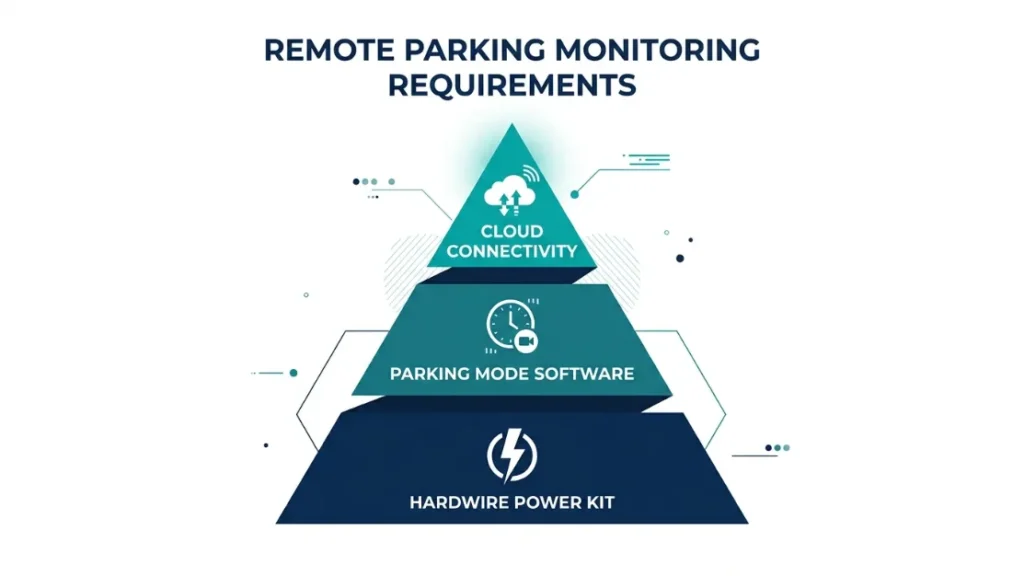
Yes — but only if your dash cam supports parking mode and, for remote viewing, cloud connectivity. Parking mode keeps the dash cam running on low power after you turn off the ignition. If the camera also has cloud access, it can send you alerts and live footage while the car sits unattended.
This is one of the most valuable real-world use cases for dash cam phone connectivity. Imagine leaving your car in an airport parking garage for a week. A cloud dash cam with parking mode lets you check in on it any time from your phone, and sends you a push notification the moment any motion or impact is detected.
How Parking Mode Live View Works
Parking mode typically uses one of three power methods: hardwire kit (connected to the car’s fuse box for constant power), the car’s built-in battery during short stops, or a dedicated dash cam battery pack. The camera stays in a low-power standby state and wakes up when it detects motion or impact.
With a Wi-Fi Direct cam, you can only check the parking footage by walking back to the car and connecting your phone nearby. With a cloud cam like the BlackVue DR900X (which uses 4G LTE), the camera sends you a real-time alert and streams the live view directly to the BlackVue app — no matter where you are. According to BlackVue’s official cloud documentation, the live view feature works globally as long as the camera has LTE coverage.
For anyone who regularly parks in unfamiliar areas or travels frequently, a cloud dash cam with parking mode is one of the most practical vehicle security investments available in 2025.
Is It Safe to Stream Dash Cam Footage to Your Phone?
Wi-Fi Direct streaming is private and secure because it’s a direct device-to-device connection — no data travels over the internet. Cloud streaming is generally safe if you use a reputable brand and strong account passwords, but your footage does pass through the manufacturer’s servers. Choose brands with clear privacy policies and end-to-end encryption for cloud models.
BlackVue, Thinkware, and Garmin all publish data privacy policies explaining how footage is stored and who can access it. Before buying a cloud dash cam, read the privacy policy — specifically look for terms around data retention, third-party sharing, and encryption standards.
For local Wi-Fi Direct use, there’s essentially no privacy risk since no data leaves the car-to-phone connection. The bigger risk is someone guessing your dash cam’s default Wi-Fi password — always change the default password in the app settings after first setup.
Never use the default Wi-Fi password on your dash cam. Default passwords are publicly listed in user manuals. Change it immediately in the app settings to protect your footage from unauthorized access.
For a deeper look at dash cam privacy standards, Which? UK’s dash cam reviews consistently evaluate data privacy alongside performance — a useful resource when comparing models.
The bottom line: local Wi-Fi Direct is as private as it gets. Cloud streaming is safe when you use a trusted brand, keep your app and firmware updated, and protect your account with a strong password.
As someone who has tested both local and cloud dash cam setups extensively, I’d say cloud security has improved dramatically since 2022. The top brands now treat footage privacy as seriously as any financial app. Thinkware’s Connected platform is a good example of a service built with user data control in mind.
Frequently Asked Questions
Can I see my dash cam live on my phone without Wi-Fi?
Yes. Most dash cams use Wi-Fi Direct, which creates a direct connection between the camera and your phone — no router or internet connection needed. You just connect your phone to the dash cam’s own Wi-Fi network through the companion app. The connection works entirely offline.
How far away can I be from my dash cam and still see it on my phone?
With Wi-Fi Direct, the reliable range is 30 to 50 feet. Beyond that, the connection weakens and the live feed drops. For viewing from greater distances, you need a cloud-connected dash cam that streams over a cellular network.
Which app do I need to see my dash cam on my phone?
Each brand has its own app. Nextbase uses MyNextbase Connect, Garmin uses Garmin Drive, BlackVue uses the BlackVue app, Thinkware uses Thinkware Connected, and Vantrue uses the Vantrue app. All are free to download from the App Store and Google Play.
Can I watch my dash cam while the car is parked and off?
Yes, if your dash cam supports parking mode and has a continuous power source. For remote viewing while parked, you also need a cloud-connected model. Wi-Fi Direct cams require you to be physically near the car to connect, even in parking mode.
Do cloud dash cams charge a monthly fee for live viewing?
Most do. BlackVue Cloud starts at around $7.99/month as of 2024. Thinkware Connected has similar pricing. Some features like basic event notifications may be free, but live remote streaming typically requires a paid subscription plan.
Is it legal to monitor my car with a dash cam while parked?
In most countries, recording from your own vehicle on public roads and parking areas is legal. However, laws vary — particularly around recording audio and parking on private property. Check local regulations in your area, especially for audio recording laws, before enabling parking mode with audio.

I’m Alex Rahman, a car enthusiast and automotive writer focused on practical solutions, car tools, and real-world driving advice. I share simple and honest content to help everyday drivers make better decisions.
