Why Does My Dash Cam Only Record Short Clips? (The Full Answer)
Dash cams record in short clips — usually 1 to 5 minutes — because of loop recording. This built-in system splits footage into small files and overwrites the oldest ones when your SD card fills up. It is not a fault. You can change the clip length in your dash cam’s settings menu anytime.
You plug in your dash cam, drive for an hour, then check the footage. Instead of one long video, you find dozens of tiny clips — each just 1, 2, or 3 minutes long. Frustrating, right?
I’m Alex Rahman, and I’ve spent years testing dash cams, reviewing their settings, and helping drivers make sense of how these devices actually work. This question comes up constantly — and the answer surprises most people.
Short clips are not a bug. They are a deliberate design choice. And once you understand why, you can tweak the settings to work exactly the way you want.
Let me walk you through the whole picture — from loop recording basics to SD card sizes to the sneaky reason your card might be filling up faster than it should.
- Dash cams record in short clips because of loop recording — a system that automatically overwrites old footage when storage is full.
- The default clip length on most dash cams is 1, 2, or 3 minutes — and you can change it in the settings.
- Higher resolution (like 4K) creates larger files, which makes each clip feel shorter relative to storage space.
- G-sensor locked files are a hidden reason your SD card fills up faster than expected.
- A larger SD card gives you more total footage — but does not change individual clip length on its own.
What Is Loop Recording and Why Does Every Dash Cam Use It?
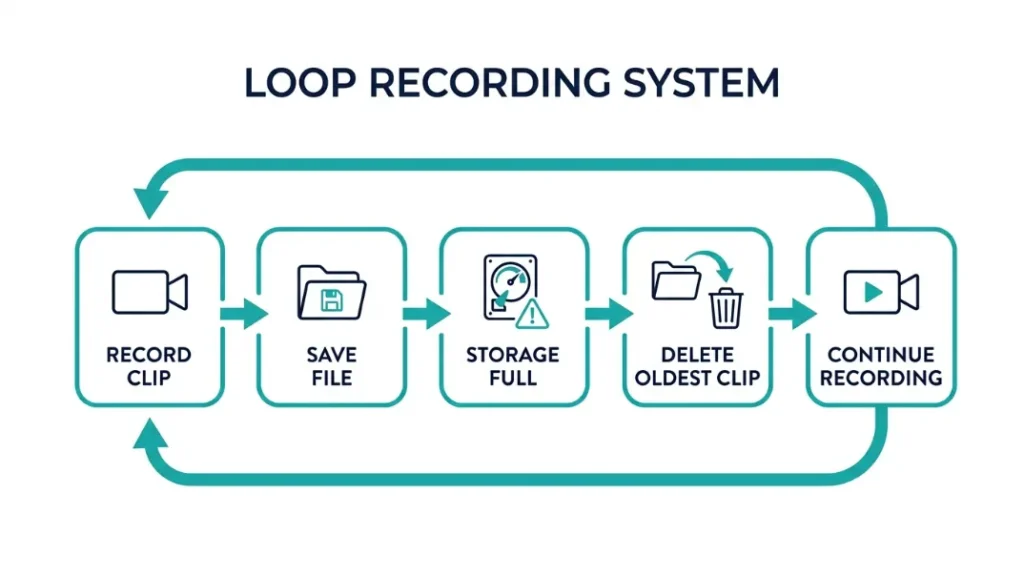
Loop recording is the system that makes your dash cam record continuously by splitting footage into short, equal-length clips and automatically deleting the oldest ones when your memory card runs out of space. It is the core reason your dash cam never stops recording — even on a long drive.
Think of it like a conveyor belt. New clips come in at one end. Old clips fall off the other end. The belt keeps moving, and your camera keeps rolling.
Without loop recording, your dash cam would record until the SD card filled up — then stop completely. That could happen in under two hours on a 32GB card at 1080p. After that, you’d get zero coverage for the rest of your drive.
Loop recording solves that problem entirely. Your camera never stops. It just keeps replacing the oldest footage with the newest.
How Loop Recording Keeps Your Footage Moving Automatically
Every time a clip hits its set length — say, 3 minutes — the dash cam closes that file and starts a new one instantly. There is no gap between clips. The recording is truly continuous.
When the card is full, the camera deletes the oldest unprotected clip to make room. This happens silently in the background. You do not need to do anything.
If you need to save a specific clip — like footage of an accident — copy it to your phone or computer before the loop overwrites it. Most dash cams also let you press a button to lock the current clip so it won’t be deleted automatically.
Why Splitting Into Short Clips Is Smarter Than One Long File
One giant video file causes serious problems. If the file gets corrupted — say, from a sudden power cut — you lose everything. A 4-hour single file with corruption in hour 2 is unplayable from that point forward.
Short clips fix this. If one 3-minute clip gets corrupted, you still have hours of clean footage on either side of it. File integrity is the real reason dash cam engineers chose short clips — and it is a smart call.
Smaller files are also faster to review, easier to share, and simpler to manage on a computer or phone.
Is It Normal for a Dash Cam to Record in 1, 2, or 3 Minute Clips?
Yes — recording in 1, 2, or 3 minute clips is completely normal for any dash cam. Nearly every dash cam on the market uses these short intervals as its default setting, and it reflects how the loop recording system is designed to work.
Most drivers see this for the first time and assume something is broken. It is not. Your dash cam is working exactly as intended.
The confusion usually comes from comparing dash cams to regular cameras or smartphones. Those devices record until you stop them. Dash cams are built differently — they record forever, which requires a different file management system.
What the Default Clip Length Looks Like on Popular Dash Cams
Different brands ship their cameras with different default clip lengths. Here is what you will typically find out of the box:
| Brand | Default Clip Length | Available Options |
|---|---|---|
| Nextbase | 1 minute | 1, 2, 3 minutes |
| Vantrue | 3 minutes | 1, 2, 3, 5 minutes |
| Garmin | 2 minutes | 1, 2, 3 minutes |
| BlackVue | 1 minute | 1, 2, 3 minutes |
| Thinkware | 1 minute | 1, 2, 3 minutes |
So if your Nextbase 622GW is saving clips every minute, that is exactly what it should do. Same goes for your Vantrue N4 splitting footage into 3-minute chunks. Check your manual to confirm the default for your specific model.
Why Does Resolution and Bitrate Make Your Clips Feel Even Shorter?
Higher resolution and higher bitrate create larger video files per minute of footage, which means your SD card fills up faster and your loop recording cycles through clips more quickly — making it feel like your camera records even shorter windows of time.
This is one of the most misunderstood parts of dash cam recording. The clip length setting and the actual usable recording time are two different things.
How File Size Per Minute Limits How Long Each Clip Can Be
Bitrate is the amount of data your dash cam writes every second. It is measured in megabits per second (Mbps). A higher bitrate means sharper, cleaner video — but much larger files.
Here is how that plays out in real storage terms:
| Resolution | Typical Bitrate | File Size Per Minute |
|---|---|---|
| 1080p (Full HD) | 12–15 Mbps | ~90–112 MB |
| 1440p (2K) | 20–25 Mbps | ~150–188 MB |
| 4K (Ultra HD) | 40–60 Mbps | ~300–450 MB |
A 3-minute clip at 1080p takes up roughly 270–336 MB. That same 3-minute clip at 4K can eat 900 MB to 1.35 GB. The clip length stays the same — but the storage impact is completely different.
What Happens When You Use 4K vs 1080p Recording
At 4K resolution, a 64GB SD card fills up in roughly 1.5 to 2 hours. At 1080p, that same card holds 6 to 8 hours of footage. The loop kicks in much sooner at higher resolutions, so older footage disappears faster.
If you are using a 4K dash cam like the Vantrue E3 or BlackVue DR970X-2CH, you need a larger card — at minimum 128GB — to maintain a meaningful window of recorded footage.
Not all SD cards handle 4K dash cam bitrates reliably. Use a card rated at UHS Speed Class 3 (U3) or Video Speed Class 30 (V30) at minimum. A slow card at high bitrate causes dropped frames, corrupted clips, and recording errors.
How Do You Change the Clip Length on Your Dash Cam?
You change the clip length through your dash cam’s settings menu — usually under “Recording Settings” or “Video Settings” — where you select your preferred interval, typically 1, 2, 3, or 5 minutes depending on your model.
The exact path varies by brand, but the process is similar across all major manufacturers. Most dash cams let you access settings either through buttons on the device itself or through a companion app on your phone.
Step-by-Step: Adjusting Clip Length on Nextbase, Vantrue, and Garmin
- Power on your dash cam and wait for the home screen.
- Press the Menu button (usually a gear icon or dedicated button).
- Navigate to “Recording Settings.”
- Select “Recording Length” or “Clip Length.”
- Choose 1, 2, or 3 minutes using the navigation buttons.
- Press OK or confirm. The new setting saves automatically.
- Tap the screen or press Menu on the camera.
- Go to “Video Settings.”
- Find “Loop Recording” or “Video Length.”
- Select your preferred clip length: 1, 2, 3, or 5 minutes.
- Exit the menu — the setting applies to the next recording session.
- Open the Garmin Drive app on your smartphone (paired via Wi-Fi).
- Select your dash cam from the device list.
- Tap “Settings” then “Video.”
- Adjust “Clip Length” to your desired duration.
- Save changes — the app syncs the setting to the camera.
Which Clip Length Should You Actually Use and Why?
The right clip length depends on how you use your dash cam. Here is a simple guide:
- 1 minute: Best for city driving with lots of stops and starts. Easier to find a specific moment in footage.
- 2 minutes: A solid all-round choice for mixed driving — city and highway.
- 3 minutes: Good for highway driving where incidents are spread further apart.
- 5 minutes: Best for long road trips where you want fewer, larger files to manage.
Most experienced dash cam users stick to 2 or 3 minutes. It balances easy footage review with solid coverage overlap. If an incident happens at the 2:55 mark of a 3-minute clip, you have the full context of the 3 minutes — not a fragment.
Why Is Your SD Card Filling Up Even With Loop Recording On?
Your SD card fills up despite loop recording because the G-sensor (impact detector) automatically locks and protects clips during hard braking, sharp turns, or collisions — and those protected files never get overwritten by the loop, so they pile up until your card has no free space left.
This surprises almost every dash cam owner. They turn on loop recording thinking the camera will manage storage forever. But locked files break that system completely.
Sound familiar? You drive on bumpy roads, hit a pothole, or brake hard — and the G-sensor triggers. That clip gets locked. Then it happens again. And again. Within a week, your card is full of locked 3-minute files the loop cannot touch.
The Hidden Culprit — G-Sensor Locked Files Explained
The G-sensor is an accelerometer built into your dash cam. Its job is to detect sudden movement — a collision, hard braking, or a sharp swerve. When it triggers, it locks the current clip so loop recording cannot overwrite it. This protects accident footage automatically.
The problem comes when the sensitivity is too high. On rough roads, even a speed bump or pothole can trigger it. Every trigger = one locked clip. Those locked clips stack up silently until your card is completely full.
The fix is simple: lower your G-sensor sensitivity.
- Go to your camera’s Settings menu.
- Find “G-Sensor Sensitivity” or “Impact Detection.”
- Lower it from High to Medium or Low.
- Delete existing locked files manually from the card.
You can also visit Nextbase’s support page or your brand’s equivalent for model-specific G-sensor guides.
Here is the key insight: Loop recording only overwrites unprotected files. The moment your G-sensor locks a clip, that clip is invisible to the loop. If you never manually delete locked files, loop recording eventually has nothing left to overwrite — and recording stops.
How Parking Mode Creates Extra Clips You Did Not Expect
Parking mode records short clips whenever the camera detects motion or an impact while your car is parked. These clips are saved separately — and many are also G-sensor locked — so they accumulate on top of your regular driving footage.
Brands like Thinkware and BlackVue are well known for robust parking mode systems. The BlackVue DR970X-2CH, for example, can record motion-triggered clips all night if you park in a busy area. By morning, your card could have dozens of extra locked clips.
If you use parking mode regularly, upgrade to at least a 128GB card. And check your locked files folder every week or two.
Does a Bigger SD Card Mean Longer or More Dash Cam Clips?
A bigger SD card gives you more total hours of footage before the loop starts overwriting — but it does not change the length of individual clips. Each clip stays at whatever duration you set (1, 2, 3 minutes). You simply get more of them before the oldest ones disappear.
This is a common misunderstanding. People buy a 256GB card hoping for 10-minute clips. The clips stay at 3 minutes — but now you have 20+ hours of 3-minute clips instead of 8 hours.
How Many Hours Each SD Card Size Actually Stores (With Real Numbers)
Here is what you can realistically expect at each card size, based on 1080p recording at around 12 Mbps:
| SD Card Size | Hours at 1080p | Hours at 4K | Best For |
|---|---|---|---|
| 32GB | ~4 hours | ~1 hour | Short daily commutes |
| 64GB | ~7–8 hours | ~1.5–2 hours | Regular daily driving |
| 128GB | ~14–16 hours | ~3–4 hours | Parking mode users + 4K cams |
| 256GB | ~28–32 hours | ~6–8 hours | Road trips + multi-channel systems |
For most daily drivers using 1080p, a 64GB card is the sweet spot. If you use 4K or have parking mode enabled, go straight to 128GB or 256GB.
Always buy a card designed for continuous recording. The Samsung PRO Endurance and SanDisk High Endurance lines are purpose-built for dash cam use — they handle the constant read/write cycles that regular cards struggle with.
How Do You Format Your SD Card for Better Dash Cam Performance?
You should format your SD card inside the dash cam itself — not on your computer — at least once every 2 to 4 weeks. This clears fragmented data, removes corrupted file headers, and keeps your camera recording smoothly without dropped clips or freezing.
Formatting on a computer uses a different file system structure than your dash cam expects. Over time, this mismatch causes recording errors, missing clips, and camera freezes.
- Copy any footage you want to keep to your computer first.
- Insert the SD card into your dash cam.
- Go to Settings on the dash cam.
- Find “Format Card,” “Format Storage,” or “Initialize Card.”
- Confirm the format. The process takes 10 to 30 seconds.
- Your card is now optimized for your camera’s file system.
Formatting permanently deletes everything on the card. Always back up footage you need before you format. There is no recovery option once the format is complete.
You can also check BlackVue’s official support documentation for detailed formatting guides for their specific models.
Short dash cam clips are caused by loop recording — a feature, not a flaw. You can change the clip length in settings. G-sensor locked files and parking mode clips secretly fill your card. A bigger SD card gives more total footage but does not change clip length. Format your card inside the dash cam every few weeks for best performance.
Conclusion
Short clips are not your dash cam malfunctioning. They are loop recording doing exactly what it was designed to do — protect your footage, manage your storage, and keep recording without any gaps.
Now you know the full picture. Loop recording splits footage into manageable files. Resolution and bitrate determine how much space each clip uses. G-sensor locks are the hidden reason cards fill up faster than expected. And a bigger SD card buys you more time — not longer clips.
The best move? Check your clip length setting, dial back your G-sensor sensitivity if you drive on rough roads, and match your SD card size to your resolution. Those three changes will make your dash cam work exactly the way you want it to.
I’m Alex Rahman, and if this helped clear things up, take a few minutes to check your dash cam settings today. Small tweaks make a big difference in how useful your footage is when you actually need it.
Frequently Asked Questions
Why does my dash cam only record 1 minute of video?
Your dash cam is set to a 1-minute clip length in its loop recording settings. This is the default on many brands including Nextbase and BlackVue. Go to your settings menu, find “Clip Length” or “Recording Length,” and change it to 2 or 3 minutes if you prefer longer files.
Can I make my dash cam record one continuous video instead of clips?
Most dash cams do not support one continuous recording file — and for good reason. A single long file is vulnerable to full corruption if power cuts out. Short clips protect your footage. Some dash cams offer a 5-minute option, which is the longest interval available on most models.
Why does my SD card fill up so fast even with loop recording turned on?
G-sensor locked files are almost always the cause. When your dash cam detects hard braking or impact, it locks that clip so loop recording cannot overwrite it. These locked files stack up over time. Lower your G-sensor sensitivity and manually delete old locked clips to free up space.
Does a larger SD card give me longer dash cam clips?
No — a larger SD card gives you more total hours of footage, not longer individual clips. Each clip stays at whatever length you set in the settings. A 256GB card simply holds far more 3-minute clips before the loop starts overwriting the oldest ones.
How often should I format my dash cam SD card?
Format your SD card every 2 to 4 weeks for best results. Always format from inside the dash cam itself — not on a computer. This keeps the file system clean, prevents recording errors, and reduces the chance of corrupted clips.
Why did my dash cam stop recording in the middle of a drive?
The most common causes are a full SD card (usually from too many locked G-sensor files), a corrupted card that needs formatting, or an overheated camera. Check your locked files folder, format the card inside the camera, and make sure your dash cam has adequate ventilation behind the windshield.

I’m Alex Rahman, a car enthusiast and automotive writer focused on practical solutions, car tools, and real-world driving advice. I share simple and honest content to help everyday drivers make better decisions.
