How Do I Transfer My Dash Cam Video to My Phone?
To transfer dash cam video to your phone, use your dash cam’s built-in Wi-Fi and companion app, or remove the microSD card and plug it into your phone using a card reader adapter. A third option — cloud storage — sends footage automatically if your dash cam supports it.
Last year, a driver cut me off so hard I nearly hit the barrier. My hands were shaking. My first thought? Please let that camera have caught it.
My second thought — and this is the frustrating one — was: How do I actually get that footage off the camera and onto my phone right now?
I’m Alex Rahman, and I’ve tested and written about dash cams for years. I’ve seen this exact moment trip up hundreds of drivers. The dash cam did its job. The footage is there. But getting it onto your phone feels harder than it should be.
The good news? There are three reliable methods, and at least one of them will work with your exact camera and phone today. This guide walks you through all three — step by step — and tells you exactly which brands use which apps.
- The Wi-Fi app method works without removing your SD card — but needs your dash cam to have built-in Wi-Fi.
- A microSD card reader is the fastest, most reliable method and costs under $10.
- Cloud-connected dash cams (like BlackVue and Thinkware) can send footage to your phone automatically.
- Major brands — Nextbase, Garmin, BlackVue, 70mai, Vantrue — each use their own companion app.
- If your footage won’t play on your phone, a free app like VLC fixes the file format issue instantly.
Why Getting Dash Cam Footage to Your Phone Matters More Than You Think
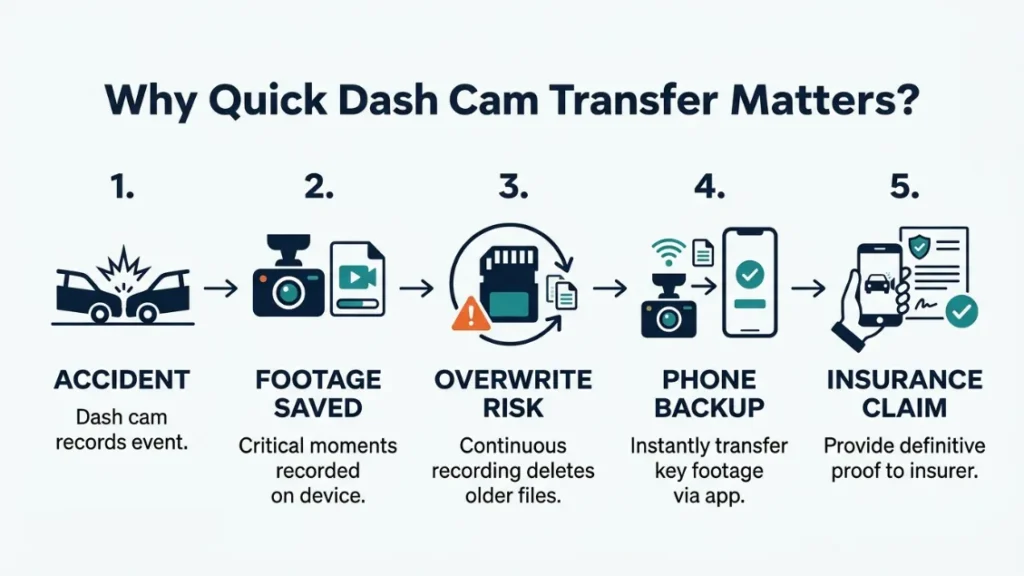
Most dash cam owners never transfer footage until an accident forces them to. By then, the clock is ticking. Dash cams record in a loop — old footage gets overwritten automatically when the card fills up. If you don’t pull that clip fast, it’s gone.
Beyond accidents, insurance companies increasingly accept video evidence. A short clip sent from your phone can resolve a disputed claim in minutes instead of weeks.
When You Need Footage Fast — The Accident Scenario
Say another driver hits your car in a car park and drives off. You saw the plate. Your dash cam caught everything. Here’s the problem: police need that footage today, not after you get home and figure out how to export it.
This is exactly why knowing your transfer method in advance matters. When stress is high, you need muscle memory — not a Google search from the roadside.
Never remove your microSD card at an accident scene without first photographing your dash cam display showing the date, time, and location stamp. This protects the evidentiary value of your footage.
Other Reasons to Transfer Dash Cam Video to Your Phone
Accident footage is the big one, but it’s not the only reason. Drivers transfer clips to:
- Share near-miss moments with family or on social media
- Check footage from a parking incident while still in the car park
- Save a scenic road trip moment before the loop overwrites it
- Review driving behavior for a new teen driver in the family
Whatever your reason, the method is the same. Let’s make sure you know it cold.
What You Need Before You Start Transferring Dash Cam Footage
Before you try any method, spend two minutes checking these basics. Skipping this is the single biggest reason transfers fail on the first attempt.
Check If Your Dash Cam Has Built-In Wi-Fi
Not every dash cam has Wi-Fi. Budget models under $50 often skip it entirely. Check your dash cam’s spec sheet — or look for a Wi-Fi symbol on the device itself. If there’s no Wi-Fi, Method 1 won’t work for you — jump straight to Method 2 (card reader).
Brands that reliably include Wi-Fi: Nextbase (318GW and above), BlackVue (DR series), Garmin Dash Cam 67W, Thinkware U1000, 70mai Pro Plus, and Vantrue E1 Lite.
What Kind of Port Does Your Phone Have? (USB-C vs Lightning vs Micro-USB)
This matters for Method 2. iPhone users need a Lightning to microSD card reader. Android phones from 2019 onward almost universally use USB-C. Older Android phones may use Micro-USB.
You can find the right adapter on Amazon for $7–$12. Search for “OTG microSD card reader” followed by your port type. Buy one before you need it — not after an accident.
Keep a microSD card reader in your glove box. It costs less than a coffee and means you can always pull footage from the roadside — no Wi-Fi, no app, no internet needed.
Method 1 — How to Transfer Dash Cam Video to Your Phone Using Wi-Fi and the App
The Wi-Fi app method lets you transfer dash cam footage wirelessly — no cables, no removing the card. Your dash cam creates its own Wi-Fi hotspot, your phone connects to it, and the app handles the rest. Most Wi-Fi-enabled dash cams support this method, and it takes about 3–5 minutes once set up.
How to Download and Set Up Your Dash Cam’s Companion App
Every major dash cam brand has its own app. Here is a quick lookup:
| Brand | App Name | iOS | Android |
|---|---|---|---|
| Nextbase | MyNextbase Connect | ✓ | ✓ |
| BlackVue | BlackVue App | ✓ | ✓ |
| Garmin | Garmin Drive | ✓ | ✓ |
| Thinkware | Thinkware Connected | ✓ | ✓ |
| 70mai | 70mai App | ✓ | ✓ |
| Vantrue | Vantrue App | ✓ | ✓ |
Download the correct app from the App Store or Google Play before you need it. Some apps require a one-time account setup — do this at home, not at an accident scene.
Step-by-Step: Connecting Your Dash Cam to Your Phone via Wi-Fi
- Turn on your dash cam. Wait for it to finish booting (10–15 seconds).
- Activate Wi-Fi on the dash cam. On most models, press the Wi-Fi button or go to Settings → Wi-Fi → Enable.
- On your phone, open Settings → Wi-Fi and look for your dash cam’s network name (e.g., “Nextbase-XXXXX” or “BlackVue_XXXXX”).
- Connect using the password from your dash cam manual (often printed on the device itself).
- Open your brand’s companion app. The app will detect the camera automatically.
- Browse the footage list inside the app. Tap the clip you want.
- Tap the download or save icon. The video saves to your phone’s camera roll or Downloads folder.
Transfer speed over Wi-Fi Direct typically runs at 5–15 MB/s. A 2-minute clip at 1080p (roughly 500 MB) takes about 1–2 minutes to download. Longer clips take longer — plan accordingly.
Stay within 10 feet of your dash cam during Wi-Fi transfer. The hotspot range is short — moving away causes the connection to drop mid-download.
Method 2 — How to Transfer Dash Cam Footage Using a MicroSD Card Reader
The card reader method works with any dash cam, any phone, and any footage — no app, no Wi-Fi, no internet required. It’s the fastest and most reliable transfer method available, and I recommend it as the go-to option for accident footage.
What Is an OTG Card Reader and Do You Need One?
OTG stands for USB On-The-Go. It’s a small adapter that plugs into your phone’s charging port and has a slot for your microSD card. Once plugged in, your phone reads the card like a USB drive. Files appear in your Files or Photos app.
You need one that matches your phone port. USB-C card readers work with most Android phones from 2019 onward and newer iPads. Lightning card readers work with iPhones (models before iPhone 15). iPhone 15 and later use USB-C.
Step-by-Step: Copying Dash Cam Video to Your Phone with a Card Reader
- Turn off your dash cam completely before removing the card. This prevents file corruption.
- Locate the microSD slot — usually on the side of the dash cam. Gently press to eject the card.
- Insert the microSD card into your card reader adapter.
- Plug the adapter into your phone’s charging port.
- On Android: open the Files app → tap the card reader under Storage → browse the DCIM or Video folder.
- On iPhone: open the Files app → tap the card reader under Locations → find your video files.
- Tap and hold the video file → select Copy or Move → choose your phone’s storage or Camera Roll.
- Eject the card safely via the Files app before unplugging.
Why the Card Reader Method Is the Most Reliable Option
Wi-Fi drops. Apps crash. Cloud uploads need internet. A card reader has none of those dependencies. It works in a car park, on a motorway hard shoulder, or anywhere with no signal. The transfer speed is also significantly faster — up to 90 MB/s with a UHS-I card versus 5–15 MB/s over Wi-Fi.
If you only have time to do one thing to prepare for an accident, buy a card reader adapter and keep it in your car. It’s the one tool that guarantees you can always retrieve footage.
Method 3 — How to Use Cloud Storage to Get Dash Cam Video on Your Phone Automatically
Cloud-connected dash cams upload footage automatically over your home Wi-Fi or a built-in SIM. Once uploaded, the footage is available on your phone instantly — you don’t need to do anything. This is the most convenient option, but it requires a compatible dash cam and either a subscription plan or your home router.
Which Dash Cams Support Cloud Auto-Upload?
Cloud connectivity is a premium feature. The dash cams that support it reliably include:
- BlackVue DR970X / DR900X series — uses BlackVue Cloud; subscription required for live view and remote access
- Thinkware U1000 / F800 Pro — uses Thinkware Connected app with home Wi-Fi upload
- Nextbase iQ series (2023 onward) — built-in SIM card; Alexa and cloud support built in
- Garmin Dash Cam Live — includes built-in LTE; live streaming and cloud storage via subscription
How to Set Up Cloud Transfer So Footage Goes Straight to Your Phone
- Download the BlackVue app on your phone and create a free account.
- In the dash cam’s settings, enter your home Wi-Fi name and password.
- Park in range of your home Wi-Fi. The camera will upload flagged and event clips automatically.
- Open the app from anywhere — your footage appears under Cloud Recordings.
- Tap any clip to stream or download it directly to your phone.
The cloud method means footage from a morning commute incident can be on your phone by the time you get home — without touching the camera at all. It’s the closest thing to a “set and forget” solution in dash cam transfer.
Which Dash Cam Transfer Method Is Right for You?
Each method has a different strength. Use this table to pick the right one for your situation.
| Method | Speed | Equipment Needed | Best For |
|---|---|---|---|
| Wi-Fi App | Moderate (5–15 MB/s) | Wi-Fi dash cam + app | Quick daily use, no card removal |
| Card Reader | Fast (up to 90 MB/s) | OTG adapter ($7–12) | Accidents, large files, no internet |
| Cloud | Automatic (background) | Cloud dash cam + subscription | Remote access, fleet, convenience |
My recommendation: Keep a card reader in your glove box as your emergency backup — regardless of which other method you prefer day-to-day. It works when nothing else does.
How to Send Dash Cam Footage to Your Insurance Company from Your Phone
Once the video is on your phone, sending it to your insurer is straightforward. Most UK and US insurers now accept video via email, WhatsApp, or their claims app. Call your insurer first to ask for their preferred method — some have a dedicated upload portal.
For email or WhatsApp: open your phone’s gallery or Files app, find the clip, and use the share button. Select your insurer’s email or WhatsApp number directly. Most clips under 100 MB send without issue.
How to Compress Dash Cam Video Before Sending
A 4K dash cam clip can hit 1–4 GB. That’s too large for most email servers, which cap attachments at 25 MB. Compress the video first using a free app.
- iPhone: Use the Video Compress app — free, fast, drops file size by 60–80% with minimal quality loss.
- Android: Use Video Compressor by Sunshine — handles large MP4 files well.
Compress to 1080p at medium quality for insurance purposes. The footage stays clear enough to read plates and see road markings.
Always keep the original uncompressed file on your SD card until the claim is fully resolved. Send a copy — not the only copy.
Why Won’t My Dash Cam Connect to My Phone? (Troubleshooting Guide)
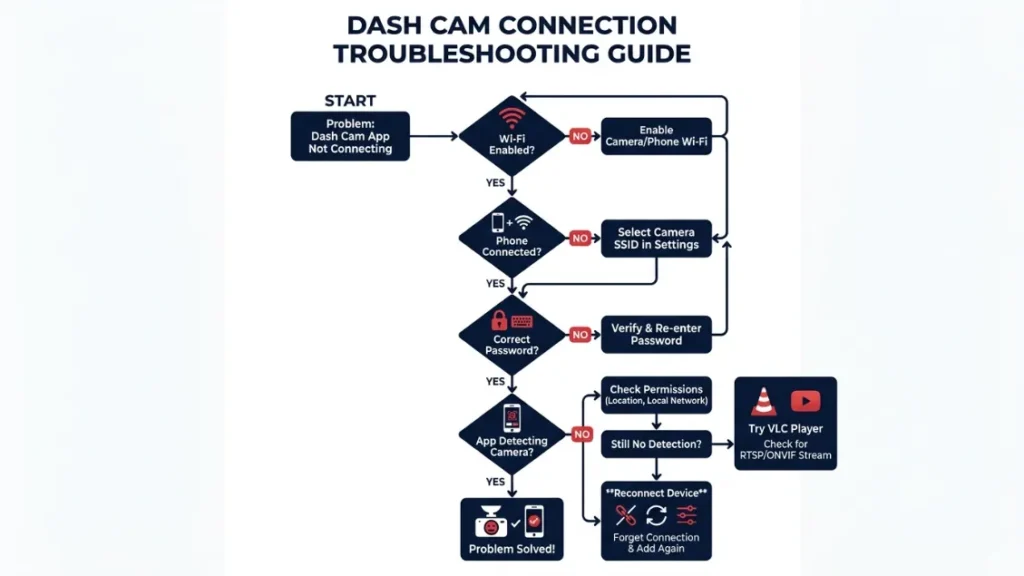
Connection failures are the most common complaint I hear from dash cam owners. The good news is that 90% of cases come down to the same three causes — and all three have a simple fix.
Wi-Fi Connection Keeps Dropping — Here Is the Fix
Cause: Your phone auto-switches back to your home Wi-Fi or mobile data because it detects “no internet” on the dash cam’s hotspot.
Fix: On iPhone, go to Settings → Wi-Fi → tap your dash cam network → disable “Auto-Join” for other networks temporarily. On Android, go to Settings → Wi-Fi → tap the dash cam network → disable “Switch to Mobile Data.” Some Android versions label this “Smart Network Switch” — turn it off.
The App Can’t Find My Dash Cam — What to Do
Cause: The app is looking for a camera that hasn’t fully activated its Wi-Fi yet — or the password was changed and never updated in the app.
- Turn off your dash cam fully. Wait 10 seconds. Turn it back on.
- Enable Wi-Fi on the dash cam from the settings menu.
- On your phone, forget the dash cam’s Wi-Fi network and reconnect using the password from the manual.
- Force-close the companion app. Reopen it. Let it search for the camera again.
- If still failing, delete and reinstall the app — cached credentials sometimes cause persistent failures.
Video File Won’t Open on My Phone — Format Fix
Cause: Most dash cams save footage as MP4 or AVI with H.264 or H.265 encoding. iPhones handle H.264 natively but sometimes struggle with H.265 (HEVC). Some older Android phones have the same issue.
Fix: Download VLC Media Player — it’s free, plays every dash cam video format, and works on both iPhone and Android. No conversion needed. Open the file directly in VLC.
Never convert your original dash cam footage to another format before sharing it with police or insurers. Conversion changes file metadata — including the timestamp — which can undermine its legal reliability. Share the original file or a direct copy of it.
Transfer failing? Check in this order: (1) Is the dash cam fully booted and Wi-Fi enabled? (2) Is your phone staying connected to the dash cam’s hotspot? (3) Does your companion app have the right password? (4) Try VLC if the file won’t play. These four checks solve the overwhelming majority of problems.
Final Thoughts from Alex
Transferring dash cam video to your phone is not complicated once you know the method. The Wi-Fi app works for everyday use. The card reader wins for emergencies. And the cloud takes care of everything automatically if your camera supports it.
The single best thing you can do right now? Buy a card reader adapter for $8 and put it in your glove box. Knowing it’s there means you’ll never be stuck at a roadside trying to figure out your options while stressed and under pressure.
I’m Alex Rahman — if this guide helped, share it with someone who just got their first dash cam. And if you have a question about a specific brand or model, drop it in the comments. I read every one.
Frequently Asked Questions

I’m Alex Rahman, a car enthusiast and automotive writer focused on practical solutions, car tools, and real-world driving advice. I share simple and honest content to help everyday drivers make better decisions.
