
Bidirectional OBD2 Scanner Troubleshooting: Fixes That Work
Quick Answer
Bidirectional obd2 scanner troubleshooting starts with power, ignition, vehicle choice, software, and test conditions. Most failures come from a weak battery, a wrong vehicle pick, an expired subscription, a blocked gateway, or a test that the car does not allow.
- Check ignition, port power, and battery voltage before you blame the tool.
- Confirm the exact make, model, and trim in the tool menu.
- Update the tool software and the VCI firmware, then retry the test.
- Read the test conditions on screen, then meet each one in order.
A bidirectional scanner that will not link, will not show a function, or will not run a test can stall a repair fast. This guide is for a home mechanic or a shop tech who has the tool in hand. Bidirectional obd2 scanner troubleshooting works in a set order, from power to vehicle choice to software to the car network.
In this article
- What is a bidirectional OBD2 scanner?
- Why does a bidirectional scanner fail to connect?
- How do you fix a scanner that will not link?
- Why does the scanner connect but show function not supported?
- Why does an active test fail or refuse to run?
- Why does the VCI drop, freeze, or lose its wireless link?
- What do CAN FD, DoIP, and a security gateway block?
- How can you tell a tool fault from a vehicle fault?
- What mistakes make troubleshooting harder?
What is a bidirectional OBD2 scanner?
A bidirectional OBD2 scanner reads data from a car and sends a command back to a part. A code reader only asks for stored codes and live values. A bidirectional tool can ask a fan to run, a solenoid to cycle, a pump to prime, or a valve to move, then watch the result.
That two-way path is called bidirectional control, and a single command is called an active test. The tool sends the request to a control module, which runs the part for a short time and then returns control to normal.
To learn how an OBD2 scanner works, start with the request and reply loop. A bidirectional tool uses the same loop, but it adds a command step. If the command step fails, the fault can sit in the tool, the app, the VCI, the vehicle choice, or the car itself.
Why does a bidirectional scanner fail to connect?
A bidirectional scanner fails to connect when power, ignition, or the data path breaks before the link starts. The screen may stay dark, show a link error, or stop at vehicle identification. Each sign points to a different stage.
Start with power at the port. The 16-pin diagnostic connector, also called the DLC, supplies power on pin 16 and ground on pins 4 and 5. A blown fuse can cut that power, and the port often shares a fuse with the cigarette lighter or accessory outlet. If the lighter is dead too, check that fuse first.
Check ignition next. Many modules wake only with the ignition in the ON or RUN place. For a keyed car, turn the key to ON without starting the engine. For a push-button car, press start once without the brake. A tool can power up in accessory mode and still get no reply.
Check battery voltage next. A resting reading near 12.4 to 12.6 volts is healthy, and a reading well below 12 volts is worth charging first. Switch off extra loads before you retry.
How do you fix a scanner that will not link?
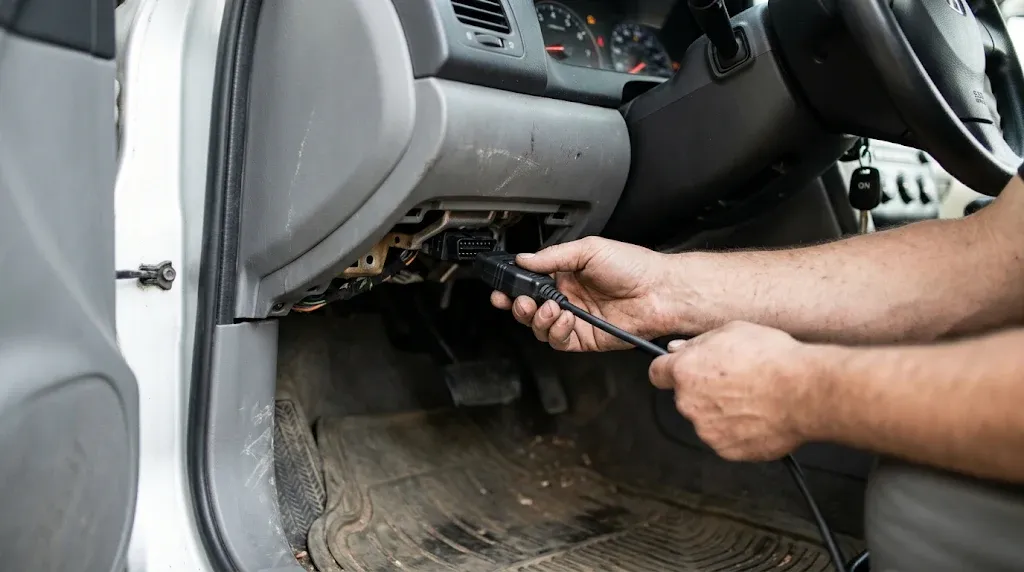
Fix a scanner that will not link by working from power to vehicle choice to software, one step at a time. Do not change three things at once, or you will not know which change fixed the link.
Step 1
Set ignition and check power
Turn the ignition to ON, engine off, and watch for a screen light or LED. Check the port fuse if the tool stays dark.
Step 2
Seat the plug and VCI
Push the plug fully into the port until it sits square. Check the VCI light, then hold the cable still while the tool tries to link.
Step 3
Pick the vehicle by hand
Use manual vehicle selection if AutoVIN fails. Enter the exact make, model, trim, and engine, then retry the link.
Step 4
Remove aftermarket devices
Unplug any tracker, dongle, or piggyback adapter from the port. Those devices can block the network, so test with only the scanner plugged in.
Step 5
Try a second vehicle
Try the tool on a second compatible car. If it links there, the fault sits in the first car. If it fails on both cars, the tool is the suspect.
Step 6
Update and restart
Update the tool software and VCI firmware on stable Wi-Fi. Restart the tablet, the VCI, and the car, then retry once.
If the tool links on the second car, return to the first car and check its fuse, port pins, battery, and aftermarket devices. If it fails on both cars, check the cable, the VCI pairing, and the tool account before you buy a new tool. For a full link-error path, see the guide on why a scanner will not communicate.
Why does the scanner connect but show function not supported?
A scanner can connect for codes and live data yet show function not supported for one test or service. That message means the tool reached the car, but that exact function is not open for that vehicle, module, or software version.
Coverage varies by make, model, trim, engine, and module. A tool may support a vehicle for full-system scans without exposing every service function, adaptation, or active test on that model. That point is made in the OBD Europe troubleshooting guide, which notes that advanced functions depend on the exact vehicle, ECU, and software coverage.
Check the coverage list for your VIN before you assume a fault. Search the list by make, model, and trim, not by brand alone. If the function is absent from the list, no update or cable will add it for that car.
Check the software version and the subscription state. A function can appear gray, missing, or blocked when the tool software is old or the account has lapsed. Update the software, sign in again, and check that the function is part of your plan.
Why does an active test fail or refuse to run?
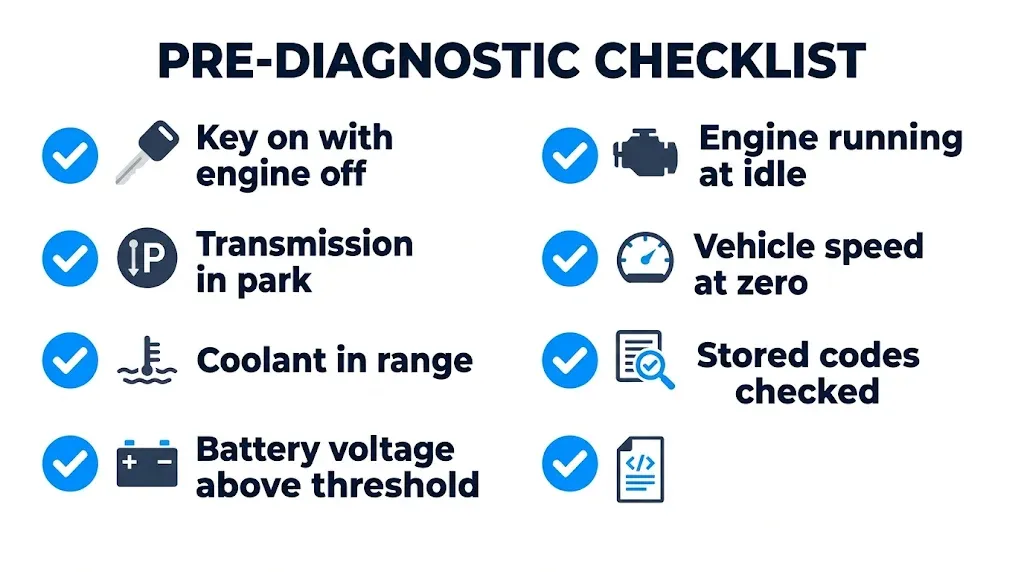
An active test fails when the module refuses the command because one enabling condition is not met. The tool may list the test, start it, and then stop with a refusal, a timeout, or no response from the part.
Common conditions include key on with engine off, engine running at idle, and transmission in park. Vehicle speed must sit at zero, coolant must sit in range, and battery voltage must stay above a set threshold. Some tests also refuse to run while certain codes are stored. Read the on-screen instructions, because most tools list the conditions before the test starts.
The Direct Tool Source guide to bidirectional controls explains that modules check those conditions before they carry out a command, and a weak battery causes many silent refusals. Check battery voltage first, clear unrelated codes only after you save them, and then retry the test.
Warning
An active test can start a fan, move a part, or stall an engine. Park the car, set the brake, keep hands clear of fans and belts, and stay with the car until the test ends.
Stop a test at once if the part does not respond, if the engine sounds wrong, or if a warning appears. End the test the way the tool instructs, so the module returns to normal control. Do not run the same failed test again and again to force a result.
Why does the VCI drop, freeze, or lose its wireless link?
A VCI drops, freezes, or loses its wireless link when the tablet to VCI path breaks, even though the VCI to car path is still live. A VCI, or vehicle communication interface, is the box that plugs into the port and translates car signals for the tablet or phone.
Check the VCI light first. If the light is off, the VCI has no power from the port. If the light is on but the tablet shows no VCI, the fault is in the wireless link, not the car.
For Bluetooth, pair the VCI in the tablet settings before you open the diagnostic app. Forget the old pairing, restart the tablet, and pair again. Keep the tablet close to the car, and close other apps that may hold the Bluetooth link.
For Wi-Fi VCI links, join the VCI network in the tablet settings, not in the app alone. Turn off mobile data for the test if the phone keeps switching back to cellular data.
For a wired VCI, check the USB cable and both ends for damage. Try a second cable and port. A charging cable may still fail for data, so use the cable that came with the tool when you can.
What do CAN FD, DoIP, and a security gateway block?
CAN FD, DoIP, and a security gateway can block a bidirectional tool even when the plug fits and the tool powers up. Each one is a different limit, and each one needs a different fix.
CAN is short for Controller Area Network, the network that lets car modules share data. CAN FD is a faster form of CAN with larger data frames. Many newer vehicles use CAN FD for diagnostics, and a tool built only for classic CAN may fail to link to those modules.
DoIP is short for Diagnostics over Internet Protocol, and it runs diagnostics over automotive Ethernet. A tool without DoIP support may read some data yet fail on functions that need that path.
A security gateway sits between the OBD port and the vehicle network on many newer cars. It can let a tool read codes yet block clearing codes, active tests, and relearns until the tool is authenticated.
The iCarsoft guide to CAN, CAN FD, and DoIP notes that a classic CAN tool may fail on newer modules. It also notes that gateway access may need authenticated entry. Check your tool list for CAN FD and DoIP support, and check the gateway rules for your brand before you buy a cable or an account.
How can you tell a tool fault from a vehicle fault?
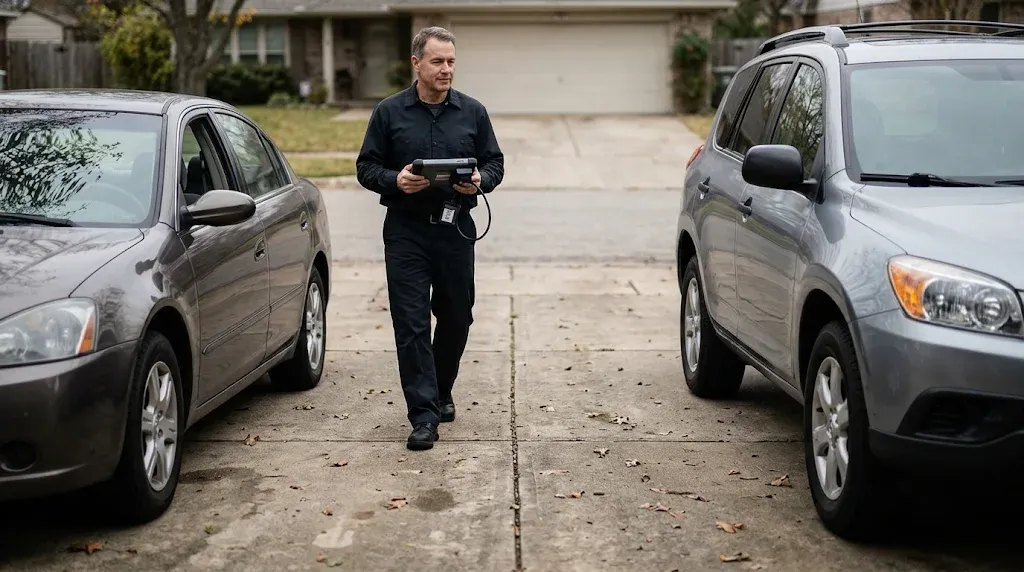
Tell a tool fault from a vehicle fault by changing one side at a time. A second car tests the tool. A second tool tests the car. A note of what works and what fails keeps the result clear.
The table below compares the main signs, the likely side, and the first check for each one.
| Symptom | Likely side | First check |
|---|---|---|
| Fails on every car | Tool, cable, VCI, or app | Cable, pairing, software, account |
| Works on one car only | Vehicle side | Fuse, port pins, battery, gateway |
| Reads codes, no active test | Coverage or conditions | Coverage list, test conditions |
| Links, then drops out | Voltage, cable, or VCI link | Battery, cable seating, wireless range |
| One module is silent | Module, gateway, or wiring | Module fuse, gateway access, wiring |
The table points to a side, not a part. A second tool that also fails on the same car points to the car. A tool that fails on two cars points to the tool.
What mistakes make troubleshooting harder?
Mistakes make troubleshooting harder when they erase data or force a test past a refusal. A slow, noted path gives a clearer result than a fast, repeated retry.
A cheap clone adapter can also add a fault. Clones vary in firmware and protocol support, and a clone may drop the link during a long test. That limit is clear in the guide to ELM327 control limits. Use a wired link for a setting change when you can.
Do
- Save codes and freeze frame first
- Change one thing, then retry once
- Test on a second car or tool
- Read test conditions on screen
Avoid
- Clearing codes before you save them
- Forcing a failed test again and again
- Using a higher-rated fuse
- Probing data pins with a test light
Stop and seek professional help when the fuse blows again, when you find burnt wiring or water damage, or when several systems fail together. A wiring fault, a gateway fault, or a module fault needs a wiring diagram and methodical testing.
Bidirectional OBD2 Scanner
A bidirectional scanner lets you run active tests and service functions after you fix the link, power, and coverage faults in this guide.
Frequently Asked Questions
Why does my bidirectional scanner connect but not run a test?
A bidirectional scanner connects but refuses a test when the vehicle conditions, coverage, or gateway access do not allow that command. Check the on-screen conditions, such as park, ignition place, and battery voltage, then meet each one. If the test is absent from the coverage list, the car does not support it.
Why does my scanner say function not supported?
A scanner says function not supported when that test or service is not open for your exact vehicle, module, or software version. The tool can read codes yet lack that one function. Check the coverage list by VIN, open the right module, and update the software before you retry.
Why does my bidirectional scanner keep disconnecting?
A bidirectional scanner keeps disconnecting when voltage drops, the cable moves, or the wireless VCI link breaks during a test. Charge the battery, seat the plug, keep the tablet close, and switch off extra loads. Try a wired link if the wireless link drops on a long test.
Can a security gateway block my active tests?
A security gateway can block active tests, code clearing, and relearns while still allowing code reading and live data. That block is common on many newer cars from brands with gateway modules. Check the brand gateway rules, account, and bypass cable options for your exact model.
Why do codes return right after I clear them?
Codes return right after clearing when the fault that caused the code is still present in the car. Clearing a code erases the stored record but does not repair the cause. Save the code and freeze frame data first, fix the cause, and then clear the code once.
When should I stop and get professional help?
You should stop and get professional help when simple checks pass yet the scanner still will not link, or when several systems fail together. A wiring fault, gateway fault, or module fault needs a diagram and methodical testing. Seek help sooner if a fuse blows again or you find burnt wiring.
Conclusion
Bidirectional obd2 scanner troubleshooting works when you test power, vehicle choice, software, and test conditions in order. If the tool links on a second car, focus on the first car. If it fails on every car, focus on the cable, VCI, software, and account.

I’m Alex Rahman, a car enthusiast and automotive writer focused on practical solutions, car tools, and real-world driving advice. I share simple and honest content to help everyday drivers make better decisions.
