How Long Does 512GB Last on a Dash Cam?
A 512GB microSD card stores roughly 60 to 130 hours of dash cam footage. At 1080p, expect around 90–100 hours. At 4K, storage fills faster — closer to 60–70 hours. Loop recording then overwrites the oldest clips automatically, so your card never fills permanently.
I remember buying my first 512GB microSD card for my dash cam and thinking — this thing will last forever. Then I checked the settings and realized my 4K camera was burning through storage far faster than I expected.
I’m Alex Rahman, and I’ve tested and reviewed dash cams for years. One question I get constantly is: how long does 512GB actually last? The answer depends on your resolution, codec, and whether you run parking mode.
This guide gives you the exact numbers — plus a simple way to calculate your own recording window.
- 512GB holds 60–130 hours of footage depending on resolution and bitrate settings.
- 1080p cameras average 90–100 hours; 4K cameras average 60–70 hours per full card.
- Loop recording means your card never “fills up” — it overwrites the oldest footage automatically.
- Parking mode dramatically increases how fast 512GB is consumed each day.
- High-endurance cards like the Samsung Pro Endurance 512GB are built for dash cam write cycles — standard cards wear out faster.
What Does 512GB Actually Store on a Dash Cam?
A 512GB microSD card stores between 60 and 130 hours of dash cam footage, depending on your camera’s resolution and bitrate. At standard 1080p with a typical bitrate of 12–15 Mbps, most dash cams record roughly 5–6 GB per hour — giving you around 85–100 hours of footage on a full 512GB card.
The number changes based on three things: resolution, bitrate, and compression codec. Change any one of those and your storage window shifts significantly.
Here’s the practical reality. You will never actually “run out” of space — because loop recording kicks in and overwrites the oldest files. But knowing how many hours fit on your card tells you exactly how far back your footage goes before it disappears.
How Many Hours of Footage Fits at Each Resolution?
Resolution is the single biggest factor in how fast your 512GB card fills up. Higher resolution means larger files, which means faster consumption.
| Resolution | Approx. File Size/Hour | Hours on 512GB | Days of Driving (2hr/day) |
|---|---|---|---|
| 720p | ~3 GB | ~170 hours | ~85 days |
| 1080p | ~5–6 GB | ~90–100 hours | ~45–50 days |
| 1440p / 2K | ~9–11 GB | ~50–55 hours | ~25–27 days |
| 4K UHD | ~14–18 GB | ~30–36 hours | ~15–18 days |
These figures use H.264 compression at standard bitrates. Switch to H.265 (more on that shortly) and those numbers improve by 30–40%.
Why Your Actual Recording Time Will Differ From Estimates
Those table figures are averages — your real number shifts based on how your dash cam handles footage. Manufacturers set their own default bitrates, and some cameras encode at higher quality than others at the “same” resolution.
For example, the Vantrue E1 Lite records 1080p at roughly 12 Mbps, while the Nextbase 622GW pushes up to 20 Mbps at 1080p — nearly double the data per minute. Both say “1080p.” Both use very different amounts of your 512GB.
Check your dash cam’s manual or spec sheet for its exact bitrate (measured in Mbps). Divide 512,000 MB by your camera’s MB-per-hour output for your personal recording window.
How Does Loop Recording Change the 512GB Equation?
Loop recording means your dash cam never permanently fills up — it automatically deletes the oldest footage and records over it once the card hits capacity. This is the feature that makes 512GB a practical choice rather than a one-time archive.
Think of loop recording like a conveyor belt. New footage gets added at one end. Old footage drops off the other end when space runs out. You always have the most recent hours saved — automatically.
This changes how you think about 512GB entirely. The question stops being “will it fill up?” and becomes “how far back does my footage go before it gets overwritten?”
What Happens When Your Dash Cam Card Gets Full?
When your dash cam card fills up, loop recording triggers and begins overwriting the oldest non-protected clips. Most cameras set loop segments at 1, 3, or 5-minute intervals — the oldest complete segment gets deleted first.
Protected files are never overwritten. When your dash cam detects a collision via its G-sensor, that clip gets locked automatically. Some cameras also let you manually protect clips by pressing a button. Protected files stay safe even when the loop deletes surrounding footage.
If your protected folder fills up completely, some dash cams stop recording entirely rather than overwrite protected clips. Clear old protected files regularly — especially if you drive in heavy traffic where G-sensor triggers are frequent.
How to Set Loop Recording Intervals for Maximum Coverage
Shorter loop intervals (1-minute clips) give you more granular control over which specific moment gets protected. Longer intervals (5 minutes) mean each file takes up more space before the loop cycles.
- Open your dash cam’s settings menu and locate “Loop Recording” or “Recording Interval.”
- Set clip length to 1 or 3 minutes — this gives the G-sensor more precise timestamps to lock.
- Enable G-sensor auto-protection at medium sensitivity to avoid false triggers on bumpy roads.
- Check your protected file folder size limit — most cameras cap it at 20–30% of total card space.
- Review and clear your protected folder monthly if you drive daily.
How Does Video Resolution Drain Your 512GB Card Faster?
Resolution controls how many pixels your dash cam captures per frame — and more pixels means more data written per second. A 4K dash cam writes roughly 3–4 times more data per minute than a 1080p camera shooting the same scene.
Most drivers don’t need 4K for everyday recording. License plates are readable at 1080p from a normal following distance. But if you want crystal-clear footage of intersections and distant signage, 4K earns its storage cost.
The practical takeaway: 1080p gives you the best balance of image quality and storage efficiency for the average commuter. 4K makes sense if you’re a long-haul driver who needs maximum detail, or if you frequently capture footage used in legal disputes.
H.264 vs H.265 — Which Codec Saves You More Space?
H.265 (also called HEVC) is a newer compression standard that stores the same visual quality as H.264 using roughly 40% less data. On a 512GB card, that difference is enormous.
| Codec | 1080p Hours on 512GB | 4K Hours on 512GB | Relative File Size |
|---|---|---|---|
| H.264 | ~90–100 hours | ~30–36 hours | Larger (baseline) |
| H.265 / HEVC | ~130–140 hours | ~50–60 hours | ~40% smaller |
Cameras like the Garmin Dash Cam 67W and the Vantrue N4 Pro use H.265 encoding. If your dash cam supports it, switching to H.265 is the single easiest way to extend how many hours fit on your 512GB card.
Does Frame Rate (30fps vs 60fps) Make a Big Difference?
Yes — 60fps records twice the frames per second as 30fps, which increases file size by roughly 30–50% depending on your camera’s encoder. Most drivers don’t need 60fps for standard incident capture.
60fps is genuinely useful for capturing fast-moving objects — like a car cutting across lanes at highway speed. For city driving and parking lot incidents, 30fps is more than sufficient and preserves significantly more hours on your 512GB card.
Set your front camera to 1080p at 60fps for crisp motion capture on highways, then set your rear or interior camera to 1080p at 30fps — rear footage rarely needs high frame rates and this saves meaningful storage.
Does Parking Mode Eat Through Your 512GB Storage Faster?
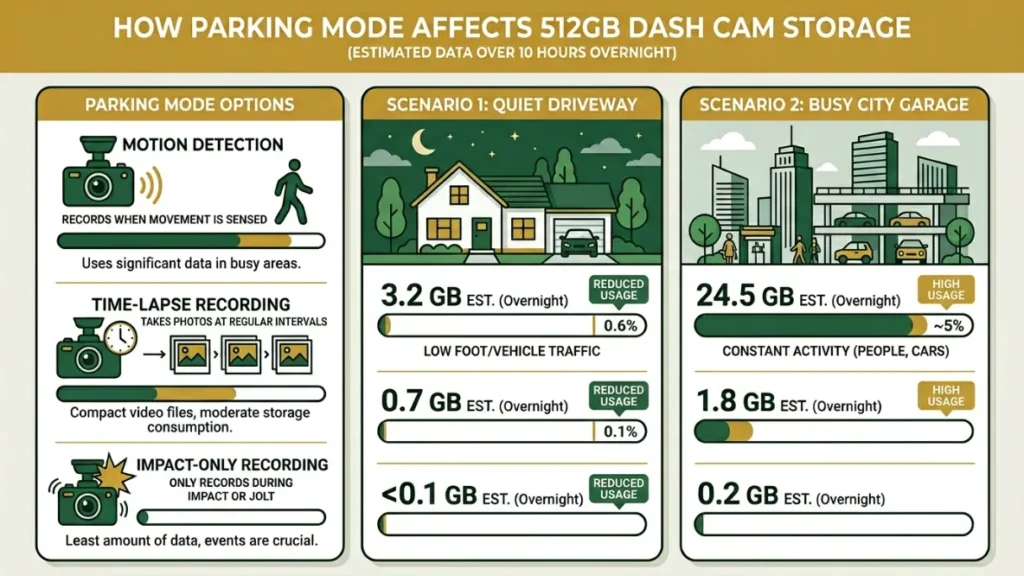
Parking mode can consume your 512GB card 2–5 times faster than driving-only recording, depending on how busy your parking environment is. A camera parked on a busy city street in motion-detection mode can generate several gigabytes of footage overnight.
This surprises a lot of drivers. You think parking mode saves space because it only records when triggered. But in a busy area, constant pedestrian and vehicle movement triggers recording almost continuously — effectively becoming non-stop recording anyway.
How Much Extra Footage Does Parking Mode Generate?
The impact of parking mode depends entirely on your parking environment. A quiet residential driveway might generate 1–2 GB of parking footage overnight. A downtown parking garage with constant foot traffic can generate 8–12 GB in the same window.
If you use parking mode in a busy location, treat your 512GB card as if it were 256GB for planning purposes. Parking consumption can easily halve your effective rolling footage window.
How to Manage Parking Mode Without Losing Important Clips
The best approach is time-lapse parking mode rather than full-resolution motion detection. Most modern cameras — including Nextbase and Thinkware models — offer a time-lapse parking option that records 1 frame per second instead of full video. This reduces parking footage file size by up to 90% while still capturing any significant events.
- Switch parking mode from “Motion Detection” to “Time-Lapse” if your camera offers it.
- Set a parking mode recording limit — many cameras let you cap parking recording to 6 or 12 hours.
- Enable “Impact Detection Only” if your area is low-risk — this records only on collision events.
- Reduce parking mode resolution to 720p — license plate readability is less critical in stationary capture.
How Long Does a 512GB MicroSD Card Physically Last in a Dash Cam?
A high-endurance 512GB microSD card used in a dash cam typically lasts 1.5 to 3 years of continuous daily use before it begins to degrade. Standard cards not rated for continuous writing can fail in as little as 6–12 months under the same conditions.
Dash cams are brutal on storage cards. Unlike a phone or camera that writes files occasionally, a dash cam writes data continuously — every second you drive. This constant write cycle is exactly what standard consumer cards are not designed to handle.
What Is TBW and Why Does It Matter for Dash Cam Cards?
TBW stands for Terabytes Written — it’s the total amount of data a card can write across its lifetime before the storage cells begin to fail. A higher TBW rating means longer card life under heavy use.
A 512GB card at 1080p with 12 Mbps bitrate writes roughly 5.4 GB of data per hour. If you drive 2 hours daily, that’s 10.8 GB per day — or roughly 3.9 TB per year. A card with a 50 TBW rating would theoretically last about 12 years at that rate. Real-world lifespan is shorter due to heat and read/write overhead, but TBW gives you a reliable baseline.
Samsung Pro Endurance vs SanDisk High Endurance — Which Lasts Longer?
| Card | 512GB TBW Rating | Write Speed | Best For |
|---|---|---|---|
| Samsung Pro Endurance | ~300 TBW | Up to 60 MB/s write | Heavy use, 4K cameras, parking mode |
| SanDisk High Endurance | ~40 TBW | Up to 40 MB/s write | Daily commuters, 1080p recording |
| Standard Class 10 Card | Not rated | Variable | Not recommended for dash cams |
The Samsung Pro Endurance series is purpose-built for surveillance and dash cam use. Its MLC NAND flash is rated for significantly more write cycles than the TLC NAND used in standard cards — which is why professionals consistently recommend it for heavy-use applications.
Never use a standard “everyday” microSD card — like those sold for phones or cameras — in your dash cam. They are not rated for continuous writing and can fail silently, meaning your camera appears to record but footage is actually corrupted. Always use a card specifically labeled “high endurance” or “dash cam rated.”
How Long Will YOUR 512GB Last? (Calculate Your Own Window)
Here is a simple formula to calculate your personal recording window on a 512GB card. You need two numbers: your camera’s bitrate in Mbps, and your average daily driving time in hours.
- Find your camera’s bitrate in Mbps (check your manual or spec sheet — typical range: 10–25 Mbps).
- Convert to GB per hour: Bitrate (Mbps) × 3600 seconds ÷ 8 ÷ 1000 = GB per hour. Example: 15 Mbps = 6.75 GB/hour.
- Divide 512 by your GB-per-hour figure to get total recording hours. Example: 512 ÷ 6.75 = ~75.8 hours.
- Divide total hours by your average daily driving hours. Example: 75.8 ÷ 1.5 hours/day = ~50 days of footage.
- If you use parking mode, subtract your estimated nightly parking GB from step 3 before calculating.
This calculation tells you exactly how far back your footage history goes before loop recording overwrites it. For most daily drivers doing 1–2 hours per day at 1080p, 512GB gives a footage window of 30–50 days.
Your actual 512GB recording window depends on bitrate (not just resolution), codec (H.265 saves ~40% more space than H.264), frame rate, and whether parking mode is active. A 1080p H.265 camera gives roughly 130+ hours on a full 512GB card — about 65+ days for a driver doing 2 hours daily.
Is 512GB the Right Size for Your Dash Cam, or Is It Overkill?
512GB is not overkill — but it’s not essential for every driver either. It’s genuinely the best choice for people who drive long distances, use parking mode regularly, or record at 4K resolution. For a typical city commuter doing 30 minutes each way, 256GB is often more than enough.
Here’s how to decide based on your actual driving pattern:
- Light commuter (under 1 hr/day, 1080p, no parking mode): 128GB or 256GB is sufficient.
- Regular driver (1–2 hrs/day, 1080p or 2K, occasional parking mode): 256GB to 512GB is ideal.
- Heavy driver or ride-share (2+ hrs/day, parking mode, 4K): 512GB is the clear choice.
- Long-haul trucker or multi-camera setup: 512GB per channel — don’t compromise.
512GB vs 256GB vs 128GB — Which Size Fits Your Driving Habits?
| Card Size | 1080p Hours | 4K Hours | Best Use Case |
|---|---|---|---|
| 128GB | ~20–25 hours | ~8–9 hours | Light commuters, short daily trips |
| 256GB | ~45–50 hours | ~16–18 hours | Average daily drivers, moderate use |
| 512GB | ~90–100 hours | ~30–36 hours | Heavy drivers, parking mode users, 4K cameras |
Which Dash Cams Actually Support 512GB Cards?
Not every dash cam accepts a 512GB card — always check the manufacturer’s maximum supported storage before buying. Many older or budget cameras cap out at 128GB or 256GB.
Dash cams confirmed to support 512GB include the Vantrue N4 Pro, Nextbase 622GW, Garmin Dash Cam 67W, and the Thinkware U1000. Check the Nextbase support page or your camera’s official spec sheet to confirm compatibility before purchasing a 512GB card.
Always format your new 512GB card directly inside the dash cam — not on your computer. Formatting in-camera ensures the file system matches exactly what your camera expects, which reduces the risk of write errors and corrupted footage.
Frequently Asked Questions

I’m Alex Rahman, a car enthusiast and automotive writer focused on practical solutions, car tools, and real-world driving advice. I share simple and honest content to help everyday drivers make better decisions.
