Do Dash Cams Delete Old Footage? How Loop Recording and File Protection Really Work
Dash cams do not permanently delete old footage on their own. They use loop recording to overwrite the oldest clips when the memory card fills up. Footage locked by the G-sensor or saved manually is protected from overwriting. Without a lock, most dash cams keep between 1 and 4 hours of footage depending on SD card size.
A few months after I installed my first dash cam, I got rear-ended at a junction. I rushed home, pulled out the SD card, and started searching for the clip. It was gone. Not locked. Not saved. Just gone — overwritten by two hours of motorway driving I filmed on the way home.
I’m Alex Rahman, and I’ve spent years testing and researching dash cams for everyday drivers. That moment taught me something most dash cam guides skip entirely: knowing how dash cam storage actually works matters just as much as choosing the right camera.
The short answer? Dash cams don’t delete footage the way a phone would. They overwrite it in a cycle. And if you don’t know how to protect a clip, it disappears before you even know you need it.
This guide covers everything — from how loop recording works to how to lock footage, recover files, and choose the right SD card for your needs.
- Dash cams use loop recording — they overwrite the oldest footage when the SD card is full, not delete files randomly.
- The G-sensor automatically locks clips during a crash or hard brake to prevent them from being overwritten.
- A 64GB SD card at 1080p typically stores around 6 to 8 hours of footage before overwriting begins.
- Parking mode footage follows the same overwrite rules and can disappear if the card fills up overnight.
- Cloud-connected dash cams like BlackVue and Nextbase can back up footage before overwriting occurs.
What Does It Mean When a Dash Cam “Deletes” Old Footage?
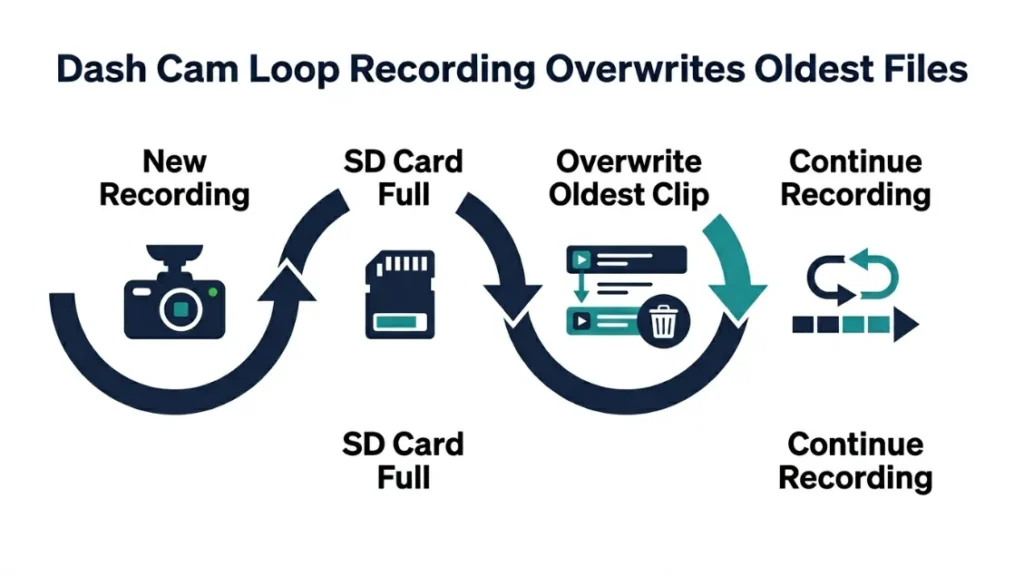
Dash cams do not delete footage the way you delete a file from your computer. They overwrite the oldest recordings in a continuous cycle — a process called loop recording. When the memory card fills up, the camera records over the earliest saved clips automatically. No warning. No prompt. Just a seamless cycle of new footage replacing old.
This system exists because dash cams record constantly while you drive. They are not designed to store months of footage. They are designed to always have the most recent recordings available — ready for the moment you actually need them.
Think of it like a security camera in a shop. It records over last week’s footage to make room for this week’s. The dash cam works exactly the same way.
What Is Loop Recording and Why Every Dash Cam Uses It?
Loop recording splits your continuous recording into short clips — usually 1, 2, or 3 minutes long. Each clip saves as a separate file on your SD card. When the card reaches capacity, the oldest clip gets overwritten by the newest one. The cycle repeats indefinitely.
Every mainstream dash cam — including models from Nextbase, Vantrue, Garmin, and Thinkware — uses loop recording as the default mode. There is no alternative. Without it, the camera would stop recording the moment the card filled up, which defeats the entire purpose of having a dash cam.
Set your loop recording interval to 1 minute. Shorter clips mean less important footage gets caught inside a single overwritable file — and more precise clips when you need to find a specific moment.
Does Overwriting Count as Permanent Deletion?
Once a clip is overwritten, it is effectively gone. Unlike deleting a file on a computer — where the data sometimes lingers in unallocated space — dash cam overwriting replaces file data directly. Recovery after overwriting is difficult and often impossible.
This is the critical difference most drivers don’t realise. The footage isn’t deleted when you park. It isn’t deleted when you turn the car off. It’s deleted when new recordings push out the oldest ones on a full card. The timing depends entirely on how large your SD card is and how much you drive.
How Long Does Dash Cam Footage Last Before It Gets Overwritten?
How long your footage survives depends on three factors: SD card size, video resolution, and how many cameras you’re running (front-only vs. front and rear). Most drivers at 1080p with a 64GB card retain around 6 to 8 hours of continuous footage before overwriting begins.
Here is a practical breakdown of typical retention times across common configurations:
| SD Card Size | Resolution | Estimated Retention |
|---|---|---|
| 32GB | 1080p | 3 – 4 hours |
| 64GB | 1080p | 6 – 8 hours |
| 128GB | 1080p | 12 – 16 hours |
| 64GB | 1440p / 2K | 4 – 5 hours |
| 128GB | 4K | 4 – 6 hours |
These are estimates. Bitrate settings, night vision activity, and rear camera channels all affect the actual number. Always check your dash cam’s manual for manufacturer-specific data.
How SD Card Size Decides How Much Footage You Keep
The SD card is the only storage your dash cam has. A larger card means more footage before overwriting starts — but it doesn’t mean footage is saved permanently. It just extends the window. A 128GB card gives you roughly four times the footage buffer of a 32GB card at the same resolution.
For most daily commuters driving 1 to 2 hours per day, a 64GB card is the practical sweet spot. It holds enough footage to cover a full day’s driving, with room to spare for locked event files.
Does Higher Resolution Mean Less Footage Stored?
Yes — directly. Higher resolution means larger file sizes per minute of video. A 4K clip from a Vantrue E1 Lite takes roughly three to four times more space than a 1080p clip of the same length. If you upgrade to a higher-resolution camera, your footage window shrinks unless you also upgrade your SD card size.
Using a low-capacity SD card with a high-resolution dash cam is a common mistake. A 16GB card running 4K footage can fill up in under an hour, meaning overwriting starts while you’re still driving. Always match card size to your camera’s resolution and daily drive time.
What Happens to Dash Cam Footage When the Car Is Turned Off?
When you turn off your car, the dash cam stops recording — and the footage already on the card stays exactly where it is. Nothing gets deleted at that point. The overwrite cycle only continues when you start driving again and the camera fills up the remaining space on the card.
The confusion here is understandable. Many drivers assume switching the engine off somehow triggers a wipe. It doesn’t. Your footage from today’s drive is still on the card when you get in tomorrow — assuming the card hasn’t already looped during that same drive.
Does the Dash Cam Delete Files When You Stop the Engine?
No. Powering down does not trigger any deletion or overwriting. Most dash cams take a final few seconds to close and save the current recording file properly before shutting off. This is normal behavior — the camera is simply completing the last clip before cutting power.
What can cause footage loss at shutdown is a sudden power cut. If your car’s ignition cuts power abruptly before the dash cam saves the final clip, that last segment may be lost or corrupted. A capacitor-based dash cam (rather than battery-based) handles this better — capacitors discharge safely and let the camera close files cleanly.
How Parking Mode Records and Stores Footage Overnight
Parking mode is a feature found on cameras like the Thinkware U1000, BlackVue DR970X, and several Nextbase models. It keeps the dash cam running on low power while the car is parked, triggering recording when motion or impact is detected.
Parking mode footage is saved separately from normal driving footage on most cameras — in its own folder on the SD card. But it still follows the same overwrite rules. If the parking folder fills up, the oldest parking clips get replaced. A busy car park overnight can generate enough clips to cycle through an entire parking folder before morning.
If you rely on parking mode for overnight protection, use a 128GB card and enable cloud backup if your camera supports it. Parking clips are small but frequent, and a full folder overwrites faster than most drivers expect.
How Does a Dash Cam Protect Accident Footage From Being Deleted?
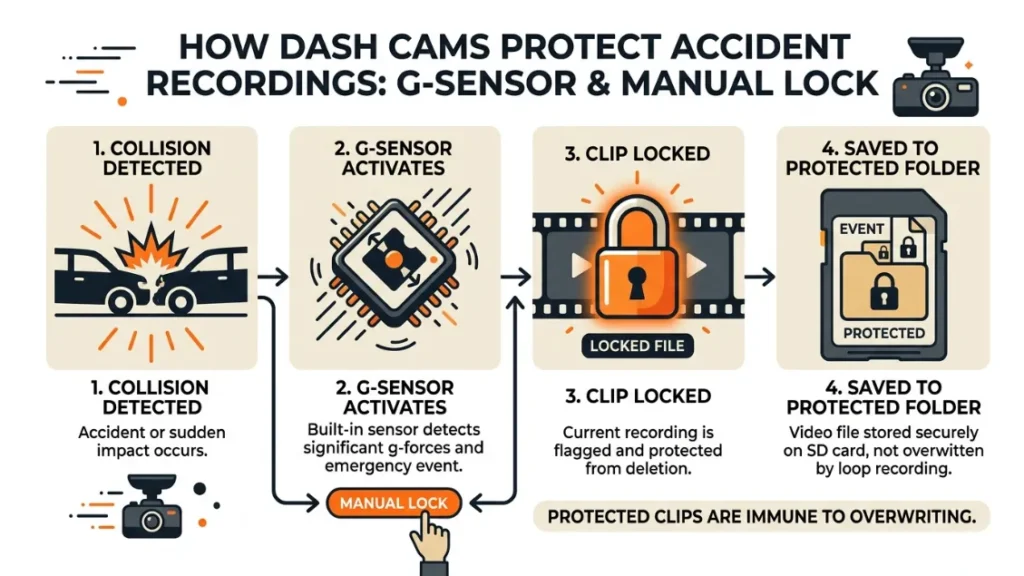
Dash cams protect accident footage through two mechanisms: automatic G-sensor locking and manual file locking. When either triggers, the current clip moves into a protected folder that the loop recording system cannot overwrite. These locked files remain on the card until you delete them manually or the locked folder itself fills up.
This is the most important feature on any dash cam — and also the most misunderstood. If neither lock triggers after an incident, the footage goes back into the regular rotation and gets overwritten like any other clip.
How the G-Sensor Locks Clips During a Crash or Hard Brake
The G-sensor — short for gravity sensor — detects sudden changes in force: a collision, an emergency stop, or a sharp swerve. When it triggers, it automatically locks the current clip (plus sometimes the clip before and after) and moves it to a protected event folder. Loop recording cannot touch files in this folder.
G-sensor sensitivity is adjustable on most cameras. Set it too sensitive and every speed bump locks a clip, filling your event folder fast. Set it too low and a minor collision might not trigger it at all.
A medium G-sensor setting is the right starting point for most drivers. Test it by braking firmly in a safe area and check whether a clip gets locked. Adjust from there based on your road conditions.
How to Manually Lock a Clip So It Does Not Get Overwritten
Every major dash cam includes a manual lock button — usually a physical button on the camera body or a tap gesture in the companion app. Pressing it mid-drive locks the current clip immediately. Some cameras like the Garmin Dash Cam 67W allow voice commands (“OK Garmin, save video”) to lock clips without taking your hands off the wheel.
- Immediately after an incident, press the lock or SOS button on your dash cam — usually marked with a lock icon.
- Watch for a confirmation light or on-screen indicator that the clip has been protected.
- Do not turn off the camera right away — give it 10 to 15 seconds to complete the save.
- When safe to stop, remove the SD card and copy the locked file to your computer or phone.
- Back up the file in at least two locations — one cloud, one local — before filing any insurance claim.
What Are Locked Files on a Dash Cam and How Do You Access Them?
Locked files are clips that have been flagged as protected — either by the G-sensor or manually. They live in a separate folder on your SD card, usually labelled “EVENT,” “LOCKED,” or “PROTECTED” depending on the brand. Normal loop recording skips this folder entirely when looking for old footage to overwrite.
You can access locked files the same way you access any files on an SD card — by plugging the card into a computer or using the manufacturer’s companion app. On most Nextbase and BlackVue cameras, the app shows locked files separately with a lock icon.
Where Locked Files Are Stored on Your Memory Card
Plug your SD card into a computer and open it as a drive. You’ll typically see two or three folders. Normal driving clips sit in one folder. Locked or event clips sit in a separate folder — often named “EVENT” on Vantrue cameras or “RO” (read-only) on some older models. Parking clips usually have their own folder too.
File names include timestamps, which makes finding a specific incident much faster. A clip named “20240315_143022_EV.mp4” was recorded on 15 March 2024 at 14:30:22 and flagged as an event file.
What Happens When the Locked File Folder Gets Full?
This is where many drivers get caught out. The locked folder has a size limit — typically 25% to 33% of total card capacity depending on the camera brand. When that folder fills up, the oldest locked file gets overwritten by the newest one — even if it was locked.
If your G-sensor sensitivity is too high, every pothole and speed bump locks a clip. Your event folder fills up in days, and when a real incident happens, the most recent locked files push out the oldest ones — including footage you actually needed. Check and clear your locked folder regularly.
Locked files are safe from loop recording — but not forever. They sit in a protected folder with a fixed size limit. Once that folder is full, new locked files replace old ones. Always back up important locked clips to a computer or cloud storage as soon as possible after an incident.
Can You Recover Dash Cam Footage That Has Already Been Overwritten?
Recovering overwritten dash cam footage is rarely possible and never guaranteed. Unlike a deleted file — which leaves a recoverable trace in unallocated space — overwritten data is replaced by new data at the file system level. Most professional recovery tools cannot retrieve it once it has been fully replaced.
That said, recovery sometimes works in specific conditions — and it’s always worth attempting before accepting the footage is gone permanently.
When Recovery Is Possible and When It Is Not
Recovery has the best chance when the footage was deleted (not overwritten) — for example, if you or someone else manually deleted a file by mistake. Recovery tools can sometimes find the file’s data in unallocated sectors of the card before new data writes over that space.
Recovery is essentially impossible once new footage has actively recorded over the same sectors. The longer you drive after an incident without pulling the card, the lower your recovery odds. Pull the card immediately after any incident where you suspect footage may be at risk.
Which Tools Can Help You Attempt to Recover Dash Cam Files?
Several reputable tools exist for SD card file recovery. Recuva by Piriform is free and works well on Windows for recovering video files from memory cards. Disk Drill is a cross-platform option with deeper scan capability. For serious cases, professional data recovery labs can sometimes retrieve footage from physically damaged cards — though this is expensive and not always successful.
Always recover to a separate drive — never write recovery output back to the same SD card you’re recovering from.
How to Stop Your Dash Cam From Overwriting Important Footage
The most reliable way to protect dash cam footage is to act immediately after any incident — manually lock the clip, pull the card, and back it up. Waiting even a few hours on a long drive can mean the footage is gone. Every strategy below reduces risk, but none replaces fast action after something happens.
Step-by-Step: Save a Clip Before It Gets Deleted
- Press the manual lock button on your dash cam immediately after the incident — don’t wait.
- If your camera has a companion app (Nextbase MyNextbase, BlackVue App, Garmin Drive), open it and confirm the clip appears in the events or locked section.
- As soon as you safely stop, remove the SD card and insert it into your phone or laptop.
- Copy the locked file to your device and upload a second copy to cloud storage (Google Drive, iCloud, or Dropbox).
- Note the clip’s timestamp and filename — you’ll need both when speaking with insurers or police.
- Reformat the SD card only after the footage is safely backed up in multiple locations.
Should You Use Cloud Backup to Protect Your Recordings?
Cloud backup solves the overwriting problem permanently for drivers who use it. BlackVue Cloud uploads locked clips automatically over Wi-Fi or a built-in LTE connection. Nextbase Cloud stores emergency footage when the camera detects an impact. Garmin’s LiveView feature streams and stores footage remotely.
The limitation: most cloud features require either a subscription, a hotspot connection, or both. They work best when your car is regularly within range of your home Wi-Fi — meaning footage uploads overnight while you sleep. For drivers who rely heavily on accident evidence (rideshare drivers, fleet operators, commercial vehicle drivers), cloud backup is worth the cost.
Set your dash cam to automatically connect to your home Wi-Fi network. This way, locked event files upload every night without you having to do anything. BlackVue and Nextbase both support this through their companion apps.
What SD Card Do You Need for the Best Footage Retention?
The right SD card extends your footage window, reduces overwriting risk, and keeps your camera running reliably over years of daily use. For most drivers at 1080p, a 64GB or 128GB card from a brand rated for continuous recording (Endurance or High Endurance) is the right choice. Generic cards fail faster and can corrupt footage mid-clip.
Capacity vs. Retention Time — What the Numbers Actually Mean
Capacity tells you how much data fits on the card. Retention time tells you how long before overwriting starts. The relationship between them depends on your camera’s bitrate — how many megabits per second it writes per minute of video. A camera recording at 15 Mbps fills a 64GB card in roughly 9 hours. At 25 Mbps (common in 2K cameras), the same card fills in under 6 hours.
Check your camera’s bitrate in the manual or settings menu. Then multiply: (Card size in MB × 8) ÷ (Bitrate in Mbps × 60) = minutes of footage before overwriting.
Why SD Card Speed Class Matters More Than Most People Think
Speed class — marked as Class 10, U1, or U3 on the card label — determines how fast data can be written to the card. Dash cams write constantly, and a card too slow for the camera’s bitrate causes dropped frames, corrupted files, and missed recordings. For 1080p cameras, a Class 10 / U1 card is sufficient. For 2K or 4K cameras, always use a U3-rated card.
Brands like Samsung PRO Endurance and SanDisk High Endurance are built specifically for constant-write environments like dash cams and security cameras. They outlast standard cards by a wide margin and handle heat better — critical if your camera sits behind a windscreen in direct sun. Learn more about selecting the right memory card from memory card endurance guides from major manufacturers, or check Which? UK’s dash cam storage reviews for independent testing results.
Reformat your SD card every 3 to 6 months. This clears fragmented data, resets the file system, and keeps your camera recording reliably. Always back up any important files before reformatting.
Final Thoughts on Dash Cam Footage and Deletion
Here is the core truth: your dash cam does not delete footage maliciously. It overwrites the oldest clips to make room for new ones — that’s the whole system. The footage you care about after an accident is safe only if it gets locked, either automatically by the G-sensor or manually by you.
The three habits that protect you most are simple: use a large enough SD card for your resolution and drive time, keep your G-sensor sensitivity properly calibrated, and back up any important clip the same day it happens.
I’m Alex Rahman — and after losing that clip years ago, these habits became second nature to me. They should be second nature for every driver who relies on a dash cam for real protection.
If you found this guide useful, share it with someone who just installed their first dash cam. The details in here are exactly what most installation guides never tell you.
Frequently Asked Questions

I’m Alex Rahman, a car enthusiast and automotive writer focused on practical solutions, car tools, and real-world driving advice. I share simple and honest content to help everyday drivers make better decisions.
