
How Many GB Is 1 Hour of 4K Video?
One hour of 4K video takes up between 20 GB and 110 GB of storage. Most consumer devices — like smartphones and action cameras — average 30 to 45 GB per hour. The exact size depends on your bitrate, codec, and frame rate settings.
I grabbed my camera bag before a two-week trip and had one question I couldn’t answer fast: how many SD cards do I actually need?
I’m Alex Rahman, and I’ve been shooting 4K video for travel, YouTube, and client work for over six years. I’ve run out of storage at the worst moments. I’ve also overpacked and carried cards I never needed.
The problem? Most people search for this answer and get one number — no context, no breakdown. The real answer depends on your device, your settings, and the codec your camera uses.
By the end of this guide, you’ll know exactly how much storage your setup needs — and you’ll never guess again.
- 1 hour of 4K video ranges from 20 GB to 110 GB depending on device and settings.
- Bitrate is the single biggest factor controlling your file size.
- H.265 (HEVC) cuts file sizes roughly in half compared to H.264 at the same quality.
- Shooting at 60fps uses about 25–30% more storage than 30fps.
- A 256 GB card holds roughly 6 to 12 hours of 4K footage for most consumer devices.
What Is the Average File Size for 1 Hour of 4K Video?
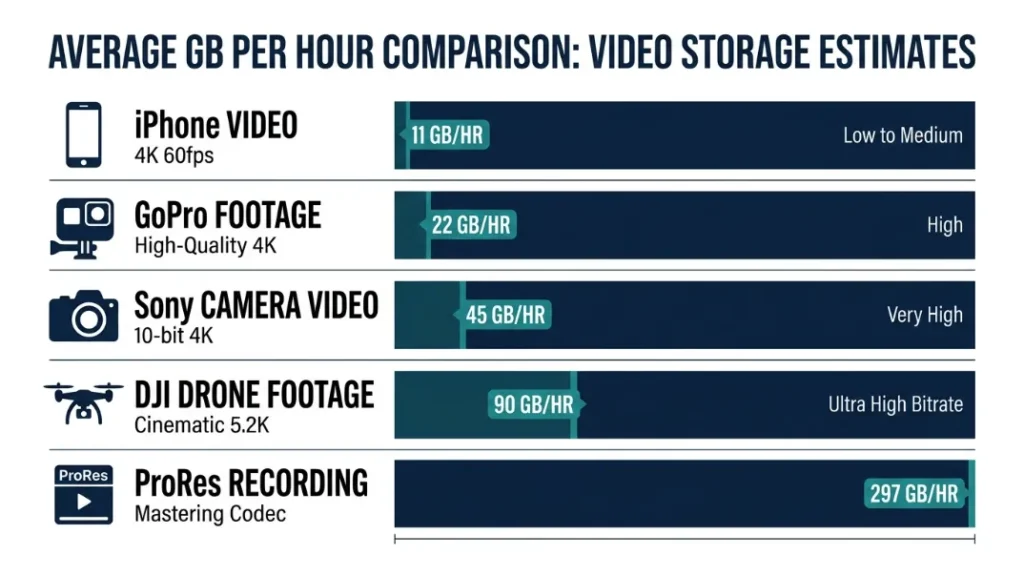
One hour of 4K video averages between 20 GB and 110 GB depending on your recording device and quality settings. Consumer smartphones and action cameras land between 30 and 45 GB per hour. Professional cinema cameras can push well past 100 GB per hour.
That’s a huge range. And it frustrates a lot of creators who just want a simple answer.
The reason there’s no single number is that “4K” only describes the resolution — roughly 3840 x 2160 pixels. It says nothing about how much data the camera records per second. That’s controlled by bitrate, and every device handles it differently.
Here’s a quick reference table so you can find your number fast:
| Device / Setting | Bitrate (Mbps) | Approx. GB per Hour |
|---|---|---|
| iPhone 15 Pro (4K 30fps H.265) | ~25 Mbps | ~11 GB |
| iPhone 15 Pro (4K 60fps H.265) | ~50 Mbps | ~22 GB |
| GoPro Hero 12 (4K 30fps H.265) | ~60 Mbps | ~27 GB |
| GoPro Hero 12 (4K 60fps H.265) | ~100 Mbps | ~45 GB |
| Sony A7 IV (4K 30fps H.264) | ~100 Mbps | ~45 GB |
| DJI Mini 4 Pro (4K 30fps H.265) | ~50 Mbps | ~22 GB |
| Apple ProRes 4K 30fps (iPhone 15 Pro) | ~660 Mbps | ~297 GB |
| Sony FX6 (4K ProRes RAW) | ~1000+ Mbps | ~450+ GB |
Why the Number Varies So Much Between Devices
Different cameras use different bitrates and codecs by design. A smartphone like the iPhone 15 Pro prioritizes storage efficiency because most users don’t have unlimited card space. A professional cinema camera like the Sony FX6 prioritizes image quality and editing flexibility — storage is the user’s problem to solve.
The codec also plays a massive role. Two cameras recording 4K at the same bitrate can produce very different quality levels depending on whether they use H.264 or the more efficient H.265 (also called HEVC).
What Controls How Big a 4K Video File Gets?
Three variables control 4K video file size: bitrate, codec, and frame rate. Bitrate is the most powerful lever — it directly sets how much data the camera records every second. Codec determines how efficiently that data gets compressed. Frame rate determines how many frames per second are recorded, which multiplies the total data.
Understanding these three gives you full control over your storage use.
How Bitrate Directly Determines Your File Size
Bitrate measures how many megabits of data your camera records per second (Mbps). A camera set to 50 Mbps records exactly 50 megabits — about 6.25 megabytes — every second. Over an hour, that adds up to roughly 22 GB.
Here’s the simple relationship: higher bitrate = better quality = larger file.
Consumer cameras typically record between 25 Mbps and 100 Mbps. Professional cameras can go from 200 Mbps up to 1000+ Mbps for RAW formats. The difference in file size is enormous — but so is the difference in post-production flexibility.
Check your camera’s manual or settings menu for its exact bitrate. Most cameras list it under “Video Quality” or “Recording Format.” This one number tells you more about storage use than anything else.
How Video Codecs Like H.265 Can Cut Your Storage in Half
A video codec is the compression method your camera uses to shrink raw video data into a manageable file. H.265 (HEVC) is roughly twice as efficient as H.264, meaning it produces files about half the size at the same visual quality level.
This is one of the biggest practical differences you’ll see between devices and settings.
AV1 — developed by the Alliance for Open Media and used by YouTube and Netflix — is even more efficient than H.265, though it’s only starting to appear in consumer cameras as of 2024. Apple ProRes, used by professionals, is the opposite: it’s minimally compressed for maximum editing quality, which is why ProRes files are enormous.
| Codec | Compression Efficiency | Best For |
|---|---|---|
| H.264 (AVC) | Baseline standard | General use, wide compatibility |
| H.265 (HEVC) | ~2x better than H.264 | Storage-efficient 4K recording |
| AV1 | ~30% better than H.265 | Streaming, newer devices |
| Apple ProRes / RAW | Minimal compression | Professional editing, color grading |
Does Frame Rate (24fps vs 60fps) Change How Much Space You Use?
Yes — frame rate has a direct and significant impact on file size. Recording at 60fps captures twice as many frames per second as 30fps, which means your camera records roughly twice as much data per second. At 60fps, expect file sizes 25–100% larger than 30fps, depending on how your camera handles the extra frames.
Here’s how frame rates compare in practice:
- 24fps: Cinematic look — smallest file size — ideal for narrative video
- 30fps: Standard broadcast and YouTube look — good balance of size and smoothness
- 60fps: Smooth motion, great for sports — noticeably larger files
- 120fps: Slow-motion capture — very large files — not always 4K capable
Shooting 4K at 120fps can fill a 128 GB card in under 90 minutes on some cameras. Always check your estimated record time before a long shoot — your camera’s display usually shows this in real time.
How Many GB Is 1 Hour of 4K Video on Popular Devices?
The GB per hour figure changes significantly between devices because each manufacturer chooses different bitrates and codecs for their cameras. Here’s a close look at the most common devices people use for 4K recording.
iPhone 4K Video File Size Per Hour
The iPhone 15 Pro (and earlier models from iPhone 13 Pro onward) records 4K using H.265 compression. At 4K 30fps, you’ll use roughly 10–11 GB per hour. At 4K 60fps, that doubles to around 20–22 GB per hour.
Switch to Apple ProRes — available on iPhone 15 Pro and Pro Max — and that same hour of 4K 30fps footage jumps to approximately 297 GB. ProRes is designed for editors who need maximum quality, not efficient storage.
Apple recommends using an external SSD when recording ProRes 4K for exactly this reason.
GoPro 4K Video Storage Per Hour
GoPro (the action camera brand widely used by athletes, travelers, and adventure filmmakers) uses H.265 encoding in its Hero 12 model. At 4K 30fps, expect around 27 GB per hour. At 4K 60fps, that climbs to roughly 45 GB per hour.
GoPro’s higher bitrate compared to smartphones — around 60–100 Mbps — is intentional. Action footage needs more data to preserve motion clarity without blur or compression artifacts.
Sony Camera 4K File Size Per Hour
Sony’s mirrorless cameras — including the popular A7 IV and ZV-E1 — record 4K with bitrates between 60 Mbps and 200 Mbps depending on the mode selected. At standard H.264 4K 30fps (100 Mbps), one hour uses around 45 GB. Switch to H.265 at the same bitrate and you’ll save roughly 40% of that space.
Sony cameras also offer All-Intra recording modes — up to 600 Mbps — for professional workflows, where one hour can exceed 250 GB.
DJI Drone 4K File Size Per Hour
DJI (the world’s leading consumer drone manufacturer) uses H.265 compression across most of its lineup. The DJI Mini 4 Pro records 4K at around 50 Mbps, using approximately 22 GB per hour. The higher-end DJI Air 3 and Mavic 3 Pro reach up to 200 Mbps in their highest quality modes, pushing file sizes to around 90 GB per hour.
Drone battery life is often the limiting factor — most DJI drones offer 30–45 minutes of flight per battery, so you rarely record a full uninterrupted hour anyway.
If your device has both H.264 and H.265 options, always choose H.265 when storage is limited. You get the same visual quality at nearly half the file size.
How Do You Calculate 4K Video File Size Yourself?
You can calculate the exact file size for any 4K recording using a simple formula based on your camera’s bitrate. This works for any device, any frame rate, and any recording format.
The Simple Formula Every Creator Should Know
- Find your camera’s bitrate in Mbps (check settings or the manual).
- Multiply: Bitrate (Mbps) × 60 seconds = megabits per minute.
- Multiply by 60 again: megabits per minute × 60 = megabits per hour.
- Divide by 8: megabits ÷ 8 = megabytes per hour.
- Divide by 1024: megabytes ÷ 1024 = gigabytes per hour.
Example: Your camera records at 100 Mbps.
100 × 60 × 60 = 360,000 megabits per hour.
360,000 ÷ 8 = 45,000 megabytes = approximately 44 GB per hour.
This formula gives you a consistent estimate. Real-world files may vary slightly because most cameras use variable bitrate (VBR) encoding — they use more data for complex scenes and less for simple ones. The formula gives you the maximum to plan around.
Variable bitrate (VBR) means your camera automatically adjusts data usage based on scene complexity. A fast-moving ski run uses more data than a still mountain landscape — even at the same setting. Plan storage based on your highest bitrate, not average.
How Many Hours of 4K Video Fit on Common Storage Sizes?
Once you know your GB per hour, calculating card capacity is straightforward. This table covers the most common storage sizes for SD cards, SSDs, and hard drives:
| Storage Size | At 20 GB/hr (Low Bitrate) | At 45 GB/hr (Mid Bitrate) | At 100 GB/hr (High Bitrate) |
|---|---|---|---|
| 64 GB | ~3.2 hours | ~1.4 hours | ~38 minutes |
| 128 GB | ~6.4 hours | ~2.8 hours | ~1.3 hours |
| 256 GB | ~12.8 hours | ~5.7 hours | ~2.6 hours |
| 512 GB | ~25 hours | ~11.4 hours | ~5.1 hours |
| 1 TB | ~50 hours | ~22 hours | ~10 hours |
For most travel and event shooting at consumer bitrates, a 256 GB card gives you 5–12 hours of 4K footage — plenty for a full shooting day.
H.264 vs H.265 vs ProRes: Which Codec Uses the Least Storage?
H.265 (HEVC) uses the least storage among common recording codecs while maintaining excellent visual quality — roughly half the file size of H.264 at the same resolution and bitrate. ProRes prioritizes editing quality over file efficiency and produces the largest files of the three.
Here’s a direct comparison at the same 4K 30fps recording for one hour:
| Codec | GB per Hour (4K 30fps) | Editing Flexibility | Best Use |
|---|---|---|---|
| H.264 | ~40–50 GB | Good | General recording, wide compatibility |
| H.265 (HEVC) | ~20–25 GB | Good | Storage-efficient 4K — best everyday choice |
| Apple ProRes | ~297–450 GB | Excellent | Professional color grading and editing |
For most creators — travel vloggers, event videographers, and YouTube shooters — H.265 is the smart default choice. You get excellent quality without burning through storage cards.
For professional colorists and editors who need maximum post-production flexibility, ProRes is worth the storage cost. Just make sure your hard drive can keep up. According to Apple’s official ProRes documentation, ProRes 4444 at 4K 29.97fps demands storage write speeds of over 1,800 MB/s.
How Much Does It Cost to Store 1 Hour of 4K Video in the Cloud?
Cloud storage for 4K video is manageable for occasional shoots but becomes expensive at professional volumes. Most consumer cloud services charge between $0.023 and $0.10 per GB per month, which means one hour of 4K H.265 footage (around 25 GB) costs roughly $0.58 to $2.50 per month to store.
Here’s a practical comparison of major cloud platforms:
| Service | 1 TB Plan Cost/Month | Hours of 4K Stored (H.265) |
|---|---|---|
| Google One (1 TB) | ~$9.99/month | ~40 hours |
| iCloud+ (1 TB) | ~$9.99/month | ~40 hours |
| Dropbox Plus (2 TB) | ~$11.99/month | ~80 hours |
| Amazon S3 (pay per GB) | ~$0.023/GB/month | Scales with usage |
For long-term 4K archives, a local NAS (Network Attached Storage) system is far more cost-effective than cloud. A 4 TB external hard drive costs around $80–$100 one time — that holds roughly 160 hours of H.265 4K footage with zero monthly fees.
How Much Storage Do You Actually Need for 4K Video Recording?
Plan your storage around your longest shoot day, not your average session. Most videographers underestimate how fast storage fills up during travel, events, or multi-camera shoots. A good rule: bring at least 1.5x more storage than you think you need.
Storage Card Recommendations by Shoot Length
| Shoot Type | Estimated Footage | Recommended Storage |
|---|---|---|
| Day trip / vlog | 1–2 hours | 64–128 GB |
| Wedding / event | 4–8 hours | 2 × 256 GB cards |
| Week-long travel | 10–20 hours | 512 GB to 1 TB total |
| Commercial / film shoot | 20+ hours | Multiple 1 TB SSDs |
Also check that your SD card is fast enough for 4K. For 4K recording, you need a card rated V30 or faster (30 MB/s write speed minimum). For higher bitrates above 200 Mbps, use a V60 or V90 rated card. A slow card causes dropped frames or recording failures — even if it has plenty of space. The SD Association’s official speed class guide explains exactly which rating your device needs.
Always use at least two separate storage cards on important shoots. If one card fails, you lose only half your footage — not everything. Redundancy costs very little but protects everything.
One hour of 4K video ranges from 10 GB (iPhone H.265 at 30fps) to 450+ GB (ProRes RAW). The three variables that matter most are bitrate, codec, and frame rate. For most consumer creators using H.265, plan for 20–45 GB per hour. Always bring more storage than you think you need — and make sure your card is fast enough to handle the recording.
For more guidance on video formats and storage planning, the B&H Photo video codec explainer is one of the most thorough resources available for creators at any level..
Frequently Asked Questions

I’m Alex Rahman, a car enthusiast and automotive writer focused on practical solutions, car tools, and real-world driving advice. I share simple and honest content to help everyday drivers make better decisions.
