Is 256GB Enough for a 4K Dash Cam?
A 256GB SD card holds roughly 16–20 hours of 4K dash cam footage at standard 30fps — enough for most daily commuters. But dual-channel setups, parking mode, and 60fps recording can cut that time significantly. Whether 256GB is enough depends entirely on how you drive and how your camera is configured.
I bought my first 4K dash cam thinking the hard part was over once I mounted it. Then three days later the card was full. Sound familiar?
I’m Alex Rahman, and I’ve spent years testing dash cams and storage setups for everything from daily city commutes to long-haul road trips. The 256GB question comes up constantly — and the answer is never simple.
Here is the thing: 256GB can be perfectly fine, or it can be laughably small. It all depends on your frame rate, your codec, whether you have a rear camera, and how aggressive your parking mode is. Get those settings wrong and you will fill a 256GB card in under 24 hours.
In this guide I will give you the exact numbers, a clear decision table, and practical tips to squeeze every hour out of whatever card you have.
- A 256GB card holds approximately 16–20 hours of 4K footage at 30fps with H.264 compression.
- 4K recording uses 10–16GB per hour — roughly four times more than 1080p.
- Dual-channel setups (front + rear) nearly double storage usage, making 256GB tight for all-day recording.
- Switching from H.264 to H.265 can extend your effective recording time by up to 50% with no quality loss.
- Parking mode and G-sensor protected files quietly steal your available space faster than most drivers realize.
What Does 4K Resolution Actually Do to Your SD Card?
4K video is beautiful — and brutally hungry for storage. At standard settings, a 4K dash cam consumes 10 to 16 gigabytes per hour, compared to just 4 to 6 gigabytes for 1080p. That is not a small gap. That is the difference between a relaxed two-day buffer and a frantic same-day overwrite.
The reason is simple math. 4K (3840 × 2160 pixels) packs roughly four times the pixel data of Full HD (1920 × 1080). More pixels per frame means more data per second. More data per second means a bigger file at the end of every recording loop.
Most 4K dash cams record at bitrates between 30 and 60 Mbps. Bitrate is the biggest single driver of file size — more than resolution, more than frame rate, more than anything else. A 30 Mbps stream fills a 256GB card much slower than a 60 Mbps one, even at identical resolution.
Why 4K Files Are 4x Bigger Than 1080p
One minute of 4K video at 30fps takes up roughly 450MB. That same minute at 1080p takes around 109MB. Scale that up to an hour and you are looking at 27GB versus 6.5GB — a 4:1 ratio that stacks up fast over a full driving day.
| Resolution | GB Per Hour (approx.) | Hours on 256GB |
|---|---|---|
| 720p | 2–3 GB | 80–120 hrs |
| 1080p (H.264) | 4–6 GB | 40–60 hrs |
| 1440p / 2K | 6–9 GB | 28–42 hrs |
| 4K / 30fps (H.264) | 10–16 GB | 16–25 hrs |
| 4K / 60fps (H.264) | 25–40 GB | 6–10 hrs |
How Many Hours Does 256GB Hold at 4K?
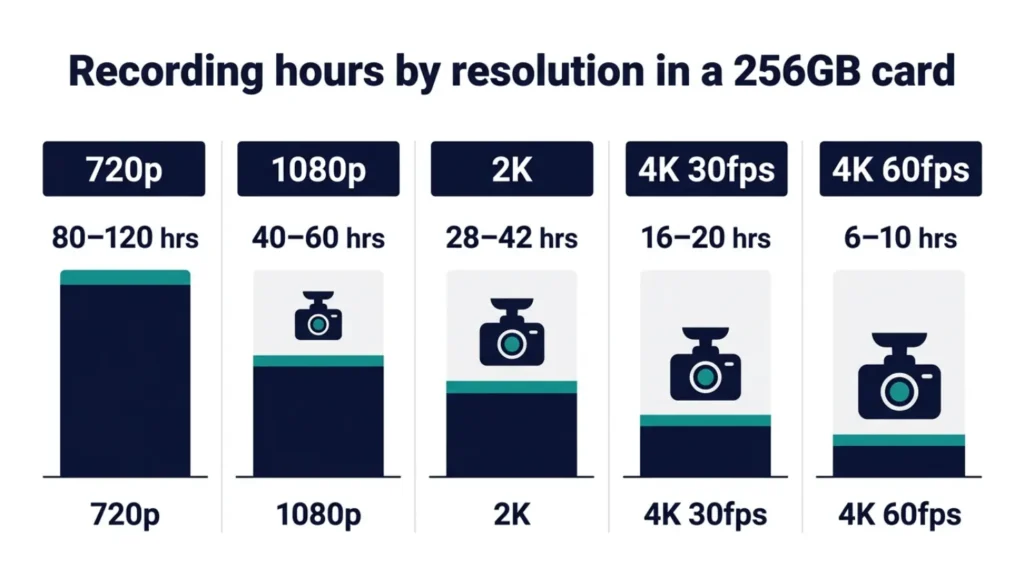
At 4K and 30fps with standard H.264 compression, a 256GB card holds approximately 16 to 20 hours of continuous footage. Nextbase, one of the UK’s most trusted dash cam brands with over 2 million drivers using their products, confirms this figure at exactly 720 minutes (12 hours) for their higher-bitrate 4K models. Lower-bitrate cameras can push that closer to 20 hours.
The variance comes down to one thing: how aggressively your camera compresses the video. A camera recording at 60 Mbps eats storage far faster than one running at 20 Mbps — even at identical 4K resolution.
Recording Hours by Resolution — Side-by-Side Comparison
Here is what the same 256GB card gives you across different recording modes.
| Setting | Hours on 256GB | Verdict |
|---|---|---|
| 1080p / 30fps | 40–60 hrs | Very comfortable |
| 2K / 30fps | 28–42 hrs | Comfortable |
| 4K / 30fps | 16–20 hrs | Fine for commuters |
| 4K / 60fps | 6–10 hrs | Gets tight fast |
| 4K / 30fps (H.265) | 32–40 hrs | Excellent |
What Changes When You Push to 4K at 60fps?
Doubling the frame rate from 30fps to 60fps nearly doubles the file size. At 4K and 60fps, your 256GB card can fill in as few as 6 hours. That means a long driving day wipes your buffer almost completely — leaving you with almost no historical footage if something happens at hour 7.
If your 4K dash cam is set to 60fps, a 256GB card may not hold even one full day of driving. Switch to 30fps unless you specifically need ultra-smooth playback. The quality difference in accident footage is minimal — the storage savings are massive.
Does Your Driving Style Change the Answer?
Yes — and this is the part most storage guides skip entirely. The right card size is not just about resolution. It is about how many hours per day you actually drive. Let me break it down by driver type.
Daily Commuter (2–3 Hours Per Day)
If you drive 2 to 3 hours daily in a single-channel 4K setup, a 256GB card gives you roughly 5 to 8 days of footage before loop recording overwrites the oldest files. That is an extremely comfortable buffer. For commuters, 256GB is not just enough — it is generous.
You have time to review any incident footage without racing against the overwrite clock. A 128GB card would work too, but 256GB gives you peace of mind that 128GB simply cannot match.
Rideshare and Commercial Driver (8–10 Hours Per Day)
Here is where 256GB starts to feel small. At 4K and 30fps, recording 8 to 10 hours per day burns through 80 to 160GB daily. That means your 256GB card cycles its full buffer every 1 to 3 days. Any incident from three days ago is almost certainly gone.
If you are a rideshare driver, commercial vehicle operator, or anyone logging heavy daily miles, 256GB is workable but not ideal. A 512GB card buys you meaningful extra time — and in a dispute situation, that extra time could be exactly what you need.
Road Tripper (Long Single-Day Drives)
Long-haul drives are the most unforgiving scenario for storage. A 6-hour highway drive at 4K burns through 60 to 96GB in one sitting. On a 256GB card, you have roughly 2 to 4 such drives before the card loops back. That is usually fine — but add a rear camera and parking mode and you will feel the squeeze.
Before any long trip, manually format your SD card in the dash cam’s menu (not on your computer). This clears the full card and resets the file system — giving you a clean 256GB buffer from the start of your drive. Make sure to back up any footage you want to keep first.
How Parking Mode Quietly Eats Your 256GB Card
Parking mode is the hidden storage killer that most buyers never think about until it is too late. When your car sits in a parking lot overnight, your dash cam keeps recording — and that footage competes directly with your driving footage for the same 256GB of space.
How Much Space Does Parking Mode Actually Use?
In active parking mode (continuous low-resolution recording), a cam might use 4GB per hour. Park for 10 hours overnight and you have burned through 40GB before you have driven a single mile. Add a 3-hour commute at 4K and you are at roughly 70–80GB in one day — meaning a 256GB card gets 3 to 3.5 days of retention at most.
Motion-triggered parking mode is far more storage-friendly. It only records when the G-sensor detects movement or impact. Most overnight stays result in under 2–5GB of triggered clips. If you use parking mode, make sure it is set to motion-triggered rather than continuous — your card will last far longer.
The Hidden Problem: G-Sensor Lock-Up Shrinks Your Free Space
Every time your G-sensor fires — from a bump, a pothole, or a sharp brake — it locks that video clip so loop recording cannot overwrite it. These protected files pile up over days and quietly eat your available card space.
A card packed with locked clips behaves like a much smaller card. Your effective free space for new footage shrinks — and your cam starts overwriting the remaining unprotected footage more aggressively. This is one of the most common reasons people think their 256GB card “isn’t working right.”
If your G-sensor sensitivity is set too high, every speed bump triggers a locked file. Lower the sensitivity in your dash cam settings. Review and delete unnecessary locked clips regularly. An SD card choked with protected files can fail earlier than expected due to excessive write cycles on the remaining space.
Dual-Channel Dash Cams — Does 256GB Still Cut It?
A dual-channel dash cam (front and rear) roughly doubles your storage usage — and that changes the 256GB math completely. A single 4K front camera uses 10–16GB per hour. Add a rear camera recording at 1080p or 720p and you add another 4–8GB per hour. Your combined usage climbs to 14–24GB per hour.
Front + Rear Setup: Storage Math You Need to Know
Vantrue recommends 128GB to 512GB for dual-channel setups. BlackboxMyCar, which has tested dozens of dual-cam configurations, notes that the Thinkware U3000 alone pulls a combined 40 Mbps (30 Mbps front + 10 Mbps rear) — consuming your 256GB card in roughly 14 hours of continuous driving.
| Camera Setup | GB/Hour | Hours on 256GB | Recommended Card |
|---|---|---|---|
| Single 4K front | 10–16 GB | 16–25 hrs | 128GB or 256GB |
| 4K front + 1080p rear | 14–22 GB | 11–18 hrs | 256GB minimum |
| 4K front + 4K rear | 20–32 GB | 8–12 hrs | 512GB recommended |
| Dual 4K + parking mode | Varies | Under 10 hrs typical | 512GB or more |
If you run a dual-channel 4K setup with overnight parking mode, 256GB is almost certainly not enough. You will be overwriting critical footage regularly. This is the scenario where 512GB is the right starting point — not an extravagance.
Can H.265 Compression Make 256GB Feel Like 512GB?
Yes — and this is one of the most powerful and underused storage levers available to dash cam owners. H.265 (also called HEVC) compresses video up to 50% more efficiently than H.264, at the same visual quality. That means the same footage that takes 20GB at H.264 takes only 10–14GB at H.265.
H.264 vs H.265 — Which One Should You Use?
Both are video compression codecs. H.264 (AVC) has been the standard for over a decade and works on virtually every device. H.265 (HEVC) is newer and cuts file size dramatically — but older laptops or phones may struggle to play it back without lag.
Brands like BlackVue now let you choose between H.264 and H.265 directly in the camera menu. VIOFO’s A139 Pro — one of the flagship 4K cams that supports up to 512GB — uses H.265 by default for exactly this reason.
Switching your 4K dash cam from H.264 to H.265 can effectively double your recording time on the same 256GB card — from 16 hours to over 30 hours — with no visible loss in footage quality.
If your camera supports H.265, enable it. The only catch: make sure the computer or phone you use to review footage can handle HEVC playback. Most 2019-and-newer devices can. If yours cannot, transfer the file to local storage first for smoother playback.
What SD Card Speed Class Do You Need for 4K?
Putting a slow SD card in a 4K dash cam is like installing a garden hose where a fire hose needs to go. The camera generates data faster than the card can write it — and the result is dropped frames, corrupted clips, or recording errors right when you need the footage most.
U3 vs V30 — What the Labels Mean in Real Life
For 4K recording, you need a card rated UHS Speed Class 3 (U3) or Video Speed Class 30 (V30). Both guarantee a minimum sustained write speed of 30MB per second. That is the floor for reliable 4K capture without dropped frames.
V30 cards are slightly better specified for video workflows. V60 and V90 cards go higher — but for a single-channel 4K dash cam, V30/U3 is all you need. Spend those extra dollars on card capacity, not speed tiers you will not use.
Always buy SD cards from the manufacturer’s website or a verified retailer. Counterfeit cards with fake speed ratings are common on third-party marketplaces. A fake U3 card that actually writes at U1 speeds will corrupt 4K footage — and you may not discover the problem until after an incident.
128GB vs 256GB vs 512GB — Which Size Is Right for You?
Here is the decision table I wish existed when I started. Use your driving profile to pick the right card — not just the cheapest or biggest one available.
| Driver Type | Camera Setup | Parking Mode | Best Card |
|---|---|---|---|
| Casual driver (1–2 hrs/day) | Single 4K front | No | 128GB |
| Daily commuter (2–3 hrs/day) | Single 4K front | No or light | 256GB |
| Daily commuter | 4K front + 1080p rear | Motion-triggered | 256GB minimum |
| Heavy/commercial driver (6–10 hrs) | Single or dual 4K | Any | 512GB |
| 24/7 parking + daily driving | Dual 4K | Continuous | 512GB or more |
256GB hits the sweet spot for most single-camera 4K users who drive under 4 hours per day and use parking mode sparingly. Push beyond that — with a dual-channel setup, long commercial shifts, or heavy parking surveillance — and 512GB is the smarter investment.
Best SD Card Brands for 4K Dash Cam Loop Recording
Not all SD cards are built for the punishment of continuous loop recording. A standard card designed for a camera or drone assumes occasional writes. A dash cam writes constantly, 24/7, cycling the same blocks thousands of times. That is a very different workload.
What Makes a Card “High-Endurance” for Dash Cams?
High-endurance cards use more durable NAND memory cells rated for more write/rewrite cycles than standard cards. They also withstand the temperature extremes inside a parked car — from -20°C in winter to 85°C+ on a summer dashboard.
Top recommended brands for 4K dash cam use:
- Samsung Pro Endurance — the most widely recommended card by dash cam manufacturers including BlackVue and Vantrue. Built for continuous recording workloads.
- SanDisk High Endurance — trusted in BlackVue DR970X setups across thousands of users. The 512GB version is now widely available.
- Nextbase branded cards — optimized for Nextbase cameras specifically and rated for loop recording.
- Vantrue branded microSD — designed to pair with Vantrue’s 4K multi-channel cams and their specific bitrates.
For a deep look at how to evaluate and compare dash cam card options, BlackboxMyCar’s SD card guide is one of the most thorough resources available. And for the technical side of video compression codecs, Vantrue’s storage guide covers bitrate math in clear detail.
Format your SD card directly in the dash cam’s menu — not on a computer — at least once a month. This maintains the correct file system structure the camera expects and prevents slow card degradation. It takes 30 seconds and extends card life significantly.
How to Squeeze More Recording Time from Your 256GB Card
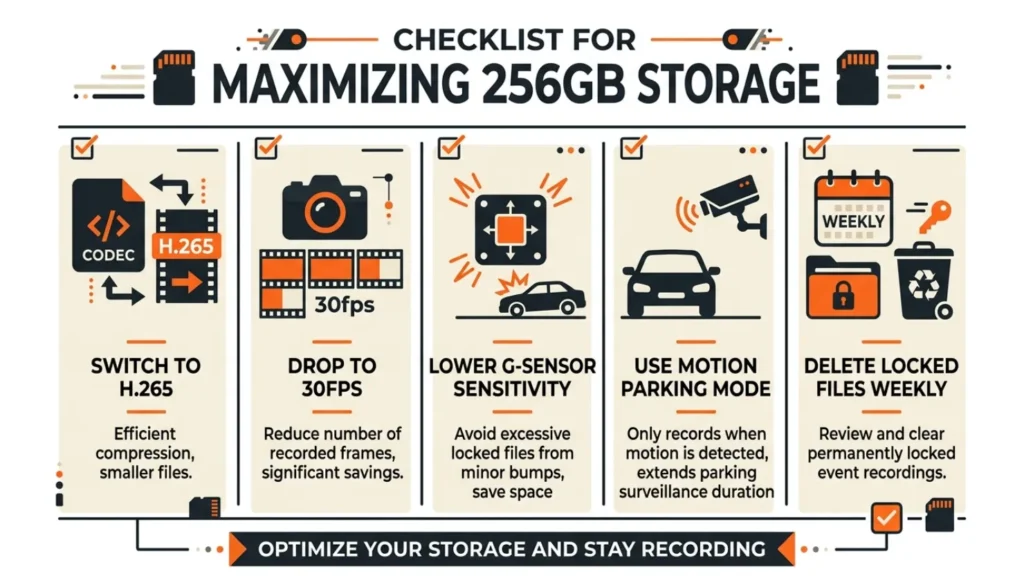
Before you spend money on a bigger card, try these five settings adjustments. Most drivers recover hours of retention just by tweaking what is already on their camera.
- Switch to H.265 — If your camera supports it, enable H.265 encoding. This alone can double your available recording time at 4K.
- Drop to 30fps — If you are currently at 60fps, switching to 30fps nearly doubles your capacity. For incident documentation, 30fps is more than sufficient.
- Lower G-sensor sensitivity — Reduce it from “high” to “medium” to prevent every pothole from generating a locked, non-overwritable file.
- Use motion-triggered parking mode — Switch from continuous to motion-triggered parking recording. This can cut parking mode usage from 40GB overnight to under 5GB.
- Review and delete locked files weekly — Open your dash cam app or pop the card into your computer and delete protected clips you no longer need. This recovers significant free space.
These five changes cost nothing and take minutes. If after applying all five you still feel constrained, then a 512GB card is the logical next step. For most commuters, though, these adjustments make 256GB feel enormous.
For anyone curious about how their specific setup calculates out, the Dash Cam Storage Calculator at UseCalcPro lets you enter your resolution, bitrate, frame rate, and daily driving hours to get a precise retention estimate.
Conclusion
So — is 256GB enough for a 4K dash cam? For most drivers, yes. A daily commuter running a single 4K front camera gets 5 to 8 days of footage on a 256GB card. That is a comfortable, generous buffer.
But stack a rear camera, aggressive parking mode, and 60fps on top of that and the answer flips fast. In those cases, 256GB is a starting point — not a finish line.
The smart move is to start with 256GB, enable H.265 if your camera supports it, keep your G-sensor sensitivity reasonable, and use motion-triggered parking mode. Do those four things and 256GB will serve most drivers extremely well.
Frequently Asked Questions

I’m Alex Rahman, a car enthusiast and automotive writer focused on practical solutions, car tools, and real-world driving advice. I share simple and honest content to help everyday drivers make better decisions.
