10 Best OBD2 Scanner for Windows 2026: Stable PC Diagnostics That Work
The best OBD2 scanner for Windows is the OBDLink EX USB OBD2 Adapter, the pick built for stable USB FORScan use on a PC. We evaluated 10 Windows options, scoring each on Windows software compatibility, connection stability, and diagnostic depth. Most Windows scanners look identical on paper but fail on drivers or Bluetooth pairing in real use. Whether you need Ford diagnostics, simple code checks, or live data, this guide gives you one clear answer.
Quick Comparison: All 10 Products Ranked
| # | Product | Best For | Rating | Badge | |
|---|---|---|---|---|---|
| 1 | OBDLink EX USB OBD2 Adapter | FORScan on a Windows laptop | 4.9/5 | Best Overall | Buy → |
| 2 | vLinker FS USB OBD2 Adapter | Ford FORScan on Windows at a lower cost | 4.8/5 | Best for FORScan | Buy → |
| 3 | OBDLink MX+ Bluetooth OBD2 Adapter | Wireless Windows and phone use | 4.8/5 | Best Wireless | Buy → |
| 4 | TOAD Pro OBD2 Software for Windows | PC diagnostics with an existing adapter | 4.7/5 | Best Windows Software | Buy → |
| 5 | OBDLink SX USB OBD2 Adapter | Simple USB diagnostics on Windows | 4.7/5 | Best Budget | Buy → |
| 6 | OBD Auto Doctor for Windows | Clear PC readings for new users | 4.6/5 | Best for Beginners | Buy → |
| 7 | BAFX Products Bluetooth OBD2 Adapter | Low-cost wireless Windows checks | 4.6/5 | Best Value | Buy → |
| 8 | Veepeak Mini WiFi OBD2 Adapter | Windows use without Bluetooth pairing | 4.5/5 | Best WiFi | Buy → |
| 9 | OBDLink LX Bluetooth OBD2 Adapter | Responsive live data on Windows | 4.5/5 | Best Live Data | Buy → |
| 10 | Vgate vLinker MC+ Bluetooth OBD2 Adapter | Wireless Ford access on Windows | 4.4/5 | Best Wireless FORScan | Buy → |
How We Chose These Windows Scanners
What we compared
10 Windows adapters and software options, judged on listed Windows compatibility, connection type, and diagnostic functions.
Our 3 scoring criteria
Windows software compatibility, connection stability, and diagnostic depth, applied identically to every product.
How scores were made
Scores are editorial ratings based on listed specifications and documented compatibility, not lab or hands-on test results.
What we cut, and why
BLE-only adapters were cut for Windows, because Windows Bluetooth Low Energy support is patchier than USB or Classic Bluetooth.
What to Look for When Buying an OBD2 Scanner for Windows
Windows adds a layer that phone scanning does not: drivers, COM ports, and software choice matter as much as the adapter itself. Get those right first, and the rest becomes straightforward.
1. Connection Type and Windows Drivers
USB adapters usually appear as a serial device and are the easiest to troubleshoot on Windows, while Bluetooth needs a serial profile and a correct COM port. WiFi avoids Bluetooth pairing but adds network switching. Before buying, read how to choose an OBD2 scanner to match the connection to your PC habits.
2. Windows Software Compatibility
An adapter is only useful if your chosen Windows program can talk to it. FORScan needs specific Ford-compatible adapters, while general programs accept most ELM327-style devices. Check the software list first, then confirm what an ELM327 adapter does for the adapter type you are considering.
3. Protocol and Vehicle Coverage
Standard OBD2 covers emissions-related codes on most cars from 1996 onward, but deeper brand access needs the right adapter and software. Ford owners, in particular, need MS-CAN access for some modules. Learn the OBD2 protocols your car uses before expecting manufacturer-level functions from a generic reader.
4. Live Data Speed and Logging
Code reading is easy; useful live data is harder. A stable USB link usually gives smoother graphs than a marginal wireless link, and PC software makes it easier to log several sensors at once. If you diagnose intermittent faults, prioritise connection stability over wireless convenience.
5. Setup, Licensing, and Updates
Check whether the software is a one-time purchase, a subscription, or a free program with a paid licence for advanced features. Also check driver updates and Windows version support, especially if you run an older laptop. A clear update path avoids a working setup breaking after a Windows update.

OBDLink EX USB OBD2 Adapter — Stable FORScan Pick
If you run FORScan on a Windows laptop, this is the adapter to start with. The OBDLink EX connects by USB, so Windows sees it as a stable serial device instead of a wireless link that can drop mid-scan. It supports the Ford MS-CAN and HS-CAN networks through its built-in switch, which matters for deeper Ford diagnostics and module work. Live data, code reading, and clearing work through FORScan and other Windows software. Its main limitation is the wired link, so you stay tethered to the laptop while you work.
- Stable USB serial link on Windows
- Built-in Ford MS-CAN switch
- Works with FORScan and PC software
- Wired link limits movement
- Higher cost than basic adapters
4.9/5
4.9/5
4.8/5
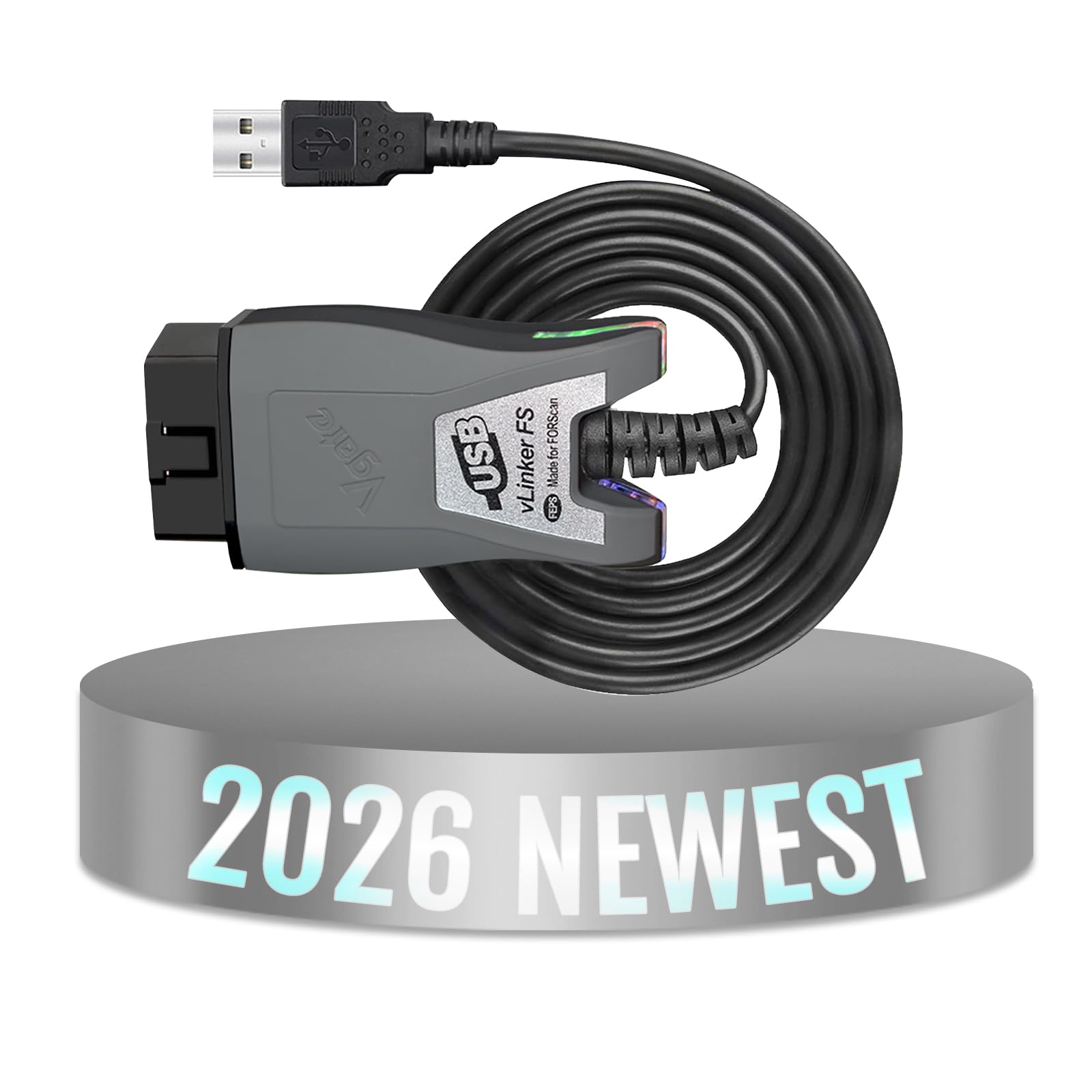
vLinker FS USB OBD2 Adapter — Value FORScan Pick
For Ford owners who want FORScan on Windows without paying for the top adapter, this USB model is a strong second choice. It includes an MS-CAN and HS-CAN switch, so it reaches both Ford networks without a separate adapter or manual rewiring. Windows setup is usually a standard USB serial install, followed by selecting the correct COM port in FORScan. It reads and clears codes, shows live data, and supports the service functions FORScan exposes for supported Fords. The trade-off is a less polished support package than OBDLink, and firmware updates need more care.
- Ford MS-CAN switch included
- Standard USB serial Windows setup
- Strong FORScan value for Fords
- Support package less polished
- Firmware updates need care
4.8/5
4.8/5
4.7/5
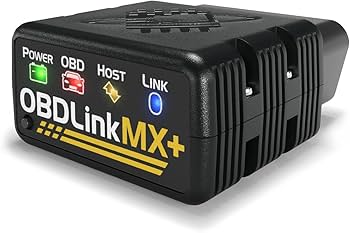
OBDLink MX+ Bluetooth OBD2 Adapter — Flexible Wireless Pick
If you want a Windows setup without a cable, the MX+ is the most flexible wireless pick here. It connects by Bluetooth and supports all five OBD2 protocols, so it works with a wide range of cars and Windows apps that accept a Bluetooth serial connection. Battery-saving sleep, automatic protocol detection, and a compact plug help it stay fitted without draining attention. It also works with phone apps, which is useful if you move between devices. The weakness on Windows is Bluetooth pairing itself, which can be fussier than USB.
- All five OBD2 protocols supported
- Battery-saving sleep mode included
- Works across Windows and phones
- Windows Bluetooth pairing can frustrate
- Needs Bluetooth serial-compatible software
4.8/5
4.6/5
4.7/5

TOAD Pro OBD2 Software for Windows — PC Software Depth Pick
TOAD Pro is Windows software, not a separate adapter, so pair it with a compatible ELM327 adapter you already own. It gives a PC-sized workspace for code reading, live data graphs, fuel economy tracking, and repair information in one place. That larger screen makes it easier to compare several live readings at once than a small phone display. It suits DIY owners who like to log data and review it after a drive. The limitation is clear: software alone cannot connect, and results depend on your adapter and vehicle support.
- Large PC workspace for live graphs
- Code, data, and repair info together
- Useful logging after a drive
- Requires a separate compatible adapter
- Results depend on adapter quality
4.8/5
4.5/5
4.7/5

OBDLink SX USB OBD2 Adapter — Simple Budget Pick
For a simple, low-cost way onto Windows, the SX keeps the setup deliberately basic for home PC use. It connects by USB, appears as a serial device in Windows, and works with common Windows OBD2 software for reading codes, clearing the check-engine light, and viewing live data. There is no battery, no wireless pairing, and no app subscription to manage. That simplicity is also its limit: it covers standard OBD2 diagnostics well, but it does not add the Ford-specific switching or advanced service access found higher in this list.
- Simple USB serial Windows setup
- No battery or pairing to manage
- Good standard code and data coverage
- No Ford MS-CAN switching
- No advanced service access
4.7/5
4.8/5
4.3/5

OBD Auto Doctor for Windows — Beginner PC Pick
OBD Auto Doctor is a beginner-friendly Windows program for owners who want clear readings without learning FORScan first. It displays fault codes with plain explanations, shows live sensor data and freeze-frame information, and lets you check emissions readiness before a test. The interface is calmer than many workshop tools, which helps if you scan only occasionally. You still need a compatible adapter, and it is not a Ford-specific tool. For general code checks and live data on a PC, however, it is an easy starting point.
- Plain fault-code explanations included
- Live data and freeze-frame views
- Emissions readiness check included
- Requires a separate compatible adapter
- Not a Ford-specific diagnostic tool
4.7/5
4.5/5
4.4/5

BAFX Products Bluetooth OBD2 Adapter — Value Wireless Pick
BAFX is the value wireless adapter for Windows users who accept Bluetooth setup in exchange for a lower cost. It pairs as a Bluetooth serial device and works with Windows software that supports that connection, as well as common phone apps. Code reading, clearing, and basic live data cover most everyday checks. Its compact plug and simple design make it easy to leave in the car. The main weakness is Windows Bluetooth variability: pairing and COM port selection can take trial and error on some PCs.
- Low-cost wireless Bluetooth adapter
- Works with Windows and phone apps
- Compact plug stays fitted easily
- Windows Bluetooth setup can vary
- Basic live data only
4.5/5
4.3/5
4.4/5

Veepeak Mini WiFi OBD2 Adapter — WiFi Workaround Pick
If Bluetooth on your Windows PC has been unreliable, WiFi is a useful workaround. The Veepeak Mini WiFi creates a wireless link that Windows software can reach without Bluetooth pairing or a USB cable. It reads and clears codes and shows live data through compatible apps and PC software, without tying up a USB port. Its small plug sits low in the port, which helps in tight footwells. The trade-off is that WiFi setup can clash with your home network settings, and you may need to switch networks before scanning.
- Avoids Windows Bluetooth pairing issues
- Wireless link without USB cable
- Low-profile plug for tight footwells
- WiFi setup can clash with networks
- May need network switching first
4.5/5
4.4/5
4.3/5

OBDLink LX Bluetooth OBD2 Adapter — Live Data Value Pick
The LX is a Bluetooth adapter aimed at drivers who want solid live data without the MX+ feature set. It supports all five OBD2 protocols, includes battery-saving sleep, and works with Windows software that accepts a Bluetooth serial link. Live graphs feel responsive enough for watching coolant, fuel trim, and RPM changes during a drive. It is also compact and easy to move between cars for multi-car households. Its Windows weakness matches other Bluetooth picks: pairing, driver choice, and COM port setup can vary by PC and Bluetooth driver version.
- All five OBD2 protocols supported
- Battery-saving sleep mode included
- Responsive live graphs for key sensors
- Windows Bluetooth setup varies by PC
- Fewer features than MX+ model
4.4/5
4.4/5
4.5/5

Vgate vLinker MC+ Bluetooth OBD2 Adapter — Wireless FORScan Pick
The MC+ is a wireless FORScan-friendly option for Ford owners who want Ford network access without a USB cable. Its switch covers MS-CAN and HS-CAN, so supported Ford models get deeper access than a generic adapter allows. Bluetooth connection keeps the laptop free for viewing live data and service screens during longer diagnostic sessions. It also works with other OBD2 apps on Windows, which adds flexibility beyond Ford work. The limitation is Windows Bluetooth again: setup on Windows can be less predictable than USB, especially on older Windows Bluetooth stacks.
- Ford MS-CAN switch over Bluetooth
- Frees laptop for live data viewing
- Works beyond Ford apps too
- Windows Bluetooth setup less predictable
- Older Bluetooth stacks may struggle
4.6/5
4.2/5
4.5/5
Top 3 Head-to-Head: OBDLink EX vs vLinker FS USB vs OBDLink MX+
These three are the common final choices for Windows: a stable USB leader, a lower-cost USB Ford option, and a wireless alternative. The right one depends on whether you value stability, Ford value, or freedom from cables.
| Feature | #1 OBDLink EX | #2 vLinker FS USB | #3 OBDLink MX+ |
|---|---|---|---|
| Windows software compatibility | FORScan-ready USB — Best | FORScan-ready USB | Bluetooth serial apps |
| Connection stability | USB serial — Best | USB serial | Bluetooth, varies by PC |
| Diagnostic depth | Ford MS-CAN depth — Best | Ford MS-CAN depth | All-protocol general depth |
| Choose if… | You want the most stable Windows FORScan setup. | You want Ford USB value at a lower cost. | You want wireless use across devices. |
Who These Windows Scanners Are NOT For
A Windows scanner is not the right tool for everyone, even if the adapter itself is good.
They are also not a substitute for a professional scan tool if you need brand-level bi-directional tests on every system. For routine codes, live data, and readiness checks, however, this list covers most home and DIY needs.
Common Mistakes to Avoid
Most Windows scanning problems are setup problems, not faulty adapters.
Frequently Asked Questions About OBD2 Scanners for Windows
Do OBD2 scanners work with Windows 10 and Windows 11?
Yes, most USB and Bluetooth OBD2 adapters work with Windows 10 and Windows 11 when you use compatible PC software. USB adapters usually need a serial driver, while Bluetooth adapters need a serial profile and the correct COM port. Always check the software and adapter support notes for your exact Windows version before buying.
Do I need a USB adapter, or will Bluetooth work on Windows?
Bluetooth can work on Windows, but USB is usually more stable for laptop diagnostics. Bluetooth needs pairing, a serial profile, and a matching COM port, and those steps vary by PC. If your PC Bluetooth is unreliable, choose USB or WiFi instead, especially for longer live-data sessions. That stability matters most when you graph several sensors at once.
What software do I need to use an OBD2 scanner on Windows?
You need Windows OBD2 software plus a compatible adapter, because the adapter alone does not display results. FORScan suits Ford owners, while general programs such as TOAD Pro and OBD Auto Doctor cover standard codes and live data. Match the software to your car brand and adapter before you buy either part.
Why does Windows show my OBD2 adapter as an unknown device?
Windows may show an unknown device when the driver is missing, the adapter is not fully paired, or the wrong COM port is selected. Reinstall the adapter driver, confirm the device in Device Manager, and select the assigned COM port in your software. A different USB port or a fresh Bluetooth pairing often resolves the issue.
Can a Windows OBD2 scanner do Ford-specific FORScan functions?
Yes, but only with a Ford-compatible adapter and FORScan software. Switched adapters that cover MS-CAN and HS-CAN reach more Ford modules than a generic adapter. Generic adapters still handle standard codes and live data, but they may not expose every Ford service function. Check the adapter and software compatibility lists for your exact Ford model year before buying.
Is a Windows laptop setup better than a phone app?
A Windows laptop setup is better for logging, comparing several live readings, and working through detailed diagnostics on a large screen. A phone app is better for quick roadside checks and portability. Choose Windows if you diagnose faults at home, and choose a phone setup if speed and simplicity matter more.
Our Final Verdict
For most Windows users, USB stability wins: start with a dependable USB adapter, match it to FORScan or general PC software, and only go wireless if your PC Bluetooth is proven reliable. That balance keeps setup simple and live data steady.

I’m Alex Rahman, a car enthusiast and automotive writer focused on practical solutions, car tools, and real-world driving advice. I share simple and honest content to help everyday drivers make better decisions.
