Why Does My Dash Cam Only Record for 3 Minutes And How Do You Fix It?
Dash cams record in short 3-minute loops by design. This splits footage into manageable files that overwrite the oldest clips when storage fills up. If recording stops unexpectedly, the most common causes are a full SD card, too many locked files, or the loop setting itself — all of which are easy to fix.
I remember the first time I checked my dash cam footage after a minor scrape in a car park. I opened the app, found the folder — and stared at a pile of 3-minute clips. I had no idea which one held the moment I needed.
Sound familiar? That little frustration is one of the most common dash cam complaints I hear. And I get it — when you are expecting one long video, a stack of short clips feels wrong.
I am Alex Rahman, and I have spent years reviewing and testing dash cams from brands like Nextbase, Vantrue, BlackVue, and Viofo. Here is the thing most guides skip: 3-minute clips are not a bug. They are a deliberate design feature. But there are real situations where something else is causing your dash cam to stop recording — and those do need fixing.
By the end of this guide, you will know exactly what is happening inside your dash cam, why it records the way it does, and how to change it if needed. Let us get into it.
- Dash cams split footage into short clips by design — this is called loop recording and it is completely normal.
- The 3-minute default comes from factory settings, and most cams let you change this to 1, 2, 5, or even 10 minutes.
- Locked or emergency files are the most overlooked cause of recording problems — they fill your SD card silently.
- A slow or undersized SD card can cause recording to stop or glitch mid-clip.
- Formatting your SD card regularly inside the dash cam itself prevents most storage-related recording failures.
What Is Loop Recording and Why Does Your Dash Cam Use It?
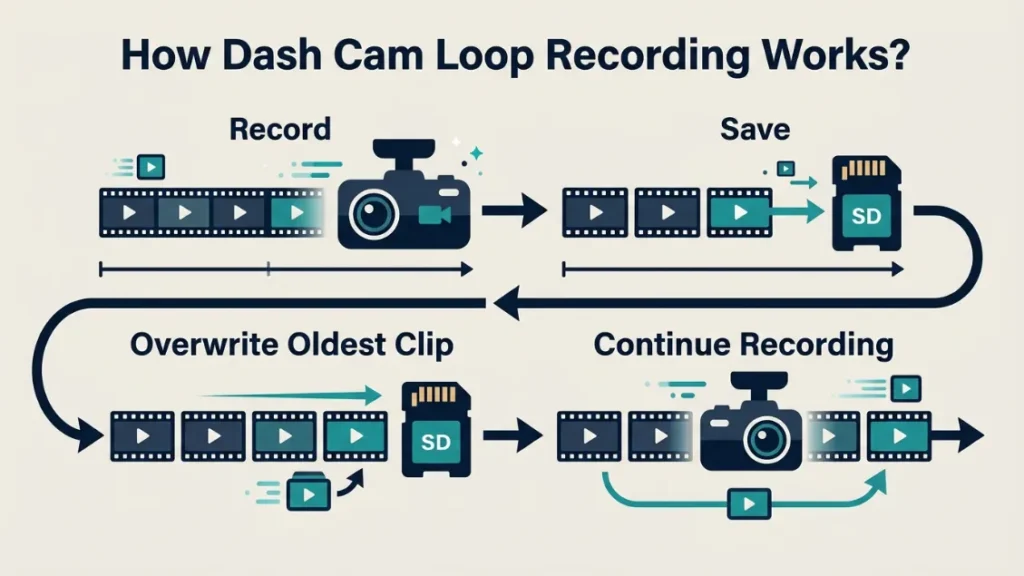
Loop recording is the system that lets your dash cam record continuously by reusing the same SD card space over and over. When the card fills up, the camera automatically deletes the oldest clip and records a new one in its place. You never have to manually delete footage to keep recording.
This design solves a real problem. A dash cam that stops recording when the card is full is useless on a long drive. Loop recording keeps the camera running from the moment you start the engine to the moment you park.
The reason footage gets split into short segments — rather than one long continuous file — comes down to two things: file system limits and practical file management. More on that shortly.
How Does Loop Recording Protect Your Oldest Footage?
Loop recording does overwrite old footage — but not blindly. Every dash cam with an emergency lock feature (sometimes called event recording or G-sensor lock) protects clips from being overwritten.
When the built-in accelerometer (G-sensor) detects a sudden impact or hard brake, it automatically locks that clip. Locked clips sit in a separate folder and will not be deleted by the loop cycle. This means footage of an accident stays safe even if the cam keeps recording for hours afterward.
If you want to manually protect a clip — say, you witness an incident but there was no impact — most dash cams have a manual lock button you can press while driving. Check your manual for the shortcut, as it varies by brand.
Is a 3-Minute Clip Length Normal for a Dash Cam?
Yes — 3 minutes is the factory default on the vast majority of dash cams sold today, including popular models from Nextbase, Vantrue, Garmin, and Viofo. It is the middle-ground setting that balances file size, retrieval speed, and storage efficiency.
A shorter clip means you can find a specific moment faster. A longer clip means fewer file breaks to worry about. Three minutes sits right in between — which is why manufacturers ship with it as standard.
The good news? It is almost always adjustable. Most dash cams let you change this to 1, 2, 5, or 10 minutes directly in the settings menu.
Why Is My Dash Cam Only Recording Short 3-Minute Clips?
There are four main reasons a dash cam records in 3-minute clips: the loop setting is at its default, locked files are filling the card, the SD card is too small, or the video resolution is eating storage faster than expected. Each cause has a different fix.
Let us walk through each one so you can identify exactly what is happening with your camera.
Your Loop Recording Setting Is Set to 3 Minutes
This is the most common reason — and the simplest fix. The dash cam shipped from the factory with a 3-minute loop setting, and nobody changed it. The camera is working exactly as designed.
If you want longer clips, you just change the setting. If you are happy with 3-minute segments, there is nothing wrong at all. This is normal loop recording behavior, not a fault.
Your SD Card Is Full of Locked or Emergency Files
This is the cause most drivers miss. Locked files do not get overwritten by the loop cycle — they accumulate silently and eat your storage.
Here is the scenario: your G-sensor is sensitive, so every speed bump or pothole triggers an event lock. Over a few weeks, your SD card fills with hundreds of locked 3-minute clips. The camera can no longer write new footage because there is no free space — so it either stops recording or behaves unpredictably.
The fix is to access the locked file folder — usually labeled “Event,” “Emergency,” or “Locked” depending on your brand — and delete files you do not need. Then reformat the card inside the camera.
Never format your SD card using your computer. Always format it from inside the dash cam settings menu. Formatting on a PC can apply the wrong file system and cause recording errors or card corruption.
Your SD Card Is Too Small for Longer Recording
A 32GB card at 1080p records roughly 4 to 6 hours of footage before looping. A 128GB card at the same resolution holds around 16 to 20 hours. If your card is small and your resolution is high, the loop cycle runs fast — and clips feel very short.
The card itself is not causing 3-minute clips — the loop setting does that. But a small card means you have less total footage history available before overwriting begins.
Your Video Resolution Is Set Too High
Higher resolution means larger files. A 4K clip at 30fps from a Vantrue N4 or Viofo A229 Pro takes up roughly three to four times more space per minute than a 1080p clip. The higher your resolution, the faster your card fills, and the more aggressive the loop cycle becomes.
If you do not need 4K for your daily commute, dropping to 1440p or 1080p gives you significantly more recording headroom without losing useful detail for insurance purposes.
How Do You Change the Recording Clip Length on Your Dash Cam?
You change dash cam clip length inside the settings menu — usually labeled Loop Recording, Recording Time, or Clip Duration — and most models offer 1, 2, 3, 5, or 10-minute options. The exact path varies by brand and model.
How to Change Loop Recording Time on Nextbase Models
Nextbase (the UK-based brand trusted by millions of drivers worldwide) makes this straightforward on their 222, 322GW, 422GW, and 622GW models.
- Turn on the dash cam and press the Menu button.
- Navigate to Video Settings or Recording Settings.
- Find Loop Recording and select your preferred clip length.
- Choose from 1 minute, 2 minutes, 3 minutes, or 5 minutes.
- Press OK or the center button to confirm and exit the menu.
How to Change Clip Duration on Vantrue and Viofo Dash Cams
Vantrue (known for their high-resolution multi-channel cams like the N4 and E1 Lite) and Viofo (popular for their A119 and A229 series) both follow a similar menu path.
- Power on the camera and tap the Settings icon or press Menu.
- Scroll to Video or Recording options.
- Select Loop Recording Time or Clip Duration.
- Pick your desired length — options typically include 1, 2, 3, and 5 minutes.
- Save and exit. The new setting applies immediately on the next recording cycle.
If you cannot find this setting, check the manufacturer app. BlackVue, for example, manages most settings through their BlackVue app rather than physical buttons on the camera itself.
How Do Locked Files Stop Your Dash Cam from Recording Properly?
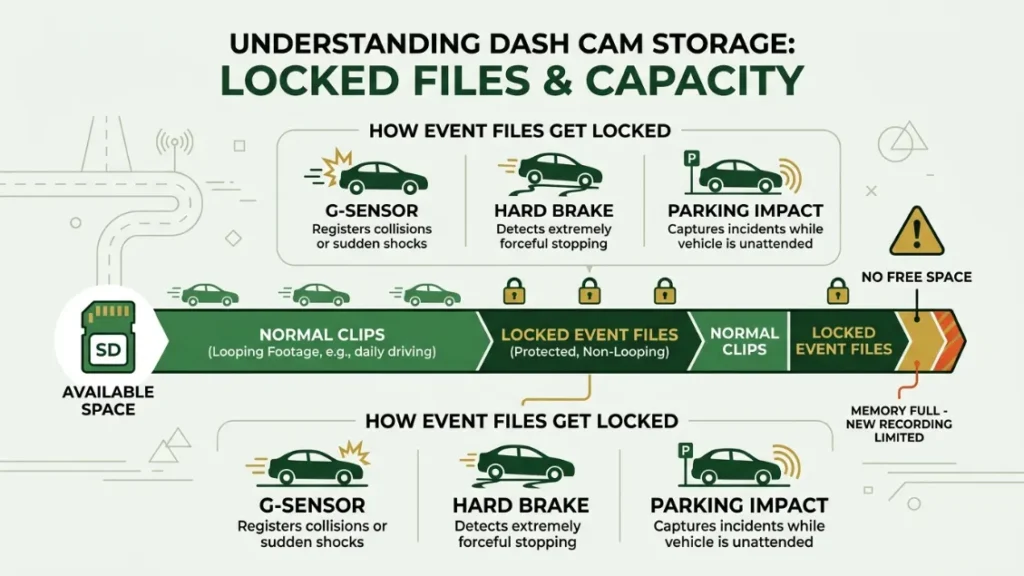
Locked files block the loop cycle from overwriting old footage, and when too many accumulate, your dash cam runs out of writable space and stops recording new clips. This is one of the most common — and most misunderstood — dash cam problems.
What Triggers a File Lock on a Dash Cam?
Three things trigger automatic file locking on most dash cams:
- G-sensor activation — a sudden impact, hard brake, or sharp corner trips the accelerometer.
- Manual button press — you press the emergency or event button deliberately.
- Parking mode impact detection — the camera wakes up and locks a clip when it detects a knock while parked.
On urban roads full of potholes, speed bumps, and aggressive drivers, a G-sensor set to high sensitivity can lock dozens of clips per week. Within a month, the locked folder is packed.
How to Delete Locked Files and Free Up Storage Space
- Remove the SD card and insert it into your computer using a card reader.
- Open the card and locate the folder labeled Event, Emergency, or Locked.
- Review the files — keep any you need for insurance or evidence purposes.
- Delete the remaining locked files you no longer need.
- Reinsert the card into the dash cam.
- Go to Settings and run a full format from inside the camera menu.
After clearing locked files, also check your G-sensor sensitivity setting. Dropping it from High to Medium prevents unnecessary locking on normal roads while still catching real impacts.
Set a monthly reminder to format your dash cam SD card. A clean format every 30 days prevents file system fragmentation and keeps your camera recording reliably. Always use the in-camera format option, not your computer.
Does Your SD Card Size Affect How Long Your Dash Cam Records?
Yes — a larger SD card gives you more total recording history before the loop starts overwriting footage, though it does not change the individual clip length. The clip length is controlled by the loop setting alone. Card size controls how far back in time your footage library goes.
How Much Storage Do You Actually Need for Continuous Recording?
Here is a practical breakdown of how long different card sizes last at common resolutions. These figures are approximate and vary by bitrate and compression settings.
| SD Card Size | 1080p Recording | 1440p Recording | 4K Recording |
|---|---|---|---|
| 32GB | ~4–5 hours | ~2.5–3 hours | ~1–1.5 hours |
| 64GB | ~8–10 hours | ~5–6 hours | ~2.5–3 hours |
| 128GB | ~16–20 hours | ~10–12 hours | ~5–6 hours |
| 256GB | ~32–40 hours | ~20–24 hours | ~10–12 hours |
For most commuters driving 1 to 2 hours daily, a 64GB or 128GB card at 1080p covers several days of driving before looping. That is plenty of buffer if something happens and you need to retrieve footage quickly.
What SD Card Format and Speed Class Does a Dash Cam Need?
Dash cams need a microSD card formatted in FAT32 (for cards up to 32GB) or exFAT (for 64GB and above), with a minimum write speed of Class 10 or UHS-I U3. Using a slow or wrong-format card causes recording failures, corrupted files, and unexpected stops.
The FAT32 file system has a maximum individual file size of 4GB. This is one reason dash cams cannot record in one continuous file for hours — they hit the FAT32 ceiling at around 20 to 30 minutes at high bitrates. The 3-minute clip default sits well within that limit and prevents file corruption at the moment of a cut.
For dash cam use, always choose cards with endurance ratings — not standard or high-speed cards designed for cameras. Endurance microSD cards from Samsung (Pro Endurance), SanDisk (High Endurance), and Kingston (High Endurance) are built for constant read-write cycles and last significantly longer in a dash cam environment.
You can read more about choosing the right microSD for your vehicle camera on RTINGS.com’s dash cam guide and Which.co.uk’s independent dash cam reviews.
How Does Video Resolution Change the Length of Each Clip?
Video resolution does not change your clip length setting — but it directly controls how large each clip file is, which affects how fast your SD card fills and how aggressively the loop cycle runs.
Think of it this way: your dash cam is always making 3-minute clips (or whatever your setting is). But at 4K, each 3-minute clip might be 1.5GB. At 1080p, the same clip is around 300–500MB. Same clip length, very different storage impact.
Bitrate and File Size — What the Numbers Actually Mean
Bitrate is the amount of data recorded per second of video. Higher bitrate means sharper, more detailed footage — and bigger files. Here is a simplified comparison across common dash cam resolutions.
| Resolution | Typical Bitrate | File Size per 3 Min Clip | Best For |
|---|---|---|---|
| 1080p 30fps | 8–12 Mbps | ~180–270MB | Daily commuting |
| 1440p 30fps | 16–20 Mbps | ~360–450MB | General use, plates detail |
| 4K 30fps | 40–60 Mbps | ~900MB–1.35GB | Maximum detail, large storage |
For most drivers, 1440p hits the sweet spot — enough detail to read a number plate at distance, without the storage demands of 4K.
If you use parking mode on your dash cam, drop your recording resolution to 1080p for the parked hours. Parking mode runs all night and burns through storage fast. Use the higher resolution only for active driving.
Quick Fixes to Try Right Now If Your Dash Cam Keeps Stopping
If your dash cam stops recording mid-journey or behaves erratically, these five fixes resolve the problem in the vast majority of cases. Work through them in order — start simple before assuming hardware failure.
- Check your loop setting — go into Settings and confirm the clip length is what you expect.
- Delete locked files — remove the SD card, delete files in the Event or Emergency folder, and reformat from inside the camera.
- Lower G-sensor sensitivity — change from High to Medium to prevent constant accidental file locking.
- Upgrade your SD card — use a U3-rated endurance card of at least 64GB from Samsung, SanDisk, or Kingston.
- Update the firmware — check the manufacturer website for your exact model. Outdated firmware causes recording bugs that a simple update fixes in minutes.
Three-minute clips are normal loop recording behavior — not a fault. The most common real problems are locked files filling your SD card, a sensitivity G-sensor, or an undersized card. Fix them in order: clear locked files, adjust G-sensor, upgrade your card, and update firmware. Your dash cam should then record reliably on every drive.
For deeper guidance on dash cam settings and SD card maintenance, the team at DashCamTalk.com maintains one of the most detailed driver-run knowledge bases available.
Frequently Asked Questions
Final Thoughts on Your Dash Cam’s 3-Minute Recording Limit
Here is the honest summary: in most cases, your dash cam is doing exactly what it was designed to do. Loop recording in short segments is smart engineering — not a flaw.
But if your camera is stopping unexpectedly, behaving erratically, or you are losing footage you needed, the fix is almost always one of four things: adjusting the loop setting, clearing locked files, upgrading your SD card, or updating the firmware.
I am Alex Rahman, and I have walked through these exact issues with dozens of readers and dash cam setups over the years. The steps above cover every common cause I have encountered. Work through them in order and you will have a reliably recording dash cam on your very next drive.
If you found this guide helpful, share it with a fellow driver who is puzzling over the same thing. And if your camera is still misbehaving after all of the above — drop your model name and the symptom in the comments. I am happy to help you dig deeper.

I’m Alex Rahman, a car enthusiast and automotive writer focused on practical solutions, car tools, and real-world driving advice. I share simple and honest content to help everyday drivers make better decisions.
