How Much Storage Does a Dash Cam Need? And How Long Does Footage Last?
A 128GB microSD card records roughly 16–20 hours of continuous 1080p footage before loop recording overwrites the oldest files. At 4K, that same card lasts 6–10 hours. Most daily drivers do fine with 64GB to 128GB — but resolution, bitrate, and parking mode all shift that number significantly.
I bought my first dash cam and assumed a 32GB card would be plenty. Three weeks later, I realized it was overwriting footage from the morning by noon. That was a problem.
I’m Alex Rahman, and I’ve been testing and writing about dash cams for years. Storage is the one thing most buyers get wrong — not because it’s complicated, but because nobody explains the actual numbers.
This guide fixes that. You’ll know exactly how many hours fit on your card, what loop recording actually does, and which size SD card matches your driving style.
- A 128GB card at 1080p stores roughly 16–20 hours of footage before overwriting starts.
- Loop recording automatically deletes the oldest files — your cam never truly “fills up” and stops.
- 4K recording uses 2–3x more storage than 1080p, cutting your retention window significantly.
- Parking mode and G-sensor file locking can consume your free space faster than driving does.
- High-endurance microSD cards last far longer than standard ones in continuous-write conditions.
What Does a Dash Cam Actually Use for Storage?
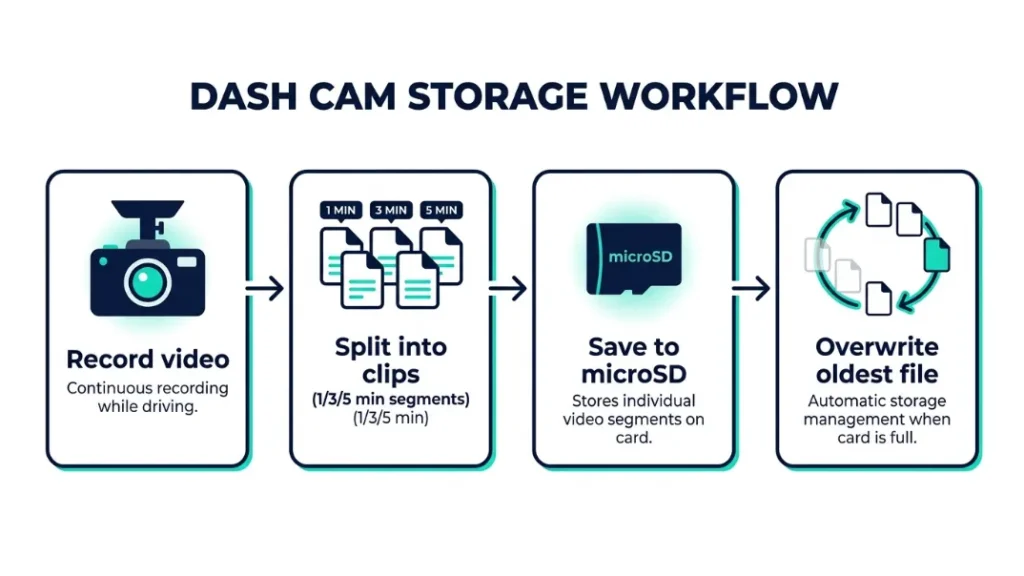
Every dash cam stores video as short clip files on a microSD card slotted into the camera body. The camera writes video continuously, splitting it into 1-, 3-, or 5-minute segments. When the card fills up, the oldest clip gets deleted to make room for new footage.
That system is called loop recording, and it runs automatically. You never manually delete files. The camera handles everything in the background.
The card itself — not internal memory — holds all your footage. Most dash cams have zero onboard storage. Pull the card out, and the footage comes with it.
Why MicroSD Cards Are the Standard Storage Format
MicroSD cards became the dash cam standard because they are small, removable, and widely available. Most dash cams accept cards from 32GB up to 256GB, with some newer models pushing to 512GB.
Not all microSD cards work equally well in a dash cam. Standard cards are designed for occasional reads and writes — think phone photos. A dash cam writes continuously, 24/7 in some cases. That wears out a regular card fast.
Using a cheap, non-endurance microSD card in a dash cam can lead to card failure in as little as 3–6 months. Standard cards aren’t rated for continuous write cycles. Your footage may corrupt without warning.
Brands like Samsung (PRO Endurance series) and SanDisk (High Endurance series) make cards rated for 10,000 to 40,000 hours of video recording. Those are the ones worth buying.
What File Format and Codec Does a Dash Cam Use?
Dash cams record video as .MP4 files using either the H.264 or H.265 compression codec. The codec determines how efficiently your camera packs video data onto the card.
H.264 is older and universally compatible. H.265 (also called HEVC) compresses video roughly 40% smaller at the same quality level. A camera shooting H.265 at 1080p uses far less card space than one shooting H.264 at the same resolution.
Many budget dash cams still use H.264. Premium models from Vantrue, BlackVue, and Nextbase’s higher tiers have shifted to H.265. Check your manual to confirm which codec your cam uses — it changes your storage math considerably.
How Long Does Dash Cam Footage Last Before It Gets Overwritten?
Footage duration depends on card size, resolution, bitrate, and whether you use parking mode — but on a 128GB card at standard 1080p, most dash cams store between 16 and 20 hours before the oldest clips start disappearing.
That sounds like a lot. For most commuters driving 30–60 minutes daily, it means you keep roughly two to three weeks of driving footage at any given time.
What Is Loop Recording and How Does It Protect You?
Loop recording is the automatic system that keeps your dash cam recording forever without you ever touching it. When the SD card reaches capacity, the camera deletes the oldest unlocked clip and writes new footage in its place.
The key word there is unlocked. Clips flagged by the G-sensor or manually locked by you stay protected. The camera only overwrites files that are free to delete.
- Camera powers on and begins recording immediately.
- Footage is split into short clips — usually 1, 3, or 5 minutes each.
- Clips save continuously to the microSD card.
- When the card is full, the oldest unlocked clip is deleted.
- New footage writes into that freed space automatically.
- The process repeats indefinitely with no user input needed.
This means your dash cam never stops recording due to a full card. The footage rolls forward continuously, keeping the most recent hours always available.
How Does Resolution Change How Long Footage Lasts?
Resolution is the single biggest factor controlling how much space each minute of footage uses. Higher resolution means more pixels per frame, which means larger file sizes per minute of video.
A 1080p clip at 30fps uses roughly 1.5–2GB per hour at standard bitrate. A 4K clip at 30fps from the same camera uses 6–10GB per hour. That’s a 4x increase in storage consumption for double the pixel resolution.
Bitrate amplifies this further. A 1080p camera recording at 20 Mbps uses nearly twice the space of one recording at 11 Mbps — even at the same resolution. Higher bitrate means sharper, cleaner footage but faster card consumption.
How Many Hours of Footage Fits on Each SD Card Size?
Here are real-world estimates across common resolutions and card sizes. These figures assume H.264 encoding at standard bitrate with loop recording active and no parking mode running.
| Card Size | 1080p (H.264) | 2K / 1440p | 4K | 1080p (H.265) |
|---|---|---|---|---|
| 32GB | 4–5 hours | 2–3 hours | 1.5–2 hours | 6–7 hours |
| 64GB | 8–10 hours | 4–6 hours | 3–4 hours | 12–14 hours |
| 128GB | 16–20 hours | 8–12 hours | 6–8 hours | 24–28 hours |
| 256GB | 32–40 hours | 16–24 hours | 12–16 hours | 48–56 hours |
If your dash cam supports H.265, use it. You’ll get the same video quality at roughly 40% smaller file sizes — which effectively upgrades your 128GB card to perform closer to a 180GB card.
How Dual-Channel Recording Changes Your Storage Needs
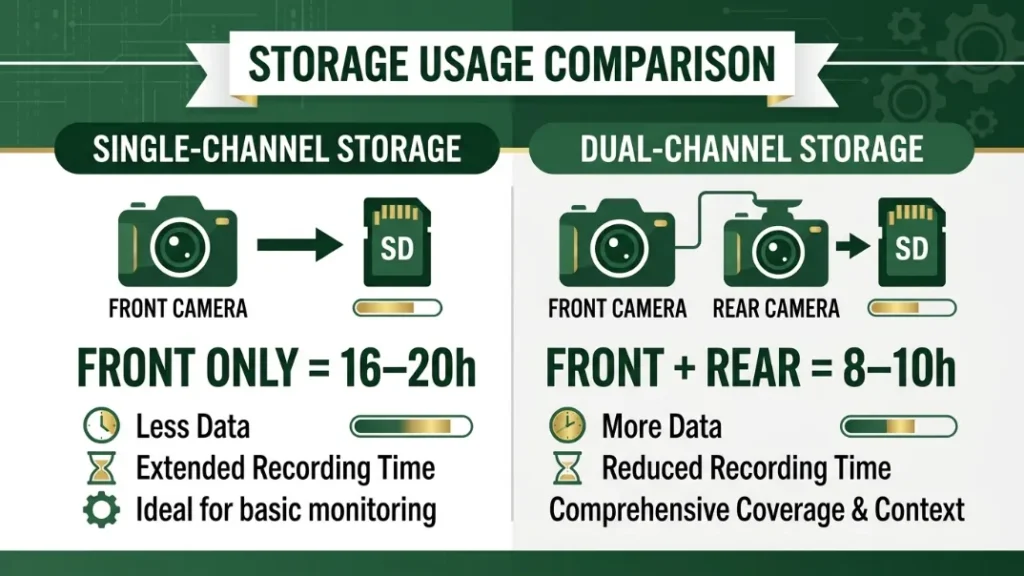
A dual-channel dash cam records both front and rear simultaneously, which roughly doubles your storage consumption. A front-only 1080p camera using 128GB stores 16–20 hours. Add a 1080p rear camera, and that drops to 8–10 hours on the same card.
Some dual-channel systems write both channels to a single shared card. Others use separate cards for front and rear. The Vantrue N4, for example, records three channels — front, interior, and rear — and uses a single card slot. That camera burns through a 256GB card in roughly 14–18 hours.
If you run a dual-channel setup, step up at least one card size. A 64GB user should move to 128GB. A 128GB user should consider 256GB.
Why Does Parking Mode Use So Much More Storage?
Parking mode keeps your dash cam recording while your engine is off, triggered by motion or impact. It sounds like a neat safety feature — and it is — but it hits your storage in ways most people don’t expect.
In standard driving, your camera records roughly 8–12GB per day (1080p, 8-hour drive). In parking mode, even light foot-traffic or passing vehicles can trigger dozens of short clips overnight. A busy street or parking lot can generate 5–10GB of parking footage in a single night.
How Much Extra Storage Does Parking Mode Actually Need?
Motion-triggered parking mode records short bursts — typically 10–30 seconds per event. On a quiet residential street, that might be 10–20 events per night. In a city lot, it can be 100+ events generating 3–8GB by morning.
Time-lapse parking mode records one frame every few seconds rather than full video. It uses roughly 90% less storage than motion-triggered mode, making it a smart choice if you park in busy areas regularly.
If you use parking mode daily, treat your storage estimate as half of what the table above shows. A 128GB card that holds 16 hours of driving footage might only retain 6–8 hours of mixed driving-plus-parking footage across a typical day.
What Is a Hardwire Kit and Does It Help With Storage?
A hardwire kit connects your dash cam directly to your car’s fuse box, providing constant low-voltage power even when the ignition is off. It enables parking mode without draining your car battery.
A hardwire kit doesn’t directly change storage capacity. But it extends how long parking mode runs — which means more footage, more clips, and faster card consumption. If you install a hardwire kit, pair it with a 128GB or 256GB card minimum.
BlackVue’s DR970X series and Nextbase’s 622GW both support hardwire kits and offer time-lapse parking modes to manage that storage impact efficiently.
How Does the G-Sensor Affect Your Available Storage?
The G-sensor — an accelerometer built into your dash cam — detects sudden acceleration, braking, or impact. When it triggers, it locks the current clip so loop recording cannot overwrite it. This protects incident footage automatically.
That sounds great. And it is — until your card fills up with locked files.
What Happens When Locked Files Fill Up Your SD Card?
Locked files sit in a protected folder. Loop recording cannot delete them. If you drive on rough roads, your G-sensor might trigger dozens of times per trip — locking clip after clip. Over time, those locked files can occupy 30–50% of your card, leaving less free space for fresh footage.
The fix is simple: adjust your G-sensor sensitivity. Most dash cams offer Low, Medium, and High settings. Set it to Low or Medium for normal road conditions. Reserve High sensitivity only if you want every minor bump flagged.
Also clear your locked files folder manually every two to four weeks. Connect the card to a computer, review the protected clips, and delete any that don’t show a real incident.
Check your dash cam app or desktop software monthly. Most Nextbase and BlackVue apps let you review, lock, and delete files directly from your phone — no card removal needed.
H.264 vs H.265 — Which Codec Saves You More Space?
H.265 (HEVC) compresses video about 40–50% more efficiently than H.264 at equivalent visual quality. That means a 1080p clip that takes 2GB per hour in H.264 takes roughly 1.1–1.2GB per hour in H.265.
| Codec | Approx. Size/Hour (1080p) | 128GB Retention | Compatibility |
|---|---|---|---|
| H.264 | 1.5–2GB | 16–20 hours | Universal |
| H.265 | 0.9–1.2GB | 24–30 hours | Modern devices |
The tradeoff: H.265 files need a slightly more powerful processor to decode. Older computers and some media players struggle to play them smoothly. For most people, this is a non-issue — but if you plan to review footage on an older laptop, H.264 is safer.
Check your dash cam’s spec sheet for codec support. Garmin’s Dash Cam lineup, Vantrue’s T3 Pro, and BlackVue’s DR970X series all support H.265. Most budget cams under $80 still use H.264 only.
Which SD Card Size Do You Actually Need for Your Dash Cam?
The right card size depends on how you drive, what you record, and how often you manually back up footage. Here is a clean framework that matches card size to real use cases.
Best Card Size by Use Case — Commuter, Rideshare, or Long Trip
| Use Case | Daily Drive Time | Recommended Card | Why |
|---|---|---|---|
| Casual commuter | 30–60 min/day | 64GB | 8–10 hours retention; 1–2 weeks of daily footage |
| Regular driver + parking mode | 1–2 hours/day | 128GB | Parking mode needs buffer; 16+ hours retention |
| Rideshare / taxi driver | 6–10 hours/day | 256GB | High daily write volume; dual channel likely |
| 4K dash cam user | Any | 128GB minimum | 4K consumes 3–4x more space than 1080p |
| Long-haul / road trip | 8–12 hours/day | 256GB or two 128GB cards rotated | Maximizes retention across multiple driving days |
Do You Need a High-Endurance MicroSD Card?
Yes — for any dash cam, a high-endurance card is not optional. It is the correct choice. Standard microSD cards are rated for around 500–1,000 write cycles. A dash cam in daily parking mode can exhaust that rating in under a year.
The Samsung PRO Endurance microSD is rated for up to 16 years of continuous recording at 1080p. The SanDisk High Endurance series is rated for up to 10,000 hours. Both carry UHS Speed Class 3 (U3) ratings, which is the minimum write speed spec for 4K recording.
Standard cards might work fine for six months. Then one morning, your cam shows a corrupt card error — and the footage from that fender-bender three days ago is gone.
Can Cloud Storage Replace Your Dash Cam SD Card?
Cloud-connected dash cams like the Garmin Dash Cam Live and BlackVue DR970X series can upload footage automatically over LTE or Wi-Fi. Garmin Vault, BlackVue Cloud, and Vantrue’s app-based upload let you access clips remotely without touching the SD card.
Cloud storage is a great backup layer — but it does not replace the SD card. Here is why:
- Cloud uploads require a data connection. In a tunnel, dead zone, or rural area, footage only saves locally.
- Upload speeds are limited. A 4K file from a 10-minute incident is large. Uploading in real time is often not practical.
- Cloud services cost money. Garmin Vault charges a monthly subscription fee beyond the hardware cost.
- Local SD cards work instantly, offline, and at zero ongoing cost.
Think of cloud storage as your safety net for truly critical footage. Think of the SD card as your primary, always-on recording system.
Cloud storage from Garmin Vault or BlackVue Cloud adds remote access and off-device backup — but a physical microSD card remains essential for offline reliability, instant access, and zero recurring cost in day-to-day use.
When Should You Replace Your Dash Cam SD Card?
MicroSD cards wear out over time from repeated write cycles. A high-endurance card lasts much longer than a standard one, but all cards eventually degrade. Knowing the signs early saves you from losing critical footage.
Replace your dash cam SD card if you notice any of these:
- Your dash cam shows a “card error” or “format card” warning repeatedly.
- Footage files appear corrupt or won’t play back correctly.
- The camera stops recording mid-trip for no clear reason.
- Your card has been in continuous use for more than 2–3 years.
- You’ve switched to a higher-resolution dash cam — old cards may struggle to keep up with new write speeds.
A replacement 128GB high-endurance card costs $20–$35. That is a small price to pay for reliable evidence protection. I rotate my cards every two years regardless of visible symptoms — it is cheap insurance.
Format your SD card inside the dash cam (not on a computer) every 4–6 weeks. This clears fragmented data, refreshes the file system, and extends card lifespan. Use the format option in your cam’s settings menu.
The DashCamTalk community forum is one of the best places to check real-world card longevity reports by model — highly recommended if you want owner experiences beyond spec sheets.
Frequently Asked Questions

I’m Alex Rahman, a car enthusiast and automotive writer focused on practical solutions, car tools, and real-world driving advice. I share simple and honest content to help everyday drivers make better decisions.
