Can Bluetooth OBD2 Work With an iPhone? BLE vs MFi Explained
Quick Answer
Yes, Bluetooth OBD2 can work with an iPhone, but only with the right adapter. Choose a Bluetooth Low Energy (BLE) adapter, or an MFi-certified adapter for Bluetooth Classic. A Classic-only adapter that works on Android will usually not work on an iPhone, even if it powers on.
That distinction explains most iPhone failures. The adapter may fit the port and light up, yet never appear where expected. The problem is rarely the car. It is usually the Bluetooth type, the app, or where the connection is started.
Why an iPhone Is Pickier Than an Android Phone
Android phones commonly accept both Bluetooth Classic and Bluetooth Low Energy adapters. An iPhone is more restricted. Apple limits the older Bluetooth Classic serial connection used by many cheap ELM327 adapters, so an app cannot simply open that channel the way an Android app can.
That does not mean Apple blocks all Bluetooth car adapters. It means the adapter must use a route iOS supports: usually BLE inside a compatible app, or a certified MFi accessory using Bluetooth Classic.
Apple’s accessory documentation says MFi membership is required for certain Bluetooth accessories, for example accessories using the iPod Accessory Protocol over Bluetooth Classic. That is why “Bluetooth” on a listing is not enough. The listing must say how the adapter talks to an iPhone, not merely that it uses Bluetooth.
The Three Kinds of Bluetooth Adapter
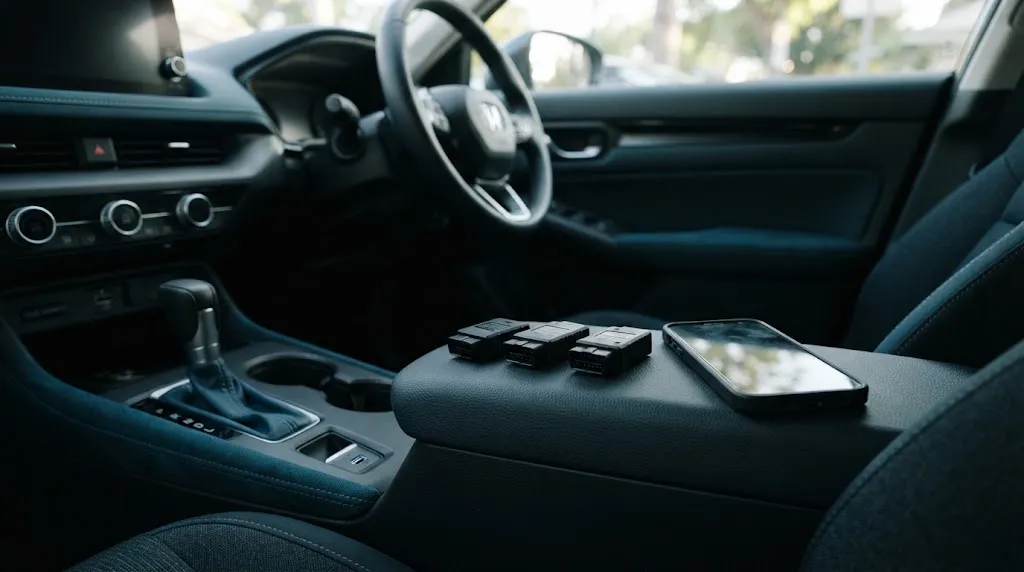
Listings often shorten all of these to “Bluetooth OBD2,” which hides the difference that decides success.
| Adapter type | Works with iPhone? | How it usually connects |
|---|---|---|
| Bluetooth Low Energy (BLE) | Yes, with a BLE-compatible app | Inside the app, not in Settings |
| MFi Bluetooth Classic | Yes, with an app allowed by the maker | Often through Settings, then the app |
| Classic-only, not MFi | Usually no | Pairs on Android, but iOS blocks the serial route |
BLE is the most common iPhone-friendly route for a general ELM327-style adapter. Apple’s Bluetooth documentation describes Core Bluetooth as the framework apps use to interact with Bluetooth Low Energy devices. So a BLE adapter still needs an app that explicitly supports BLE.
MFi is the exception for Classic Bluetooth. An MFi adapter has gone through Apple’s certification route, and the maker controls which apps may communicate with it. So an MFi adapter is not automatically compatible with every OBD2 app.
Key Insight
“Bluetooth” is not one compatibility claim. On an iPhone, BLE and MFi are the two routes that normally work, and Classic-only without MFi is the route that normally fails.
How to Check an Adapter Before You Buy It
Do not rely on a title that says “for iPhone” on its own. Titles are often copied across variants, and one variant may be BLE while another is Classic-only. Look for the same claim in the specification, the maker’s compatibility page, and the app’s adapter list.
- Connection specification: look for “Bluetooth Low Energy,” “BLE,” “Bluetooth 4.0 LE” or later, or “MFi” stated explicitly. A listing that only says “Bluetooth 2.0” or “Bluetooth 3.0,” with no BLE or MFi note, is a warning sign for iPhone use.
- Maker compatibility: check whether the maker names iOS and which apps it names. A named app list is stronger than a general “iOS compatible” line, because app support still varies.
- App first: decide on the app when you can, then search its help or adapter page for the exact adapter model. If the app does not list it, choose an adapter it does list.
- Vehicle scope: confirm the car uses OBD2 and the adapter supports its protocol family, usually CAN on modern cars. Bluetooth compatibility does not fix a protocol mismatch.
Clone quality is a separate trap. A very cheap adapter may claim BLE support yet use copied or incomplete ELM327 firmware that drops commands. Our guide to how to identify a genuine ELM327 explains the checks that catch the most common copies.
How to Connect a Bluetooth OBD2 Adapter to an iPhone
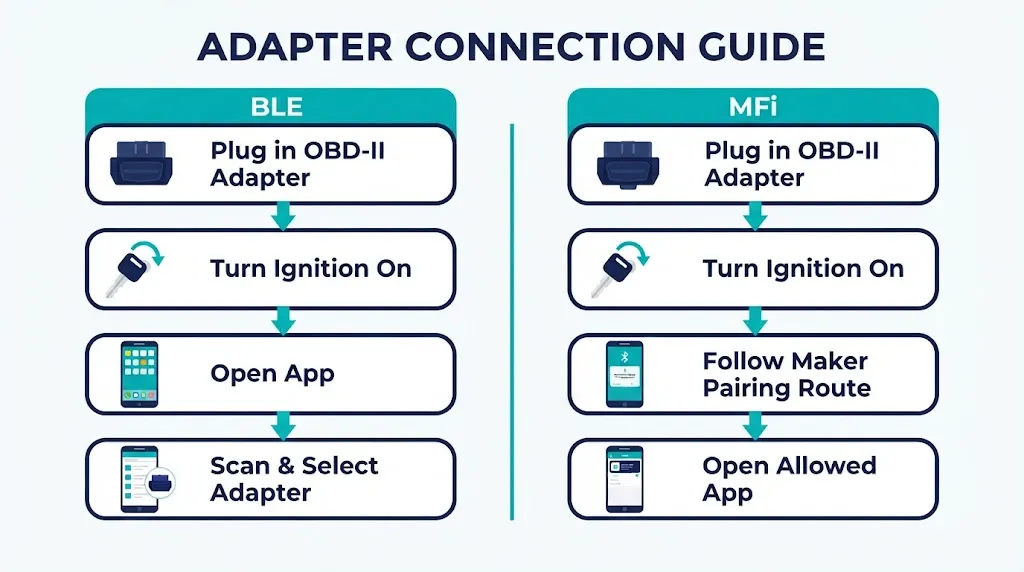
The correct order depends on the adapter type. Starting in the wrong place is the most common reason for a “connected but no data” result.
For a BLE adapter, connect inside the app
- Plug the adapter firmly into the 16-pin OBD2 port, usually under the dashboard on the driver’s side, and switch the ignition on.
- Turn on Bluetooth on the iPhone and allow Bluetooth permission when the app asks. Do not start by pairing in Settings.
- Open the OBD2 app, go to its adapter or connection screen, and let it scan for nearby BLE devices.
- Select the adapter when it appears in the app, then wait for the app to talk to the car.
If the adapter does not appear in Settings under Bluetooth, that alone is not proof of failure for BLE. Many BLE adapters are meant to be discovered by the app, not paired as a general accessory first. Pairing first in Settings can even leave the app unable to claim the device.
For an MFi adapter, follow the maker’s pairing route
- Plug in the adapter and switch the ignition on, as above.
- Follow the maker’s instructions, which may involve Settings, a button on the adapter, or the maker’s app.
- Open only an app the maker says is allowed for that adapter, then connect from inside that app.
Tip
Before changing settings, note which route you are using: BLE in the app, or MFi through the maker’s route. That one fact narrows almost every later troubleshooting step.
If It Will Not Connect, Check in This Order
Work from the simplest and most likely cause outward. Do not replace the adapter until these checks have ruled out power, mode, app, and competing connections.
- Power and seating: reseat the adapter and confirm the ignition is on. A loose adapter in a worn port can lose contact when the phone moves.
- Wrong Bluetooth type: re-read the listing for BLE or MFi. If it is Classic-only without MFi, no iPhone setting will make it reliable. That is a replacement decision, not a troubleshooting step.
- Wrong connection place: for BLE, forget any half-finished Settings pairing and connect inside the app. For MFi, follow the maker’s route instead of forcing an app-only scan.
- Wrong app or mode: try an app the maker lists, and if the adapter has a BLE/MFi mode switch, confirm it is in the mode that app expects.
- Competing connection: disconnect the adapter from another phone or tablet. Some adapters hold one connection at a time, so a nearby phone can quietly claim it first.
- Permission and vehicle: confirm Bluetooth permission is allowed and keep the app in the foreground for the first connection. If the app reaches the adapter but cannot talk to the car, the issue may be protocol or vehicle coverage, not Bluetooth.
Repeated drops after a successful first connection point to different causes, such as adapter sleep or port power. Our guide to why an OBD2 scanner keeps disconnecting works through those causes in isolation order.
Warning
Do not clear codes just to test a new connection. Clearing also resets readiness monitors and erases freeze-frame context that can help explain the original fault. Test by reading codes and live data first.
What an iPhone Changes About Using OBD2
Once connected, an iPhone is a capable scan display, but it does not change what generic OBD2 can see. You will normally get fault codes, freeze-frame data where the car provides it, readiness status, and live data for parameters the car exposes. Manufacturer-enhanced codes and brand-specific service functions may still need a brand-specific tool or app, even with a perfect Bluetooth link.
BLE has a practical advantage: it does not take over the phone’s Wi-Fi connection, so mobile data usually stays available while you scan. A separate question is whether the scan itself needs the internet. Our guide to whether Bluetooth OBD2 can work without internet separates the local car-to-phone link from cloud features such as lookups and backups.
App choice also changes the experience more than the adapter brand alone suggests. One app may show clean graphs and code history, while another focuses on simple code reading. If you want a self-contained tool instead, our comparison of whether a handheld OBD2 scanner is better than a phone app sets out when each route makes more sense.
When Wi-Fi or a Wired Adapter Makes More Sense
Wi-Fi is not Bluetooth, but it is a useful fallback when a suitable Bluetooth adapter is unavailable or an app only supports a Wi-Fi connection. The trade-off is that joining the adapter’s Wi-Fi network can interrupt the phone’s normal Wi-Fi or mobile-data route during the scan.
For most iPhone owners, a BLE adapter remains the cleanest first choice, with MFi as the certified Classic route and Wi-Fi as the backup. After connecting, our guide to how to diagnose a check engine light with OBD2 works from code to cause in order.
Related Product
Bluetooth LE OBD2 Scanner for iPhone
A BLE adapter is the usual iPhone-friendly starting point for reading codes and live data through a compatible app.
As an Amazon Associate, we earn from qualifying purchases.
Frequently Asked Questions
Can any Bluetooth OBD2 adapter work with an iPhone?
No. An iPhone normally needs a Bluetooth Low Energy adapter with a BLE-compatible app, or an MFi-certified adapter for Bluetooth Classic. A Classic-only adapter without MFi may work on Android but usually will not work reliably on an iPhone.
Why does my Bluetooth adapter not show up in iPhone Settings?
For many BLE adapters, that is normal. They are discovered inside the OBD2 app, not paired as a general Bluetooth accessory in Settings. Open the app, allow Bluetooth permission, and use its adapter scan instead of looking in Settings first.
Do I need an MFi adapter for an iPhone?
Not always. MFi is one valid route, mainly for Bluetooth Classic accessories. A BLE adapter is the other common route and does not need to be an MFi Classic accessory to work with a BLE-compatible app. Choose one route and match the app to it.
Can I use the same Bluetooth adapter on an iPhone and an Android phone?
Often yes with a BLE adapter, because both platforms support BLE, but app support still varies by phone. Check that the adapter and the app you plan to use are listed as compatible on each platform, and disconnect it from one phone before connecting from the other.
Will a Bluetooth OBD2 adapter work with an iPhone without internet?
The local link between adapter and iPhone does not need the internet for basic code reading and live data. Internet may still be needed for code-lookup databases, app updates, cloud backups, or features the app itself puts online.
What should I check first if the app says it cannot find the adapter?
Confirm the ignition is on, the adapter is firmly seated, and the adapter is BLE or MFi for iOS. Then connect inside the app for BLE, check the maker’s allowed-app list for MFi, and make sure no other phone is already connected to the adapter.
Conclusion
Bluetooth OBD2 does work with an iPhone when the Bluetooth route matches iOS. Pick BLE with a BLE-compatible app, or MFi for Bluetooth Classic with an allowed app, and connect in the place that route expects: inside the app for BLE, through the maker’s route for MFi. If an adapter is Classic-only without MFi, replacing it is usually faster than troubleshooting settings.

I’m Alex Rahman, a car enthusiast and automotive writer focused on practical solutions, car tools, and real-world driving advice. I share simple and honest content to help everyday drivers make better decisions.
