Why Won’t My OBD2 Scanner Connect? 9 Fixes
Quick Answer
If your OBD2 scanner won’t connect, first turn the ignition on, make sure the scanner is fully inserted, and confirm that your vehicle supports the scanner’s diagnostic functions. For Bluetooth models, check phone permissions, pairing, and app compatibility. If a powered scanner still reports “No Communication,” inspect the diagnostic port and its fuse before suspecting a vehicle computer or a faulty scanner.
An OBD2 scanner that refuses to connect can leave you unsure whether the problem is your car, the diagnostic tool, or your phone. The quickest way to find the cause is to identify exactly where the connection fails.
A scanner that won’t power on has a different problem from one that powers on but cannot communicate with the vehicle. Likewise, a Bluetooth adapter that connects to your phone may still fail to communicate with the car.
1. Check the Ignition and Scanner Connection First
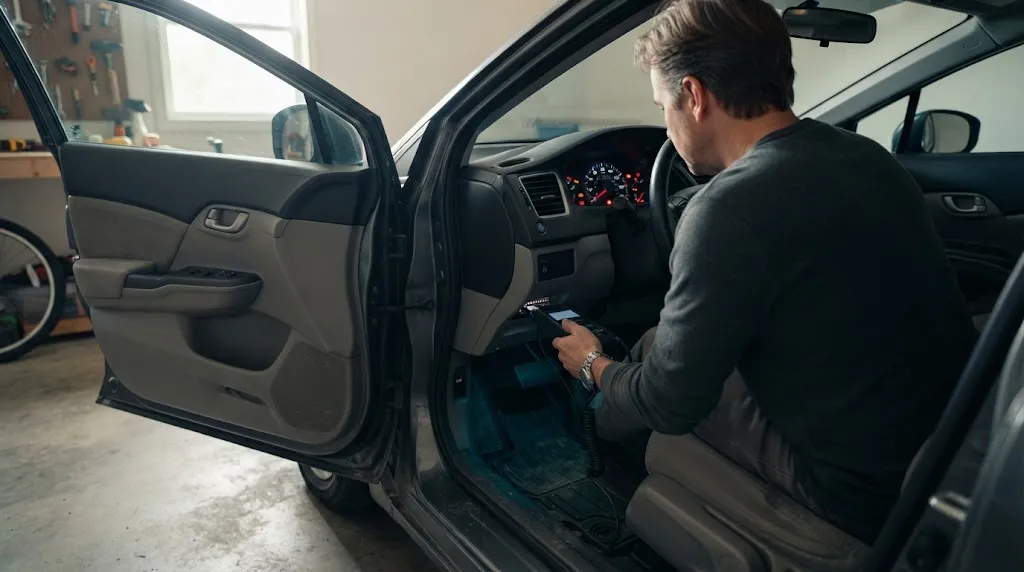
The simplest explanation is often an incorrect ignition position or a loose connection at the diagnostic port. Some vehicles allow communication with the ignition switched on and the engine off, while others or certain scanners work more reliably with the engine running.
Try these steps before changing settings or replacing equipment:
- Park the vehicle safely and apply the parking brake.
- Insert the scanner fully into the OBD2 diagnostic connector, usually located beneath the dashboard.
- Switch the ignition to ON so the dashboard warning lights illuminate. Follow the scanner manufacturer’s instructions about whether the engine should be running.
- Wait several seconds for the scanner to initialize.
- Select the correct vehicle or automatic vehicle-detection option, if required.
- Choose Connect, Read Codes, or the equivalent function on your scanner.
If the scanner now communicates, the issue may have been an incomplete connection or an incorrect ignition state. If it remains unresponsive, determine whether it receives power before investigating communication problems.
2. Why Does the OBD2 Scanner Have No Power?
If a wired scanner has a blank screen or a Bluetooth adapter has no power indicator, check the vehicle’s diagnostic connector and power supply. A blown fuse, damaged connector, or poor electrical connection can prevent the tool from starting.
Check the OBD2 port fuse
On some vehicles, the diagnostic connector’s power supply shares a fuse with the cigarette lighter, 12-volt accessory outlet, or another electrical circuit. A failed fuse can therefore affect the scanner even when the vehicle starts normally.
- Consult the owner’s manual or fuse-box diagram to identify the relevant circuit.
- Check whether the listed fuse is blown.
- If necessary, replace it only with a fuse of the specified type and rating.
- If the replacement fuse blows again, stop replacing it and investigate the underlying electrical fault.
Do not assume the cigarette lighter fuse is always responsible. Fuse assignments differ between vehicles, so use the correct wiring information for your model.
Inspect the diagnostic connector
Look for bent pins, corrosion, debris, looseness, or visible damage inside the OBD2 port. A connector that looks intact externally may still have an electrical fault.
Do not force the scanner into the socket or bridge connector pins with metal tools. If you need to test connector voltage or ground, follow the vehicle’s service procedure or have a qualified technician perform the checks.
3. Fix Bluetooth and Phone Connection Problems
If your wireless OBD2 scanner powers on but won’t connect to your phone, the problem may involve Bluetooth pairing, app permissions, an occupied connection, or an incompatible adapter.
Work through the following checks in order:
- Enable Bluetooth. Make sure Bluetooth is switched on in your phone’s settings.
- Check app permissions. Grant the permissions requested by the diagnostic app. Depending on the phone, operating system, and app, these may include Bluetooth or nearby-device access and location permission for Bluetooth discovery.
- Close other diagnostic apps. Another app may already be using the adapter. Close it completely before reconnecting.
- Reconnect the adapter. Unplug the scanner, wait briefly, and insert it again.
- Restart Bluetooth. Turn Bluetooth off and back on, then reopen the diagnostic app.
- Restart the phone. This can clear a temporary wireless or app problem.
One detail matters: some scanners require you to pair through your phone’s Bluetooth settings, while others should be discovered and connected directly through their own app. Follow the instructions for your particular adapter rather than assuming every model uses the same process.
For model-specific instructions, consult the official OBDLink connection troubleshooting guide. Its procedures illustrate why pairing, app conflicts, and communication settings should be checked separately.
4. Confirm the Scanner and App Are Compatible
A scanner can power on and connect to a phone yet still fail because the adapter, app, phone, or vehicle combination is unsupported.
Check these four compatibility points:
- Phone operating system: Verify whether your adapter supports Android, iOS, Windows, or the particular platform you are using.
- App and adapter: Confirm that the app supports your exact scanner model. An adapter designed for one app may not appear in another.
- Vehicle compatibility: Check whether your car supports the required OBD2 or EOBD functions. Compliance varies by market, vehicle category, and model year.
- Diagnostic system: A basic code reader may support engine-related OBD2 functions without supporting manufacturer-specific systems such as ABS, airbag, or transmission modules.
The presence of a 16-pin connector alone does not guarantee that a vehicle supports generic OBD2 communication. The OBDLink vehicle compatibility guidance explains this distinction.
If the scanner connects successfully but cannot access a particular control module, that does not automatically mean the entire scanner is incompatible. The requested function may simply be outside its supported capabilities.
5. What Does “No Communication” Mean?
A “No Communication” message generally means the scanner cannot establish diagnostic communication with the vehicle’s relevant control system. It does not, by itself, prove that the engine computer has failed.
First, confirm that the scanner has power and that the ignition is in the required position. Then consider these possible causes:
- Power or ground problem: The diagnostic connector may not provide the electrical supply or ground required by the scanner.
- Damaged connector pins: Bent, corroded, or loose contacts can interrupt communication.
- Incorrect vehicle selection: A scanner that requires manual vehicle identification may not communicate when the wrong model or system is selected.
- Unsupported protocol or vehicle: The scanner may not support the vehicle’s diagnostic system or communication method.
- Vehicle network fault: Wiring problems, a control-module fault, or an aftermarket electronic accessory may interfere with communication.
For a useful technical reference, the Ohio EPA’s OBDII communication-failure guidance identifies connector damage, missing power or ground, and other vehicle-system problems as possible causes of failed communication.
If the scanner works on another known-compatible vehicle but repeatedly fails on yours, the vehicle’s diagnostic connector, wiring, or network deserves closer investigation. If it fails on several compatible vehicles, suspect the scanner, cable, adapter, or its configuration.
6. Check the Scanner’s Protocol and Settings
Some scanners offer a communication-protocol setting or a choice between automatic detection and manual vehicle selection. An incorrect setting can prevent a connection even when the hardware is working.
Open the scanner’s settings and look for options such as OBD-II Protocol, Automatic Detection, Vehicle Selection, or Communication Setup. If automatic protocol selection is supported, try it first.
Next, turn the ignition off, wait briefly, switch it back on, and retry the connection according to the scanner’s instructions. If the app has a connection wizard, use it to configure a newly installed adapter.
Do not select random protocols or change advanced vehicle-network settings without a reason. If automatic detection fails repeatedly, check the scanner manual and the vehicle’s service information for the correct procedure.
7. Why Does the Scanner Connect but Not Read Codes?
If the scanner is detected by your phone but cannot read vehicle codes, distinguish a successful Bluetooth connection from successful communication with the car.
These are separate stages:
- Phone-to-adapter connection: The app detects and communicates with the wireless scanner.
- Adapter-to-vehicle connection: The scanner establishes communication with the vehicle’s diagnostic system.
- Function availability: The scanner can request the particular codes or data you want to access.
If the first stage succeeds but the second fails, return to the ignition, port power, vehicle compatibility, and communication checks. If both connections succeed but a specific module or function remains unavailable, verify whether your scanner supports it.
If the app reports a timeout or loading error rather than a vehicle communication error, check the app’s network requirements, sign-in status, and internet connection where applicable. Some functions may need online access, while basic local diagnostic communication may not.
8. When Should You Suspect a Faulty Scanner or Vehicle?
After the basic checks, use a comparison test to narrow down which side is responsible.
| What happens | Likely direction | Next check |
|---|---|---|
| No power on your car | Fuse, connector, cable, or scanner power fault | Check the correct fuse and port condition. |
| Phone cannot detect adapter | Bluetooth, permissions, app, or adapter | Follow the adapter’s pairing procedure. |
| Adapter connects, car does not | Vehicle power, protocol, or network | Check ignition and diagnostic communication. |
| Scanner works on another car | Original vehicle or compatibility issue | Inspect the original vehicle’s diagnostic system. |
| Scanner fails on multiple compatible cars | Scanner, cable, or configuration fault | Test with a known-good tool or cable. |
These results help narrow the possibilities; they are not conclusive proof of a failed component. A professional scan tool and vehicle-specific electrical tests may be necessary to identify the exact fault.
Warning
Do not probe or short OBD2 connector pins indiscriminately. If you find melted plastic, damaged wiring, repeated fuse failures, or signs of an electrical fault, stop testing and have the connector and circuit inspected using the vehicle’s service information.
9. What Should You Do If Nothing Works?
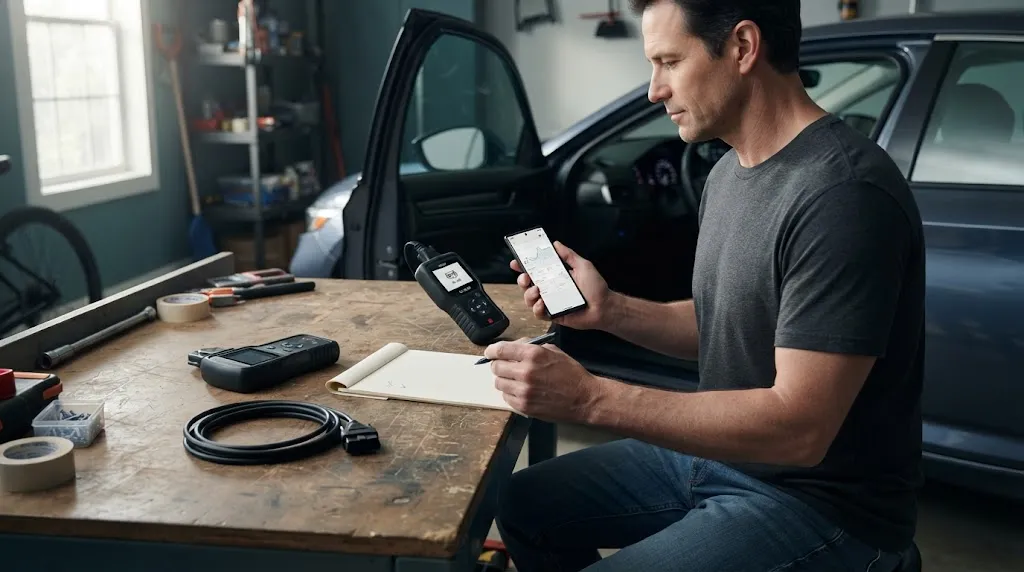
If the scanner still will not connect after these checks, avoid repeatedly resetting the app or replacing parts without evidence. Gather information that helps isolate the failure.
- Record the exact error message displayed by the scanner or app.
- Note the vehicle’s make, model, year, and engine type.
- Identify the scanner model, connection type, and app version.
- Confirm whether the scanner powers on and whether the phone detects it.
- Test the scanner on another compatible vehicle, if possible, or test your vehicle with a known-good scanner.
- Have the diagnostic connector’s power, ground, and communication circuits checked if the evidence points to a vehicle-side fault.
This information helps separate a simple setup problem from a faulty adapter, incompatible diagnostic function, or vehicle electrical issue. A qualified technician can perform further testing if the diagnostic network remains inaccessible.
Related Product
OBD2 Scanner or Bluetooth Diagnostic Adapter
If comparison testing points to a faulty tool, choose a replacement that supports your vehicle, phone, and required diagnostic functions before purchasing.
As an Amazon Associate, we earn from qualifying purchases.
Frequently Asked Questions
Why does my OBD2 scanner turn on but say no link?
Power does not guarantee communication. Check the ignition position, vehicle compatibility, connector condition, and protocol settings. If the problem persists, test the car with a known-good scanner.
Can a weak car battery stop an OBD2 scanner from connecting?
Yes. Low vehicle voltage can interfere with control-module operation and diagnostic communication. If the battery is weak or the dashboard behaves abnormally, check the battery and charging system before continuing.
Why won’t my Bluetooth OBD2 scanner show up on my phone?
Common causes include incorrect pairing steps, disabled Bluetooth, missing app permissions, another app using the adapter, or an incompatible phone or adapter. Follow the manufacturer’s specific connection instructions.
Does the check engine light have to be on for an OBD2 scanner to connect?
No. A compatible scanner can generally communicate with the supported engine diagnostic system even when the check engine light is off. Whether codes are stored is a separate question from whether the scanner can connect.
Can a blown fuse cause an OBD2 scanner to stop working?
Yes. If the diagnostic port loses its required power supply, a wired scanner or wireless adapter may not power on. Check the vehicle’s fuse diagram rather than assuming a particular fuse is responsible.
How can I tell whether the scanner or the car is faulty?
Test the scanner on another compatible vehicle and, if possible, test the original vehicle with a known-good scanner. A tool that fails on multiple compatible vehicles may be faulty, while a vehicle that rejects multiple working tools needs further diagnostic checks.
Conclusion
When your OBD2 scanner won’t connect, identify the failure before replacing anything. Start with the ignition position and physical connection, then check power, Bluetooth settings, app compatibility, and diagnostic support.
If the scanner powers on but cannot communicate with the car, investigate the diagnostic connector, fuse, and vehicle communication system. Testing the scanner on another compatible vehicle—or using a known-good scanner on yours—is often the most useful way to narrow down the cause.
The key is to separate power problems, phone connection problems, and vehicle communication failures. Each points toward a different set of checks and helps you avoid unnecessary parts replacements.

I’m Alex Rahman, a car enthusiast and automotive writer focused on practical solutions, car tools, and real-world driving advice. I share simple and honest content to help everyday drivers make better decisions.
