Why Is My Bluetooth OBD2 Scanner Not Pairing? 7 Fixes to Try
Quick Answer
If your Bluetooth OBD2 scanner is not pairing, first confirm that the adapter is compatible with your phone and diagnostic app. Then plug it securely into the vehicle’s OBD2 port, switch the ignition to the required position, enable Bluetooth, and follow the pairing method specified by the adapter manufacturer. On some phones, app permissions or a conflict with another diagnostic app can prevent the connection.
Remember that pairing your phone with the adapter is not always the same as connecting the app to the vehicle’s computer. If pairing succeeds but the app cannot read data, troubleshoot the app connection and vehicle communication separately.
A Bluetooth OBD2 scanner lets you read diagnostic trouble codes and view vehicle data through a compatible phone or tablet. When the scanner refuses to pair, the cause may be a phone compatibility issue, an incorrect setup sequence, a power problem, or a Bluetooth permission setting.
The fastest way to find the cause is to check each part of the connection in order. The following troubleshooting steps help you identify whether the problem comes from the phone, the scanner, the diagnostic app, or the vehicle.
1. Check Whether Your Phone Supports the Scanner
Compatibility is one of the first things to investigate when a Bluetooth OBD2 scanner will not pair. Not every adapter works with every phone, operating system, or diagnostic application.
Many low-cost OBD2 adapters use Bluetooth Classic, while others use Bluetooth Low Energy (BLE). iPhones and iPads generally do not support ordinary Bluetooth Classic serial adapters in the same way many Android devices do. Some adapters are specifically designed for iOS, so the exact model matters.
Before changing settings, check the adapter manufacturer’s compatibility information and the diagnostic app’s supported-adapter list. Confirm that both the phone’s operating system and the adapter’s Bluetooth type are supported.
- Check whether the adapter supports Android, iOS, or both.
- Confirm that your diagnostic app supports the specific adapter or its communication protocol.
- Look for model-specific instructions about Bluetooth Classic, BLE, or Wi-Fi connections.
- If possible, test the adapter with another compatible phone to help isolate the problem.
Do not assume that an adapter is defective simply because it does not appear in your phone’s Bluetooth settings. Some BLE adapters are discovered and connected through the diagnostic app rather than through the phone’s normal Bluetooth menu.
For additional compatibility guidance, see the OBD Auto Doctor supported OBD adapters guide.
2. Make Sure the OBD2 Scanner Is Receiving Power
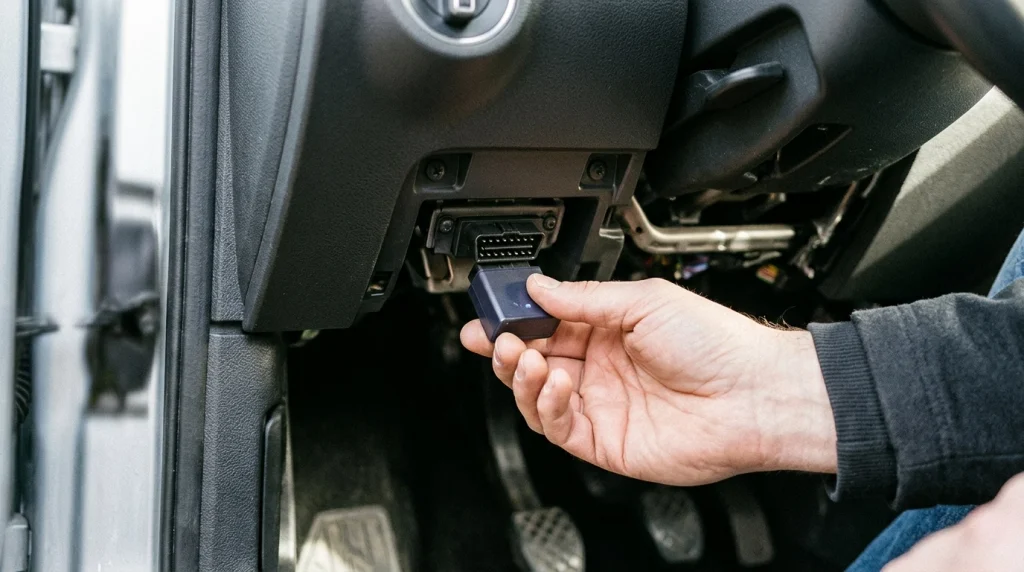
A Bluetooth adapter cannot establish a connection if it is not receiving power from the vehicle’s diagnostic port. Most standard OBD2 adapters draw power from the port, but indicator lights and startup behavior vary by model.
Locate the vehicle’s OBD2 diagnostic connector, usually beneath the dashboard near the steering column. The exact location can differ by vehicle, so consult the owner’s manual if you cannot find it.
- Turn the ignition off before inserting or removing the adapter unless the manufacturer specifies a different procedure.
- Insert the scanner fully into the OBD2 port without forcing it.
- Switch the ignition to the position recommended by the scanner or app instructions. Many diagnostic operations require the ignition to be on, but the engine does not necessarily need to be running.
- Check the adapter’s indicator lights, if it has them.
- If there is no sign of power, switch the ignition off, remove the adapter, and inspect the connector for obvious damage or obstruction.
Some vehicles keep the diagnostic port powered under certain conditions, while others behave differently depending on the ignition state. Follow the vehicle and adapter instructions rather than assuming that one ignition position works for every setup.
If the adapter remains completely inactive, try it in another compatible vehicle if available. If it fails there too, the adapter may be faulty. If it works in another vehicle, the original vehicle’s port or power supply may need further inspection by a qualified technician.
3. Use the Correct Bluetooth Pairing Method
One common mistake is trying to pair every OBD2 adapter through the phone’s Bluetooth settings. The correct method depends on the adapter’s design.
For some Android-compatible Bluetooth Classic adapters, you must open the phone’s Bluetooth settings, scan for devices, select the adapter, and enter a PIN if prompted. Common default PINs vary by manufacturer, so use the instructions supplied with your particular device rather than guessing.
For many BLE adapters, the diagnostic application discovers and connects to the scanner directly. In that case, the adapter may not appear as a normal device in the phone’s Bluetooth menu.
Try this sequence:
- Read the adapter’s pairing instructions.
- Close the diagnostic app temporarily.
- Enable Bluetooth on your phone.
- For Bluetooth Classic models, open the phone’s Bluetooth settings and look for the adapter.
- For BLE models, open the compatible diagnostic app and use its device-discovery or connection option.
- Select the correct adapter and wait for the connection to complete.
If the scanner appears but pairing repeatedly fails, remove the old saved pairing from the phone, restart Bluetooth, and try again. Only reset the adapter if the manufacturer provides a reset procedure for that exact model.
4. Check Bluetooth and App Permissions
Your phone may have Bluetooth enabled while the diagnostic app still lacks permission to discover or communicate with nearby devices. Permission requirements vary by operating system version and app implementation.
On Android
Open Settings and review the diagnostic app’s permissions. Depending on the Android version, the app may need the Nearby devices permission or Bluetooth-related access. Some older app and operating-system combinations may also request location permission for Bluetooth scanning.
- Open Settings on your phone.
- Go to Apps and select your OBD2 diagnostic app.
- Open Permissions and allow the Bluetooth or Nearby devices access that the app requires.
- Check whether the app’s instructions require location access for device discovery on your Android version.
- Close and reopen the app, then try connecting again.
Menu names differ across Android manufacturers, so the settings may not match these labels exactly. For general pairing help, consult Google’s Android Bluetooth troubleshooting instructions.
On iPhone or iPad
First, confirm that the scanner is designed to work with iOS. If it is compatible, check the app’s Bluetooth permission in Settings. Depending on your iOS version, the permission may be available under Privacy & Security or the app’s own settings page.
- Open Settings.
- Find Privacy & Security, then Bluetooth, if that menu is available on your version.
- Allow Bluetooth access for the diagnostic app if it is listed and requires permission.
- Reopen the app and follow its connection instructions.
If the adapter is a Bluetooth Classic model that is not compatible with iOS, changing permissions will not make it compatible. Check the adapter’s specifications before spending time on additional settings.
Apple provides further details in its guide to controlling access to Bluetooth on iPhone and iPad.
5. Close Other Diagnostic Apps and Remove Connection Conflicts
An OBD2 adapter may not handle simultaneous connections from multiple diagnostic apps or devices. If another app has already connected to the scanner, your preferred app may be unable to establish its own connection.
This can happen when an app remains active in the background or when the adapter automatically reconnects to a previously used phone. The phone may show the adapter as paired even though the app you want to use cannot communicate with it.
To check for a connection conflict:
- Close all OBD2 and vehicle-diagnostic apps on your phone.
- Temporarily disable Bluetooth on other nearby phones or tablets that have used the adapter.
- Disconnect the adapter from any device that is already using it.
- Restart Bluetooth on the phone you want to use.
- Open only one diagnostic app and try connecting again.
If the connection works after closing another app, the adapter itself may be fine. The issue was likely a competing connection or an app that had retained control of the scanner.
When the problem persists, check the manufacturer’s troubleshooting guide for instructions specific to your adapter. For example, OBDLink’s connection troubleshooting guide covers several model-specific connection checks.
6. Confirm That the App Is Connected to the Vehicle

Bluetooth pairing and vehicle communication are two different stages. Your phone might successfully pair with the scanner while the diagnostic app still fails to read the vehicle’s data.
If the app shows that the adapter is connected but cannot read trouble codes or live data, check the app’s connection status and vehicle communication settings. Make sure you have selected the correct connection type, such as Bluetooth Classic, BLE, or another option supported by your adapter.
Then follow these checks:
- Confirm that the adapter is securely connected to the vehicle’s OBD2 port.
- Use the ignition position required by the diagnostic app.
- Choose the correct adapter or connection type in the app’s settings.
- Allow the app to complete its vehicle-protocol detection process.
- Check the app’s compatibility information if it cannot communicate with the vehicle after connecting to the adapter.
Not every OBD2 scanner supports every vehicle, diagnostic function, or manufacturer-specific system. A basic adapter may read standard emissions-related diagnostic information without supporting advanced functions such as manufacturer-specific modules or service procedures.
If the app reports a vehicle communication or protocol error, do not treat it automatically as a Bluetooth failure. The phone-to-adapter connection may be working correctly while the adapter and vehicle are failing to communicate.
7. Restart the Connection and Check for a Faulty Adapter
If the previous checks do not solve the problem, restart the connection in a controlled order. This can clear a temporary Bluetooth or app issue without changing advanced settings.
- Close the diagnostic app completely.
- Turn off the vehicle’s ignition.
- Disconnect the OBD2 adapter if its instructions allow safe removal at that stage.
- Turn Bluetooth off on the phone, wait a few seconds, and turn it back on.
- Restart the phone if the connection still fails.
- Reconnect the adapter and follow its normal startup and pairing procedure.
- Install available updates for the diagnostic app and phone operating system when appropriate.
Avoid repeatedly resetting the adapter or changing several settings at once. Make one change, test the connection, and record the result. That approach makes it easier to identify the actual cause.
If the scanner still cannot pair, test it with another compatible phone or tablet. You can also test a known-working compatible adapter with your phone. These comparisons help narrow the fault:
- The scanner fails with multiple compatible phones: the adapter may be defective or may require a manufacturer-specific reset.
- The scanner works with another phone: check the original phone’s compatibility, permissions, saved pairing, and app settings.
- The scanner pairs but cannot read vehicle data: investigate the diagnostic app, ignition state, adapter compatibility, and vehicle communication.
- The scanner works in another vehicle but not yours: the vehicle’s OBD2 port, power supply, or communication system may need inspection.
If the adapter becomes unusually hot, has damaged connectors, or shows signs of electrical damage, stop using it. Do not force the connector or probe the vehicle’s diagnostic port with improvised tools.
How to Identify the Most Likely Cause
The symptom you see can help you choose the next troubleshooting step instead of repeating every check.
| Symptom | Likely area to check |
|---|---|
| Scanner does not appear in Bluetooth settings | Adapter type, compatibility, power, or app-based discovery |
| Scanner appears but pairing fails | Saved pairing, PIN instructions, or an existing connection |
| Phone pairs but app cannot connect | App permissions, wrong connection type, or another app using the adapter |
| App connects but cannot read codes | Ignition state, vehicle protocol, or vehicle compatibility |
| Scanner has no lights or signs of power | OBD2 port power, connector fit, or a faulty adapter |
Frequently Asked Questions
Why is my Bluetooth OBD2 scanner not showing up on my phone?
The adapter may not be receiving power, may be incompatible with your phone, or may need to be discovered through the diagnostic app instead of the phone’s Bluetooth menu. Check the adapter instructions and confirm its Bluetooth type before troubleshooting further.
Why will my OBD2 scanner pair but not connect to the app?
Pairing only establishes a Bluetooth relationship between compatible devices. The app may still lack permissions, may be configured for the wrong connection type, or may be blocked by another app already using the adapter. Close other diagnostic apps and check the app’s connection settings.
Can I use any Bluetooth OBD2 scanner with an iPhone?
No. Compatibility depends on the adapter’s Bluetooth technology and the diagnostic app. Many ordinary Bluetooth Classic serial adapters do not work with iOS, while compatible BLE or iOS-specific adapters may work. Verify support for your exact model before purchasing or troubleshooting.
Does the engine need to be running for an OBD2 scanner to connect?
Not always. Many scanners need the ignition switched on so the vehicle’s control systems are awake, but the engine can often remain off. Follow the scanner and app instructions because the required ignition state can vary by vehicle and diagnostic task.
Why does my OBD2 scanner connect but fail to read trouble codes?
The phone may be connected to the adapter even though the adapter cannot communicate with the vehicle. Check the ignition state, vehicle and adapter compatibility, app configuration, and OBD2 port connection. A vehicle communication error does not automatically mean Bluetooth pairing has failed.
How can I tell if my Bluetooth OBD2 adapter is faulty?
Test it with another compatible phone and, if possible, another compatible vehicle. If it consistently fails to power up or connect across supported setups, the adapter may be defective. If it works elsewhere, focus on the original phone, app, vehicle, or connection settings.
Affiliate Disclosure
This article is intended to provide general troubleshooting information. If a page includes affiliate links, the site may earn a commission from qualifying purchases at no additional cost to the reader. No product purchase is required to perform the troubleshooting steps described above.
Conclusion
When a Bluetooth OBD2 scanner will not pair, start by confirming phone and adapter compatibility, checking power at the diagnostic port, and following the correct pairing procedure. Then review app permissions, close competing diagnostic apps, and restart the connection.
If the phone connects to the scanner but cannot read vehicle data, troubleshoot that stage separately. Testing with another compatible phone or vehicle can help determine whether the issue lies with the adapter, phone, app, or vehicle.

I’m Alex Rahman, a car enthusiast and automotive writer focused on practical solutions, car tools, and real-world driving advice. I share simple and honest content to help everyday drivers make better decisions.
