How to Connect a Bluetooth OBD2 Scanner (Easy Guide)
Quick Answer
To connect a Bluetooth OBD2 scanner, plug the adapter into your vehicle’s OBD2 port, turn the ignition on, enable Bluetooth on your phone, and open a compatible diagnostic app. Pair or select the scanner using the method specified by its manufacturer, then tap Connect. Android and iPhone pairing procedures may differ, especially for Bluetooth Low Energy adapters.
A Bluetooth OBD2 scanner lets you check diagnostic trouble codes and supported vehicle data using your smartphone. The physical setup is simple, but establishing a working connection involves more than plugging in the adapter.
Your phone must communicate with the scanner, and the scanner must communicate with the vehicle. Understanding these two separate connections makes setup and troubleshooting much easier.
What Do You Need Before Connecting?
Before starting, check that your scanner, smartphone, application, and vehicle are compatible.
- Compatible vehicle: A vehicle with a supported OBD2 diagnostic interface.
- Bluetooth OBD2 adapter: A scanner designed to communicate wirelessly with your phone.
- Smartphone: An Android phone or iPhone supported by the adapter.
- Diagnostic app: The scanner manufacturer’s application or a compatible third-party app.
- Vehicle access: The ability to switch the ignition on and reach the diagnostic port.
OBD2 compatibility depends on the vehicle’s market, model year, and diagnostic standard. For example, most 1996-and-newer US-market passenger vehicles support standardized OBD-II diagnostics. Vehicles in other markets may follow different implementation dates.
Also check the scanner’s supported Bluetooth technology. An adapter that connects to Android through classic Bluetooth may not work with an iPhone.
How to Connect a Bluetooth OBD2 Scanner Step by Step
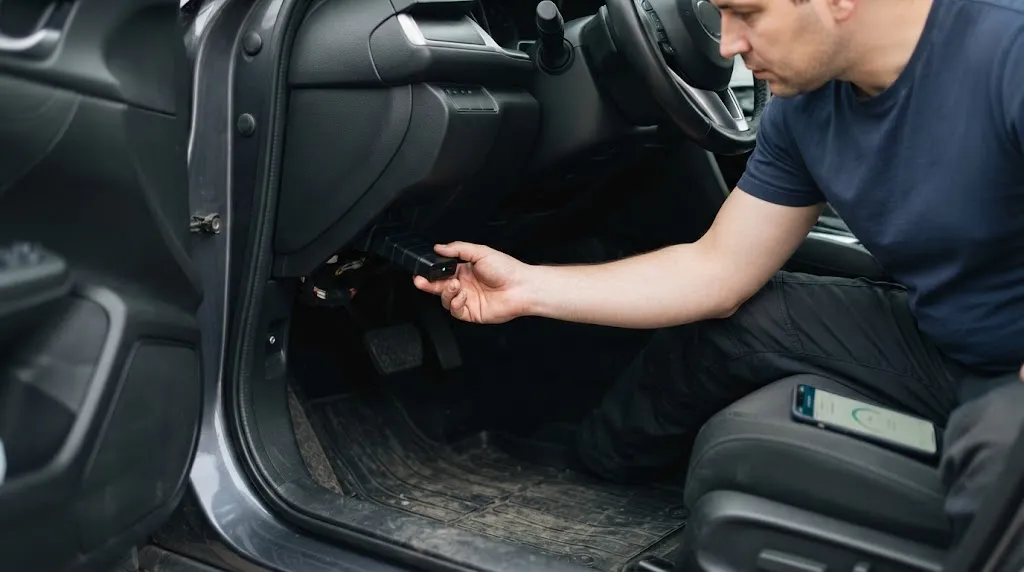
Use the following process for initial setup. Your scanner’s manual takes priority if its pairing instructions differ.
Step 1: Locate the OBD2 Port
Find the vehicle’s 16-pin diagnostic connector. It is commonly located beneath the dashboard on the driver’s side, often near the steering column or above the pedals.
Some vehicles place it behind a small trim cover or in a lower dashboard compartment. Check the owner’s manual if it is not immediately visible.
The connector has a distinctive trapezoidal shape. Do not confuse it with a USB port or an accessory power socket.
Step 2: Plug In the Scanner
With the vehicle parked, align the scanner connector with the OBD2 socket and push it in gently until seated.
Many adapters have a power indicator that illuminates after connection. Indicator behavior varies by manufacturer, so consult the adapter instructions before interpreting its lights.
Never force a connector that does not fit. Inspect its orientation and the diagnostic socket for damage or obstructions.
Step 3: Turn the Vehicle Ignition On
For many scanners, switching the ignition to the ON position without starting the engine is sufficient for reading basic diagnostic information.
On a vehicle with a traditional key, turn it to the ON position. With push-button ignition, follow the vehicle manufacturer’s procedure for entering ignition-on mode without starting the engine.
Some adapters or diagnostic functions require the engine to be running. Follow the scanner application’s prompts.
Safety Warning
Keep the vehicle stationary during setup. If the scanner requires a running engine, work outdoors or in a properly ventilated location. Never run an engine inside an enclosed garage because exhaust contains dangerous carbon monoxide.
Step 4: Install a Compatible OBD2 App
Download the manufacturer’s recommended diagnostic application from Google Play or the Apple App Store.
Some scanners work exclusively with their companion app, while others support compatible third-party diagnostic software.
Verify compatibility before installing an unrelated app. An application can support OBD2 functions without supporting your particular Bluetooth adapter.
Step 5: Enable Bluetooth and Pair the Scanner
Turn on Bluetooth on your smartphone. Next, follow the scanner’s specified pairing method.
For a classic Bluetooth adapter on Android, you may need to open the phone’s Bluetooth settings, select the scanner, and approve pairing.
For Bluetooth Low Energy devices, pairing may happen directly inside the diagnostic application. Some adapters have a physical pairing button.
If the adapter requests a PIN, use the code provided in its manual. Do not assume that every scanner uses the same default PIN.
Step 6: Connect Through the Diagnostic App
Open the OBD2 application and select its connection or adapter setup menu.
Choose the appropriate connection type, such as Bluetooth or Bluetooth Low Energy, then select your scanner if prompted.
Tap Connect or follow the application’s connection wizard.
Wait for the app to recognize both the adapter and the vehicle. The application may automatically identify the vehicle’s OBD2 communication protocol.
Step 7: Confirm the Connection Works
Open the app’s diagnostic trouble code or live-data screen.
If the application can communicate with the vehicle and retrieve supported diagnostic information, setup is complete.
You do not need an illuminated check engine light to confirm connectivity. A successful connection may simply report that no stored trouble codes were found.
How Is the Setup Different on Android and iPhone?
The main difference is Bluetooth compatibility and how the operating system handles pairing.
| Feature | Android | iPhone |
|---|---|---|
| Classic Bluetooth adapters | Supported by many apps | Generic serial adapters often incompatible |
| Bluetooth Low Energy | Supported with compatible apps | Supported with compatible apps |
| Pairing method | System settings or inside app | Often inside app for BLE devices |
| App permissions | Bluetooth or nearby-device permissions; sometimes location | Bluetooth permission when requested |
On Android, many inexpensive classic Bluetooth ELM327-style adapters work with compatible diagnostic apps. On iPhone, select an adapter explicitly advertised as iOS-compatible rather than assuming that Bluetooth alone guarantees compatibility.
For example, OBDLink’s official setup instructions describe its application-based connection wizard for supported Android and iOS adapters.
Why Is My Bluetooth OBD2 Scanner Not Connecting?
If your scanner does not connect, first identify whether the failure occurs between the phone and the adapter or between the adapter and the vehicle.
This distinction prevents unnecessary changes to settings that are already working.
The Scanner Does Not Appear on Your Phone
Check that the adapter is seated correctly and receiving power. Enable Bluetooth and check whether the scanner requires a pairing button or app-based discovery.
If it still does not appear, unplug the scanner, reconnect it, and restart the Bluetooth discovery process.
Some BLE scanners will not appear in the phone’s normal Bluetooth device list. Instead, they become visible within the compatible application.
The Scanner Pairs but the App Cannot Connect
This usually indicates that Bluetooth pairing succeeded but the app has not established communication with the adapter.
- Close other diagnostic applications that may be using the scanner.
- Select the correct adapter in the app’s settings.
- Confirm the app supports that scanner model.
- Allow the Bluetooth or nearby-device permissions requested by the app.
- Restart the app and retry the connection.
For supported OBDLink devices, the manufacturer also recommends using its connection wizard and checking for conflicts with other diagnostic applications. See the official OBDLink troubleshooting guidance.
Bluetooth Connects but the Vehicle Does Not Respond
Here, the phone may be communicating normally with the scanner, but the scanner cannot establish a diagnostic session with the vehicle.
Check the ignition position, the vehicle’s OBD2 compatibility, and the app’s selected protocol. If an automatic protocol setting is available, it is generally the appropriate starting point.
A scanner may also connect successfully while offering fewer functions than expected. Basic emissions-related OBD2 access does not guarantee manufacturer-specific ABS, airbag, transmission, or body-module diagnostics.
The Connection Keeps Disconnecting
Intermittent connections may result from adapter power interruptions, app conflicts, communication errors, or firmware problems.
Check that the adapter fits securely, update the supported app, and follow the manufacturer’s firmware instructions if an update is available.
If the vehicle’s battery is weak, address that condition before conducting extended diagnostic sessions. For related battery troubleshooting, see our guide to dead batteries and jump starters.
What Can You Do After the Scanner Connects?
Once the connection works, the available functions depend on the vehicle, adapter, and diagnostic application.
- Read diagnostic trouble codes: Retrieve supported stored and pending fault codes.
- View live vehicle data: Observe supported measurements such as engine speed, coolant temperature, or sensor readings.
- Check readiness monitors: Review emissions-system readiness information when supported.
- Save diagnostic information: Record fault codes and freeze-frame details before repairs.
- Clear supported codes: Erase diagnostic information when appropriate and supported.
A code identifies a detected condition, not necessarily the exact failed component. For example, an oxygen-sensor-related code does not automatically prove the sensor itself needs replacement.
Document the code, investigate its causes, and confirm any repair before clearing diagnostic information.
Practical Tip
Save fault codes and freeze-frame data before selecting Clear Codes. Erasing codes can also reset emissions readiness monitors, leaving them incomplete until the vehicle completes the necessary driving conditions.
Common Setup Mistakes to Avoid
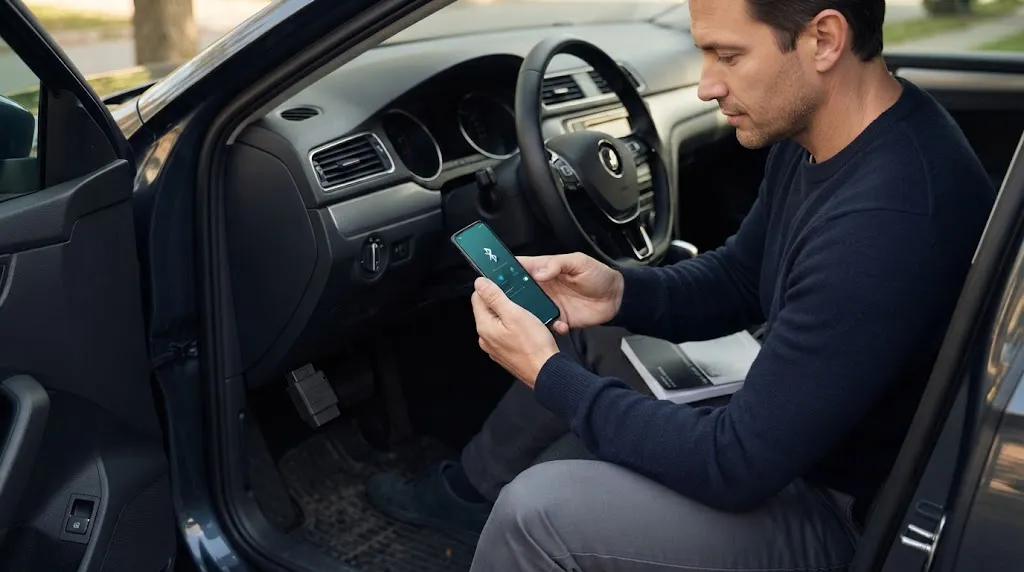
Several simple mistakes can make a working scanner appear defective.
- Using an incompatible phone: Check iPhone or Android support before attempting to pair.
- Choosing the wrong app: Install software specifically compatible with the adapter.
- Leaving the ignition off: Vehicle control modules may not respond until ignition power is enabled.
- Using the wrong pairing method: Some BLE adapters must be selected inside the app.
- Ignoring permissions: A denied Bluetooth permission can prevent discovery.
- Running two diagnostic apps: Some adapters cannot maintain simultaneous application connections.
- Assuming pairing means diagnostics are working: Confirm that the app can actually retrieve vehicle information.
Also consider whether to leave the adapter installed after scanning. Some OBD2 ports supply power when the ignition is off, and adapters differ in standby power consumption.
If the scanner lacks documented low-power protection, disconnecting it after use is a cautious choice, particularly when a vehicle will remain parked for an extended period.
For more information about accessories powered through the diagnostic port, see our guide to OBD2-connected accessories and car battery drain.
Related Product
Bluetooth OBD2 Diagnostic Adapter
A compatible Bluetooth OBD2 adapter lets you read supported vehicle diagnostic information on your smartphone. Check Android, iPhone, and app compatibility before choosing one.
As an Amazon Associate, we earn from qualifying purchases.
Frequently Asked Questions
Can I connect a Bluetooth OBD2 scanner without internet access?
Yes. Basic Bluetooth communication between the phone and scanner does not require mobile data or Wi-Fi internet access. However, some apps require internet connectivity for installation, account activation, updates, or online features.
Do I need to start my engine to connect an OBD2 scanner?
Not always. Many basic diagnostic functions work with the ignition switched on and the engine stopped. Some live-data features, tests, and scanner-specific connection procedures require a running engine.
Can one Bluetooth OBD2 scanner work with multiple cars?
Yes, provided each vehicle supports the scanner’s required diagnostic standards and the application supports the vehicle. You may need to change the vehicle profile when moving between cars.
Why does my iPhone not detect an ELM327 Bluetooth scanner?
Many generic ELM327 adapters use classic Bluetooth serial communication that is not compatible with typical iPhone diagnostic apps. Check for an explicitly iOS-compatible BLE, supported proprietary Bluetooth, or Wi-Fi adapter.
Can I connect two phones to the same OBD2 scanner?
Usually not simultaneously. Many Bluetooth OBD2 adapters support one active phone or diagnostic application connection at a time. Disconnect the first device before connecting another, unless your scanner explicitly supports multiple connections.
Does connecting an OBD2 scanner automatically clear check engine codes?
No. Connecting and reading information normally does not erase stored codes. Clearing codes requires a separate command or action within the diagnostic application. Avoid erasing information before documenting it and investigating the fault.
Final Thoughts
Connecting a Bluetooth OBD2 scanner becomes straightforward once the adapter, smartphone, application, and vehicle are compatible. Plug in the scanner, enable the appropriate ignition mode, establish the Bluetooth connection, and verify communication inside the diagnostic application.
If setup fails, identify whether the problem involves Bluetooth pairing or vehicle communication before changing settings. Once connected, save diagnostic information and use fault codes as a starting point for troubleshooting rather than assuming a code identifies the component that needs replacing.

I’m Alex Rahman, a car enthusiast and automotive writer focused on practical solutions, car tools, and real-world driving advice. I share simple and honest content to help everyday drivers make better decisions.
