8 Best Dash Cams for Porsche 997: Discreet, Reliable Protection for Your 911
The best dash cam for Porsche 997 right now is the FitcamX Integrated Dash Cam — the only model that…
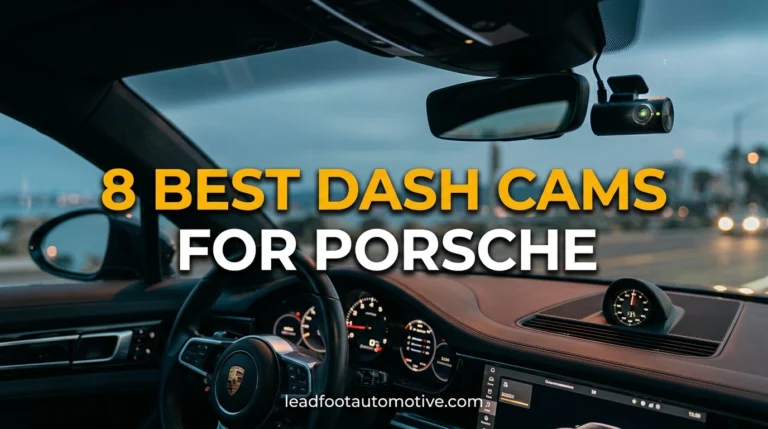
The best dash cam for Porsche 997 right now is the FitcamX Integrated Dash Cam — the only model that…
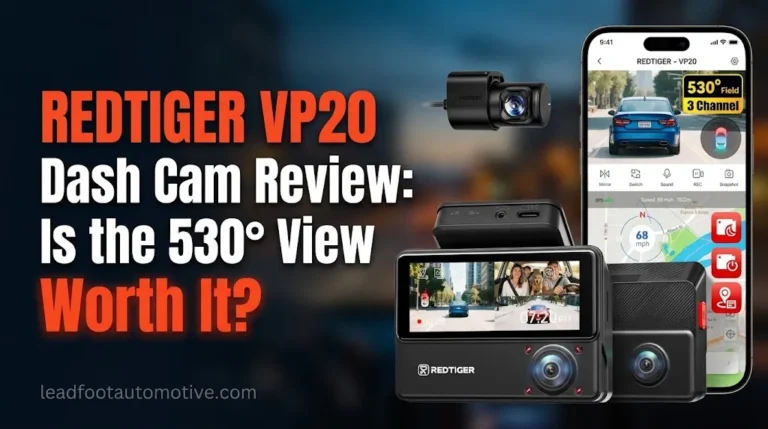
The REDTIGER VP20, also identified by REDTIGER as the VisionPano 20, is a three-channel dash cam designed to record the…
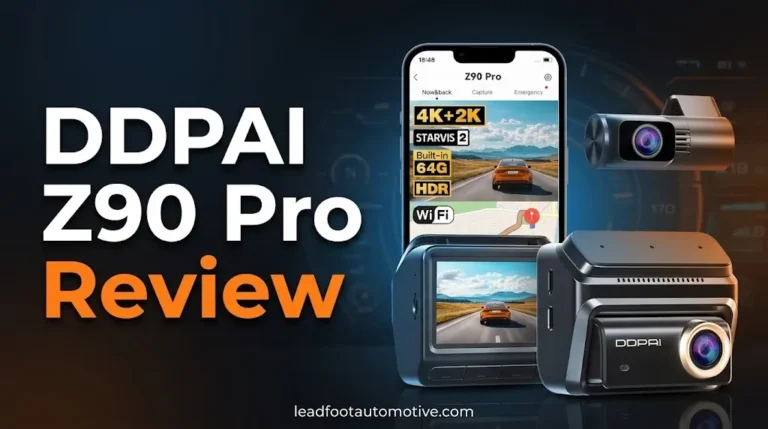
The DDPAI Z90 Pro is a dual-channel dash cam system that records the road ahead in 4K and the road…
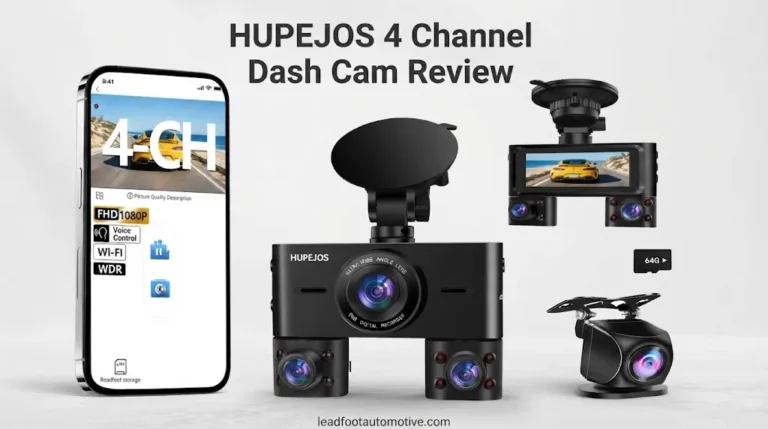
The HUPEJOS 4 Channel Dash Cam is a comprehensive vehicle surveillance system designed to record the front, rear, and interior…

The FAIMEE F6 is a dual-channel dash camera that records the road ahead in 4K and the rear view in…
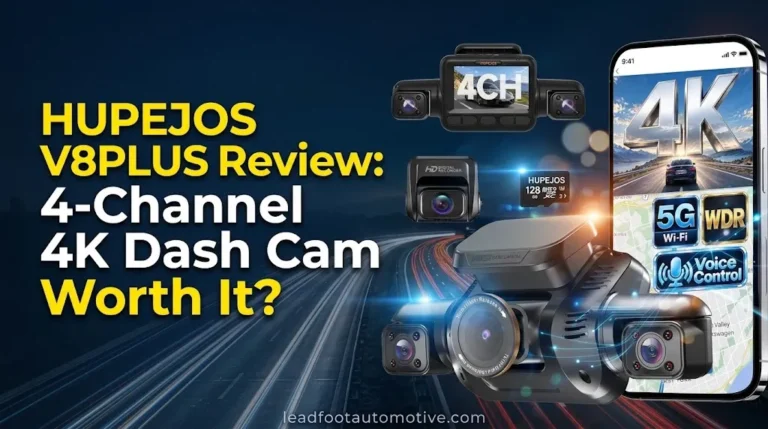
The HUPEJOS V8PLUS is a 4-channel 4K dash cam system built to record front, rear, and 360° surrounding views of…
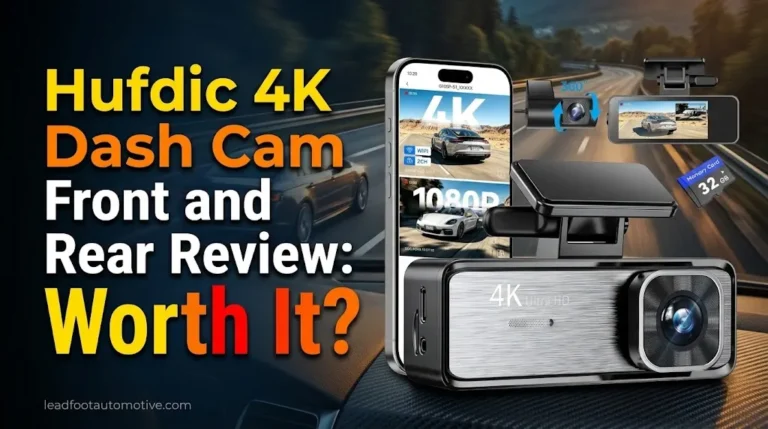
The Hufdic 4K Dash Cam Front and Rear is a dual-channel car camera that records the road ahead in 4K…
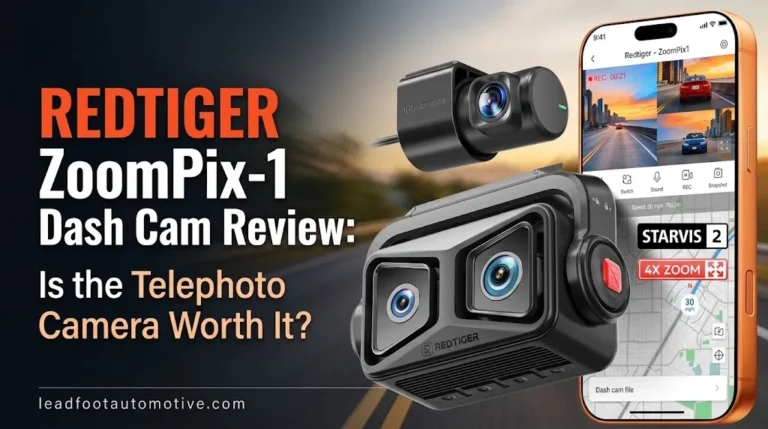
The REDTIGER ZoomPix-1 is a three-channel dash cam built around an unusual front-camera combination: a wide road camera plus a…
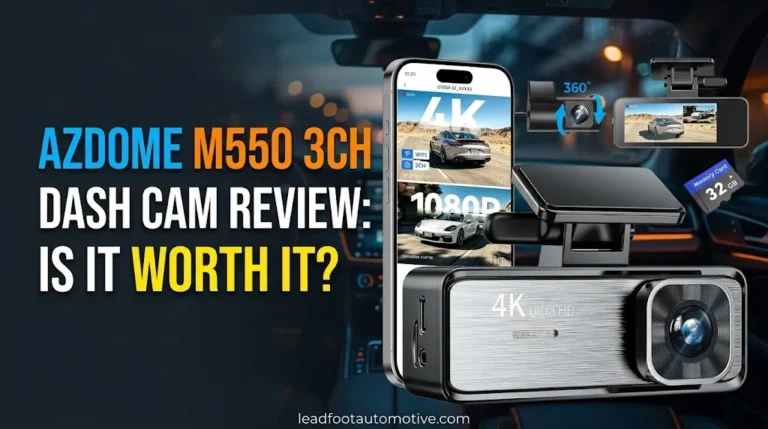
The AZDOME M550 3CH is a three-channel dash cam designed to record the road ahead, the vehicle cabin, and the…
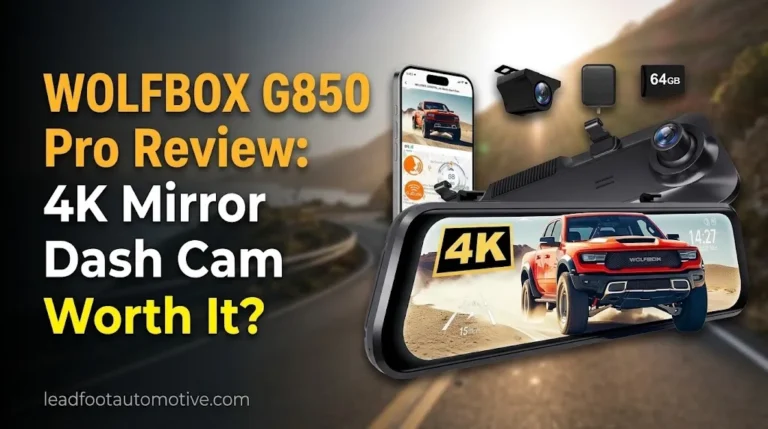
The WOLFBOX G850 Pro is a 12-inch smart rear view mirror that doubles as a 4K mirror dash cam with…
The best dash cam for Nissan Qashqai right now is the VIOFO A229 Pro — the only triple-channel model in…
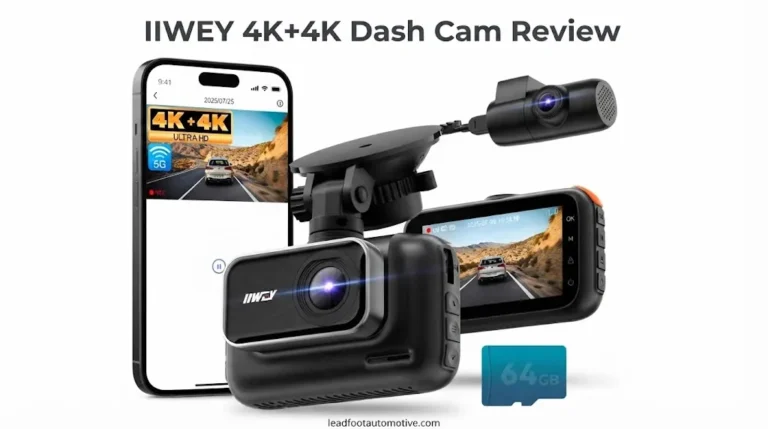
The IIWEY 4K+4K Dash Cam is a dual-channel vehicle recording system engineered to capture ultra-high-definition footage simultaneously from the front…
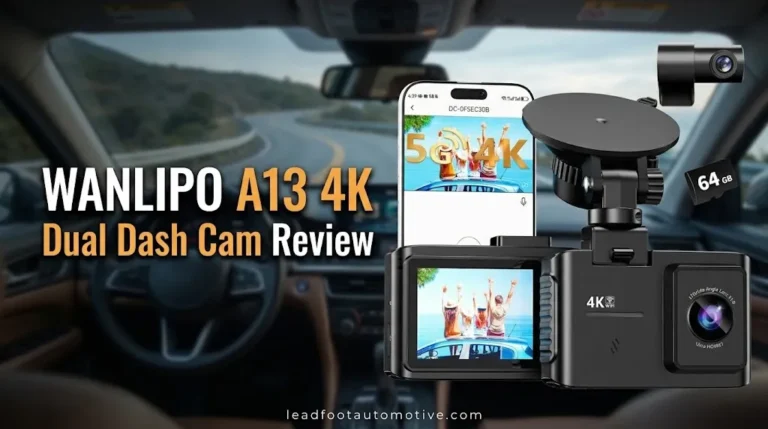
Finding the right balance between clear video evidence and a reasonable price can be challenging in the crowded dash cam…
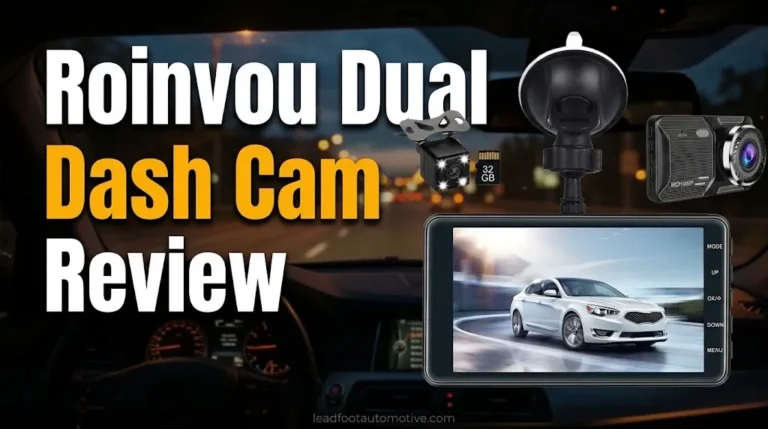
The Roinvou Dual Dash Cam provides an entry-level solution for drivers who want both front and rear recording without investing…
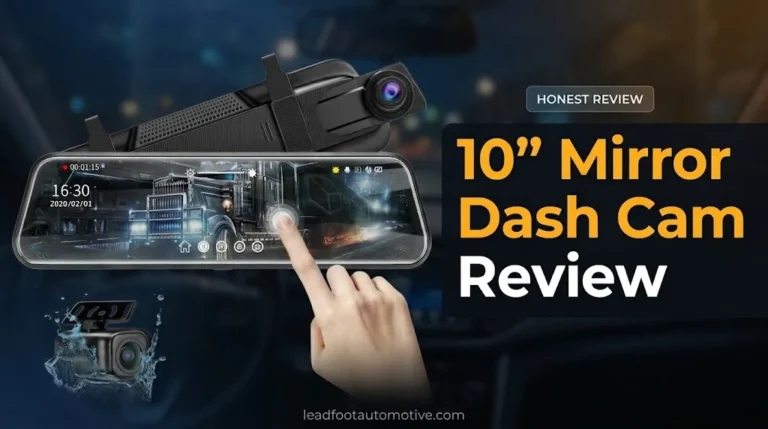
Upgrading an older vehicle with modern safety technology often leads to a cluttered dashboard covered in suction cups and trailing…
